A TSC TE310 that skips labels or won't calibrate is usually a Windows driver bug in Gap sensor mode, not a dirty sensor. In TSC Diagnostic Tool (or the Windows driver's Advanced settings), change Sensor Type from Gap to Black Mark, set Label Height and Form Length to your exact label size, then power off and hold FEED while powering on to recalibrate. It prints correctly right away — even though your labels use a gap. The same fix works on the TSC TE210.
Your TSC TE310 is skipping labels, stopping midway, or calibration keeps breaking after you fix it. You've tried recalibrating from scratch. You've checked the roll alignment. Nothing sticks. Sound familiar?
The first thing people assume is a dirty gap sensor. That gets cleaned with isopropyl alcohol and the problem comes back in an hour. The real cause, in a large number of cases, is a Windows driver issue: the TSC Windows driver sometimes handles Gap sensor mode incorrectly — it sends the wrong parameters to the printer over the TSPL command interface. The sensor isn't broken. The hardware isn't dirty. The driver is just silently miscommunicating the gap detection settings.
The fix is simple and instant: switch the sensor mode to Blackmark in TSC Diagnostic Tool or the Windows driver. Your labels have a normal gap — not a blackmark — but Blackmark mode completely bypasses the problematic gap-calculation logic. The printer uses label height and form length directly instead, and it works perfectly.
TSC TE310 or TE210 skipping labels? LabelInn bypasses the Windows driver entirely and communicates directly with your printer — no driver bugs, no broken calibration loops. Try free for 14 days →
Note: The TSC TE210 has the exact same issue. Same Windows driver, same gap sensor logic, same fix. Everything in this guide applies equally to the TE210.
Symptoms: What This Looks Like
- Printer skips one or more labels between prints — feeds past them blank
- Print job stops midway through a label, then either feeds forward or throws an error
- Labels print shifted up or down — content starts too high or too low
- "Paper Out" or "Error" LED blinks even though labels are loaded correctly
- Calibration seems to work but breaks again within the same print job or the next day
- Printer advances too many labels or feeds continuously without printing
- You cleaned the sensor and it still happens — the sensor looks physically fine
That last point is the key tell. If the sensor were dirty, cleaning would fix it for at least a few weeks. If the problem persists or returns quickly after a cleaning, the issue is the driver, not the hardware.
Fix 1: Switch to Blackmark Mode (Primary Fix)
This sounds wrong at first — your labels use a gap, not a blackmark. But Blackmark mode causes the printer to navigate label boundaries using explicit height and form length dimensions rather than optical gap detection. The Windows driver doesn't corrupt those parameters the same way it corrupts gap readings. Result: the printer works reliably, regardless of what your label backing physically looks like.
Method A: Via TSC Diagnostic Tool (Recommended)
Download TSC Diagnostic Tool from the TSC support page
Connect the TE310 (or TE210) via USB, open the tool, and click Printer Configuration
Find the Sensor Type setting. Change it from Gap to Black Mark
Set Label Height and Form Length to exactly match your physical label size (e.g. 100mm × 150mm)
Click Set to write the configuration to the printer
Run a test print. Labels should feed and print correctly without skipping or stopping midway.
Method B: Via Windows Printer Driver
Open Devices and Printers (or Printers & Scanners in Windows 10/11 Settings)
Right-click your TSC TE310 (or TE210) and choose Printer Properties
Go to the Advanced or Device Settings tab — this varies by driver version
Find the Media Sensing or Label Sensor option and change it to Reflective (Black Mark)
Confirm that label dimensions in the driver match your physical label size exactly
Click OK, then print a test page to confirm
In Gap mode, the TSC Windows driver constructs TSPL commands that include gap length and offset values. Across certain driver versions and Windows builds, these values come through wrong — either 0, negative, or out of range — and the printer receives an instruction it can't execute cleanly. In Blackmark mode, label positioning is driven directly by the label height / form length dimensions you set, which the driver passes through correctly. It's a driver bug with a hardware workaround built right into the printer's firmware.
Fix 2: Recalibrate After Changing Mode
After switching sensor mode, run a fresh calibration so the printer builds its feed measurements from scratch with the new settings.
FEED Button Calibration (fastest)
Turn off the TE310
Hold the FEED button and turn it back on
Keep holding until the LED blinks twice, then release
The printer feeds 2–4 labels to measure
When the LED turns solid, calibration is complete. Print a test label.
Fix 3: Check Label Dimensions Are Correct
In Blackmark mode the printer relies entirely on the label size you configured. If those dimensions are wrong — even slightly — labels will shift or print off-center.
| Setting | What to check |
|---|---|
| Label Height | Must match the physical height of one label (not including the gap/liner) |
| Form Length | Height of label plus gap — the full pitch from the start of one label to the start of the next |
| Label Width | Physical width of the label, not the liner |
Measure your labels with a ruler if unsure. Even a 1–2mm error in form length causes visible drift after a few labels.
Fix 4: Physical Sensor Cleaning (for Genuine Dirt Cases)
If you're on a machine that prints very high volumes, or the printer is in a dusty environment, the gap sensor can genuinely get dirty — label dust and adhesive residue block the light beam. This is a real issue, but it's secondary to the driver problem above. Clean the sensor if the printer is also used without a PC (stand-alone mode) and still misbehaves, or if switching to Blackmark mode doesn't fully resolve the skipping.
You'll need isopropyl alcohol (70% or higher, 99% preferred) and cotton swabs.
Turn off the TE310 and unplug from power
Open the top cover and remove the label roll
Locate the gap sensor — a small optical eye on the lower label path, roughly center of the label track. Transmitter is on the bottom plate; receiver is on the top arm. Clean both sides.
Dampen a cotton swab with isopropyl alcohol and gently wipe the sensor lens with a small circular motion. Yellow or brown residue coming off is normal.
Wipe the platen roller (black rubber roller) with a fresh IPA swab as well
Wait 1–2 minutes for full evaporation, then reload and recalibrate
Check Label Roll Alignment
The gap sensor on the TE310 is in a fixed center position. A roll loaded off-center means the sensor reads the backing paper instead of the gap between labels.
Check label guides — side guides should be snug against label edges, not compressing them
Label roll should be centered on the roll holder
If using narrow labels on a wide roll holder, confirm the centering brackets are properly positioned
TSC TE210 — Identical Issue, Same Fix
The TE210 is the entry-level sibling of the TE310. Both use the same Windows driver, the same transmissive gap sensor design, and the same TSPL command interface. The driver gap sensor bug manifests identically on both models. Switch to Blackmark mode, set correct label dimensions, recalibrate — the fix is the same.
Printing on macOS with TSC TE210 — No Windows Driver in the Loop
LabelInn bypasses the Windows driver and sends native TSPL commands directly from the Mac to the TSC printer:
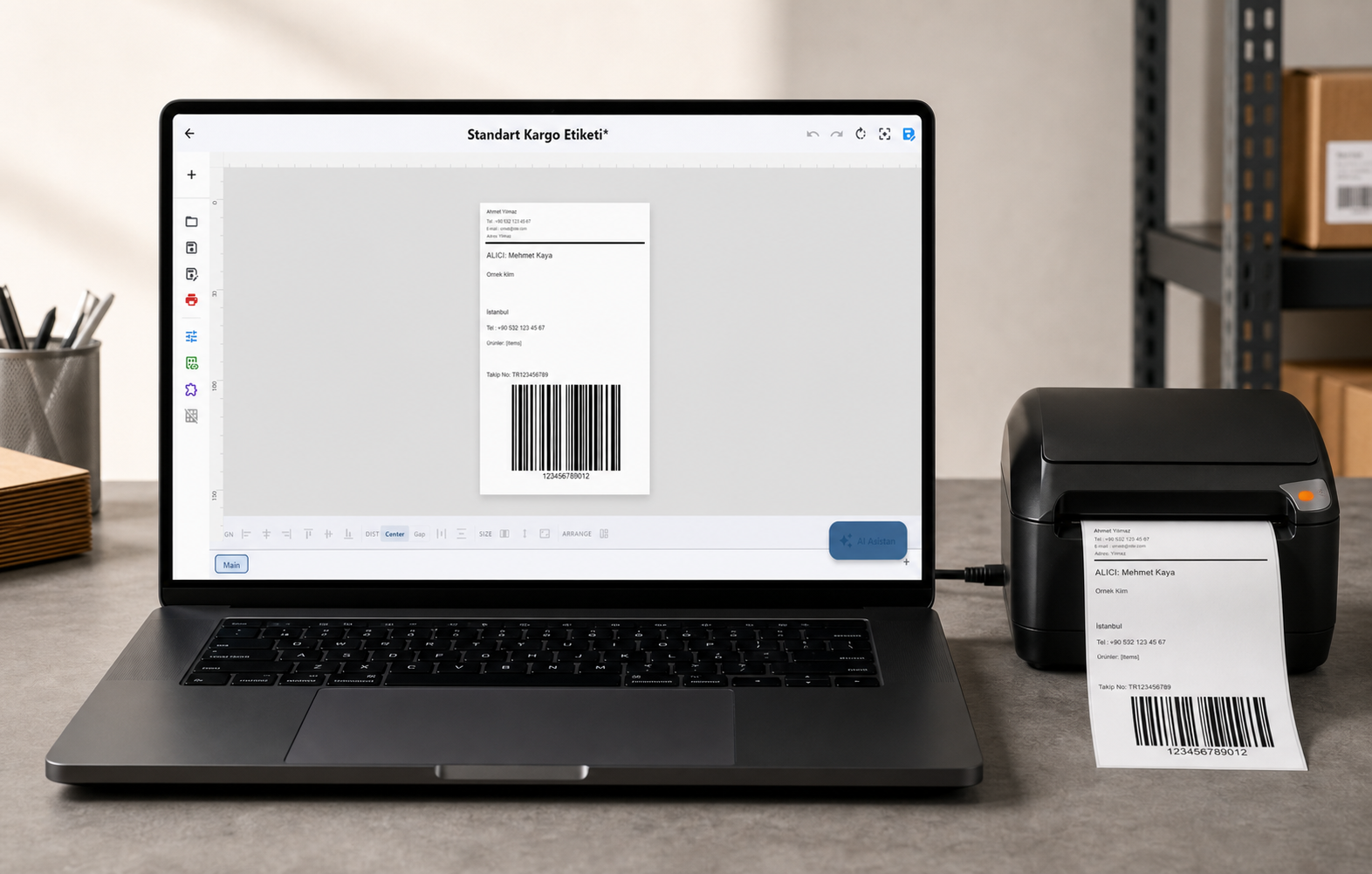
No Windows driver in the loop means no driver bugs. LabelInn talks directly to the TSC printer using TSPL commands — the gap sensor issue simply doesn't exist when you take the Windows driver out of the equation. See how driverless thermal printer software handles TSC, Zebra, Toshiba and Epson in each printer's own language, or download LabelInn free and connect your TE310 in under a minute.
Skip the Driver Problem Entirely
LabelInn communicates directly with your TSC TE310 — bypassing the Windows driver completely. It sets label dimensions and sensor mode correctly every time, with no calibration loops and no label waste. Free tier available; paid plans from $7.99/month.
Try LabelInn Free for 14 Days →Frequently Asked Questions
My TSC TE310 skips every other label. Is it the sensor or the driver?
If cleaning the sensor with isopropyl alcohol doesn't fix it permanently, it's almost certainly the Windows driver. Switch to Blackmark mode in TSC Diagnostic Tool, set the correct label dimensions, and run FEED-button calibration. That resolves 9 out of 10 persistent skipping cases.
Why does Blackmark mode work on labels that have a gap, not a blackmark?
In Blackmark mode the printer advances by label height + form length dimensions rather than optically detecting the gap. The Windows driver passes those dimension values through correctly, whereas it sometimes corrupts the gap-detection parameters. The sensor hardware still works as normal — you're just taking the buggy gap calculation out of the loop.
The TE310 stops midway through a label. What causes that?
The sensor is reading a "gap" in the middle of a label — either because the driver sent a wrong gap offset, or because debris on the sensor lens makes a faint patch look like a label boundary. Try Blackmark mode first. If that doesn't fix it, clean the sensor and check that label dimensions in the settings exactly match your physical label size.
I cleaned the sensor and calibrated but the problem came back in an hour.
That is the clearest sign it's a driver issue, not hardware. A genuinely dirty sensor stays clean for weeks after a proper cleaning. If the problem returns within hours, the sensor is fine — the driver is resetting or applying wrong gap parameters on each new print job. Switch to Blackmark mode.
Is the TSC TE210 affected by the same driver issue?
Yes. The TE210 and TE310 use the same Windows driver and the same gap sensor architecture. The Blackmark mode fix works identically on both models.
Can I use the TSC TE310 on macOS?
Yes. TSC printers support TSPL and can be used on macOS without a Windows driver using LabelInn. Since LabelInn bypasses the driver entirely, the gap sensor bug doesn't apply — calibration is handled correctly on both macOS and Windows.