MAY 7, 2026 / E-COMMERCE
From Marketplace Order to Printed Shipping Label in 4 Seconds A Workflow Walkthrough
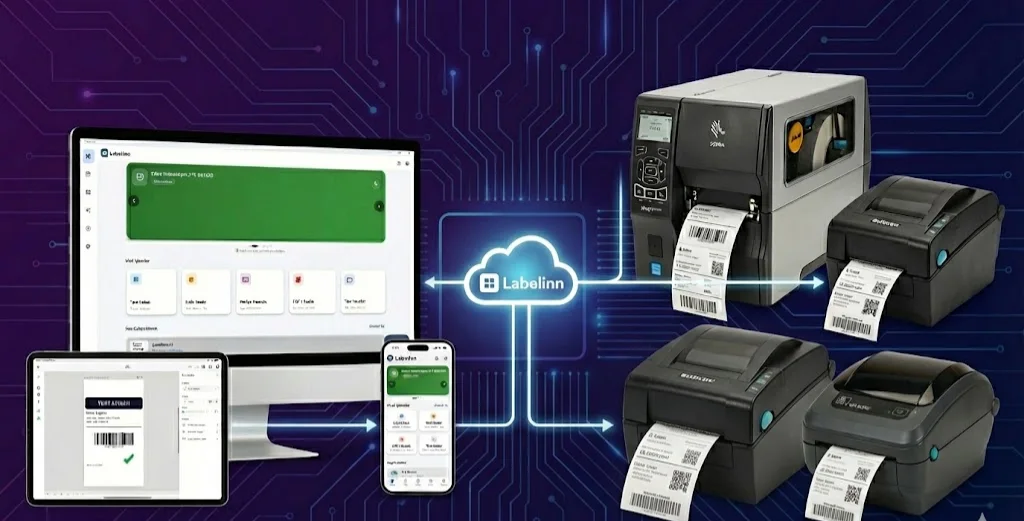
A walkthrough of the workflow we see most multi-marketplace e-commerce teams adopt: orders sync from Trendyol, Hepsiburada, ikas, and Shopify into LabelInn, route to the right cargo carrier, and print on a thermal printer in under 4 seconds.
IF marketplace == "Trendyol" AND weight < 5kg
   THEN cargo = "Trendyol Express"

IF marketplace == "Hepsiburada"
   THEN cargo = "Hepsijet"

IF marketplace == "Shopify" AND country != "TR"
   THEN cargo = "DHL Express"

IF marketplace == "ikas" AND city == "Istanbul"
   THEN cargo = "MNG Same Day"
   ELSE cargo = "approved-standard-connection"
THE PROBLEM
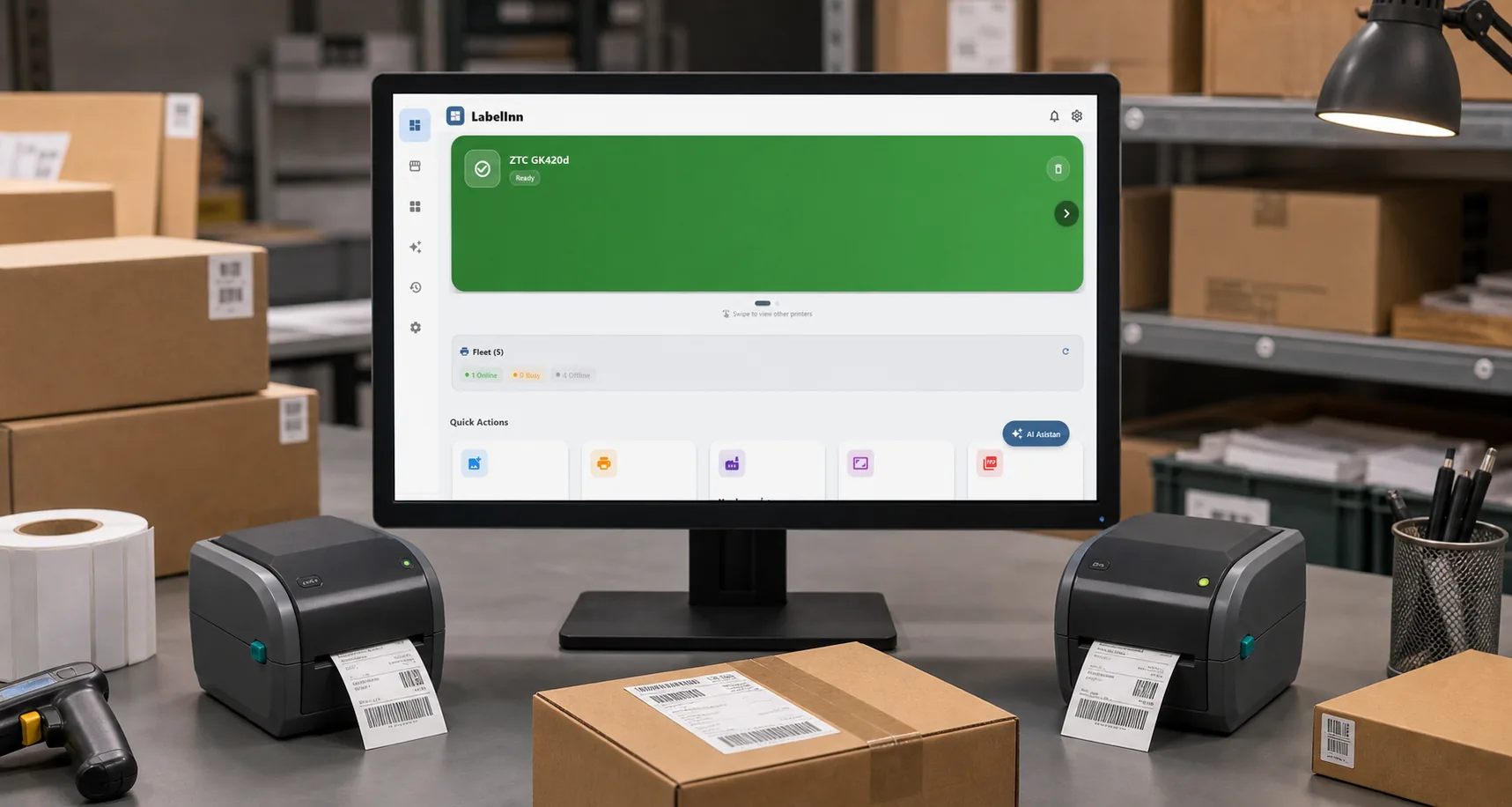
This walkthrough is a composite — the same workflow we've watched dozens of multi-marketplace fulfilment teams adopt after onboarding. Names and exact numbers are illustrative; the steps and integrations are exactly what the platform does today. Treat it as a template for designing your own setup, not a customer interview.
Picture a small e-commerce operation: ~800 daily orders spread across Trendyol (~40%), Hepsiburada (~25%), an ikas storefront (~20%), and a Shopify site for the international SKUs (~15%). Two packers in the warehouse. A laptop, three thermal printers (one Zebra, one TSC, one Epson ColorWorks for the color brand inserts), and far too many browser tabs.
Before LabelInn, the morning looked like this: log into Trendyol Seller Center, download the day's labels as PDF, print to the Zebra. Switch tab, log into Hepsiburada, click 30 times to download the labels one by one (their bulk export was unreliable). Switch to ikas, then Shopify. Three packers, four browser tabs each, ~40 minutes of label hunting before a single box was packed.
Below is the workflow that replaced it. If you run a similar operation, you can copy this almost verbatim.
01
The 4-Second Path
End-to-end, what happens when a customer places an order on Trendyol:
- ~0.0s — Trendyol POSTs the order to LabelInn via the marketplace integration (or LabelInn polls every 60s, depending on the channel).
- ~0.5s — LabelInn normalises the order: marketplace SKU → internal SKU → cargo carrier rule (e.g. "Trendyol orders < 5kg → Trendyol Express", "Shopify international → DHL").
- Shipping call — LabelInn can call a customer-configured API and map its tracking number and label payload after the exact connection has passed preview and end-to-end tests.
- ~2.0s — Print rules pick the right printer at the right site. The label hits the queue.
- ~3.5s — The thermal printer fires. The packer picks the label off the printer.
The packer never opened a browser. They just hear the printer.
02
What You Need
- A LabelInn account (Pro or higher unlocks the marketplace integrations and the print rules engine)
- One or more thermal printers — any Zebra ZPL-compatible model, TSC, Brother, Argox, or Epson ColorWorks for color labels work out of the box
- API credentials or OAuth for each marketplace (Trendyol Seller API, Hepsiburada Marketplace API, ikas API, Shopify private app)
- API credentials for a shipping contract your business is authorized to use
03
Step-by-Step Setup
Step 1: Connect Your Marketplaces
In LabelInn, go to Integrations → Marketplaces. Each connector is a guided flow. Trendyol asks for your seller ID and API token (find them under Trendyol Seller Center → Account Information → Integration Information). Hepsiburada and ikas use OAuth; Shopify uses a private app token. Each connection takes about 90 seconds.
Once a marketplace is connected, LabelInn back-fills the last 7 days of orders so you can verify mappings before going live. Spot-check a few orders' addresses, prices, and SKUs in Orders → Recent before flipping the auto-print switch.
Step 2: Connect Your Cargo Carriers
Under Integrations → Cargo, use Build Your Own API to import an authorized REST, OpenAPI, or cURL contract. Map shipment, tracking, barcode, and label fields, then validate the whole flow before enabling production writes.
For each carrier, paste your API credentials and pick a default service level (standard, next-day, etc.). LabelInn will use this when generating shipping labels — you can override per order if you need.
Step 3: Define Your Cargo Routing Rules
This is where the time savings come from. Settings → Print Rules lets you write declarative rules:
IF marketplace == "Trendyol" AND weight < 5kg
   THEN cargo = "Trendyol Express"

IF marketplace == "Hepsiburada"
   THEN cargo = "Hepsijet"

IF marketplace == "Shopify" AND country != "TR"
   THEN cargo = "DHL Express"

IF marketplace == "ikas" AND city == "Istanbul"
   THEN cargo = "MNG Same Day"
   ELSE cargo = "approved-standard-connection"
Rules evaluate in order, top to bottom, first match wins. Test with the dry-run button before turning on auto-execution.
Step 4: Pair Each Printer with a Use Case
In Printers → Fleet, tag each printer with a role:
- Zebra ZD420 → "shipping_labels", site "warehouse_a"
- TSC TE310 → "shipping_labels" (backup), site "warehouse_a"
- Epson ColorWorks C7500 → "color_inserts", site "warehouse_a"
Then a print rule decides where the label goes:
IF label_type == "shipping_label"
   THEN printer.role == "shipping_labels"
   ROUTING healthiest_first
If the Zebra is busy or offline, the TSC takes over automatically. If both are down, jobs queue (don't fail) until a printer reports back.
Step 5: Turn On Auto-Print
The last switch. Orders → Auto-Print Settings → Enable for all connected marketplaces. From this moment, every new order that comes in via any of your channels will hit the printer within 2–4 seconds — no human in the loop.
For the first day we recommend leaving the rule in "review" mode: orders queue with a "ready to print" flag and a packer hits a single Print button per order. Once you've seen 50–100 orders go through cleanly, flip review off and let it run.
04
What This Looks Like at the Floor Level
Morning: packer walks in. Three printers are already humming with the overnight orders. The packer picks labels off the printers and stages them on a packing table, six labels at a time. Pack the boxes, slap the label, scan, move the box to the cargo bay.
Mid-day: a printer runs out of labels. The order keeps flowing — LabelInn rerouted to the backup the moment it saw the head-open signal. The packer reloads media, the printer comes back online, and queued jobs flush within seconds. No "lost" orders, no manual reprints.
End of day: the packer hits "Mark all shipped" in LabelInn. Tracking numbers flow back to each marketplace via the carrier integration. Customers get their tracking emails before the packer leaves.
05
Numbers (Composite, Not From a Single Customer)
Across the teams we've onboarded with this kind of setup:
- Time per order from arrival to label-on-box: ~6 seconds typical, vs. 30–60 seconds in manual mode (a 5–10× improvement)
- Mis-shipped orders (wrong label on a box): typically drops to under 0.1% from 1–2%, because the SKU on the label is generated from the marketplace order, not hand-picked
- Labour reclaimed: roughly one full hour per packer per day at ~800 orders/day, freed up for picking, packing, and customer service
- Browser tab count during a packing shift: commonly drops from 6–10 down to zero — packers don't need a browser anymore
These are typical ranges from the customers we've worked with. Your numbers will depend on order volume, SKU complexity, and how many marketplaces you run.
06
Edge Cases the Workflow Handles
Multi-Item Orders
One order with three SKUs prints one shipping label and (optionally) a picking list with photos and shelf locations of all three items. The picking list is a separate design tied to the same order — see our order preparation checklist post for that side of the workflow.
International Orders Through Shopify
Customs forms (CN22 / CN23) print automatically when the destination is non-TR. The carrier rule routes to DHL or USPS; the customs form is a second job in the same atomic batch — both labels arrive at the printer in the same second.
Returns / RMA
Customer-service triggers a return label from the order detail page. Same path: rule decides carrier, label hits the printer (or emails as PDF if the customer is printing it themselves). Tracking flows back to the original order so you can see the return in motion in your marketplace dashboard.
Promo Inserts
The same workflow can spit out a color promo card from the Epson ColorWorks alongside the shipping label — see our shipping label promo guide for the design pattern.
Ready to copy this workflow? The marketplace and cargo connectors come on the Pro plan. Free 14-day trial — no credit card. Start free for 14 days →
07
Where Most Teams Get Stuck
- SKU mapping. Marketplaces let sellers use any SKU they want, so the same product is "TSH-MCL-001-L" on Trendyol, "blue-tshirt-large" on Hepsiburada, and "tshirt_blue_l" on Shopify. Spend 30 minutes the first day in Products → SKU Mapping aliasing them all to a single internal SKU. Future-you will not regret this.
- Shipping accounts. Obtain the provider's API authorization, documentation, and test credentials before configuring LabelInn; account enablement is controlled by the provider.
- Test labels with the actual destination format. A label that looks fine on screen may be rejected by a courier scanner if the barcode is below a quality threshold. LabelInn previews barcode scan-grade in the canvas; check it before you go live.
- Don't auto-print on day one. Run review mode for 24–48 hours. Packers spot-check a few orders, you tune SKU mappings, then flip the switch. The pain of one bad day under auto-print is far worse than the inconvenience of two days clicking Print buttons.
08
Beyond the Basics
Once the basic workflow is humming, two power features are worth turning on:
- Webhooks — get notified the moment a label fails so customer service knows before the customer does. See our REST API guide.
- The MCP server — let your floor manager talk to the fleet in plain English ("reprint the failed jobs from the last hour"). See our MCP server guide.
09
Try It with One Channel First
Don't try to wire up four marketplaces and three carriers on day one. Pick the channel that hurts the most — usually whichever one your packers complain about most loudly — and get that workflow working end to end. Add the second channel only after the first one's gone a full week without a manual reprint.
KEEP GOING
Related Articles
NEXT STEP / LABELINN
Build Your Own Marketplace Workflow
Free 14-day trial — no credit card. Onboard the first marketplace in under 10 minutes. · 13 marketplace connectors · 12 cargo carriers built in · Print rules + multi-printer routing