JUNE 6, 2026 / AUTOMATION
Print Labels from Make.com Visual Automation for Thermal Labels
Print labels from Make.com with LabelInn: add a print module to any visual scenario. Dynamic design/variable dropdowns, per-element styling, instant webhooks.
POST https://www.labelinn.com/v1/print/jobs
Authorization: Bearer sk_live_xxx
X-Idempotency-Key: airtable-rec_8H2kP9-v1
Content-Type: application/json

{
  "payload_type": "template",
  "design_id": "dsn_shipping_pro",
  "printer_id": "prn_warehouse_a",
  "copies": 1,
  "data": {
    "order_id": "45123",
    "customer_name": "Maria Gomez",
    "address": "221B Baker Street, London",
    "tracking_url": "https://track.example.com/45123"
  }
}
THE PROBLEM
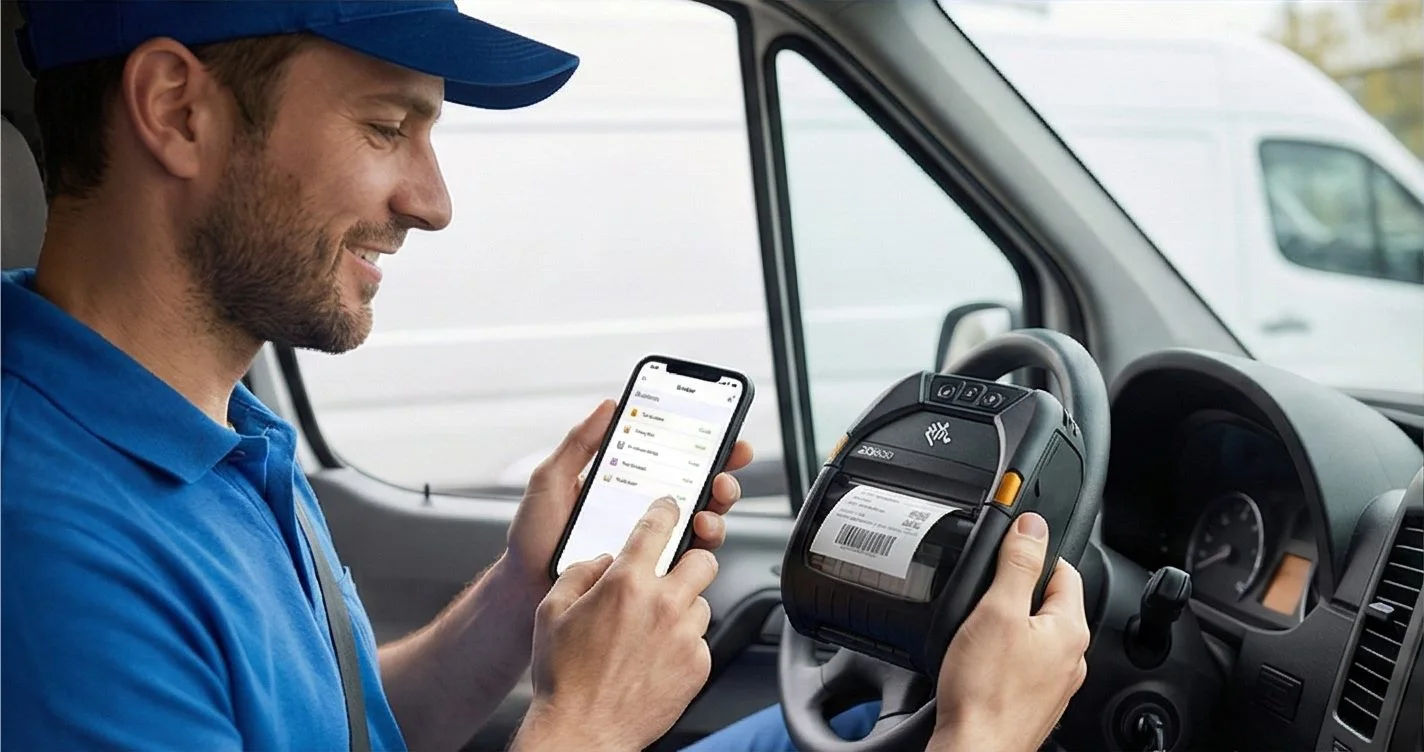
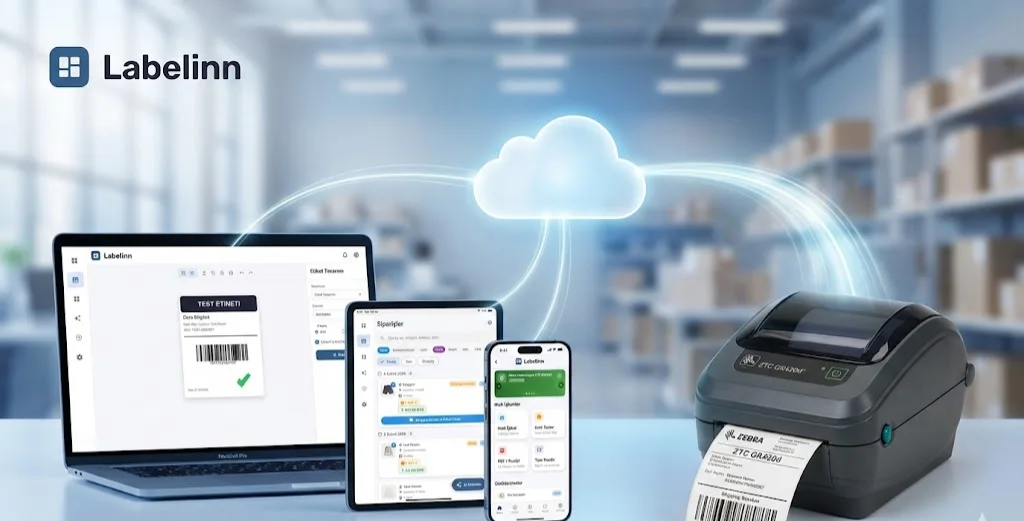
LabelInn now connects to Make.com. If your operations already run on Make's visual canvas — pulling orders from Shopify, enriching rows in Airtable, branching on conditions — you can now print labels from Make.com as just another module in the same scenario. A real thermal label comes off a real printer at the end of the flow. No glue code, no JSON blobs to hand-assemble, no separate print app to babysit.
This is a news-worthy addition for anyone doing multi-step fulfillment, manufacturing, or compliance printing. Below is what shipped, how to connect it, and a worked scenario you can build today.
01
Why Make.com Fits Label Printing
Make.com (formerly Integromat) is built around a visual scenario builder: each step is a module, modules pass structured bundles to each other, and a Router lets you fork the flow on any condition. Printing a label is rarely the only step — you usually want to look up data, decide which design to use, maybe split a batch, and react when something goes wrong. That branching shape is exactly where a visual builder beats a single-purpose print button.
With ~2,000+ connectable apps on Make, LabelInn becomes the print endpoint at the tail of flows that start almost anywhere: an e-commerce order, an inventory move, a new batch in your MES, a form submission, a scheduled CSV pull. You wire the data once and the label follows.
One important reality check
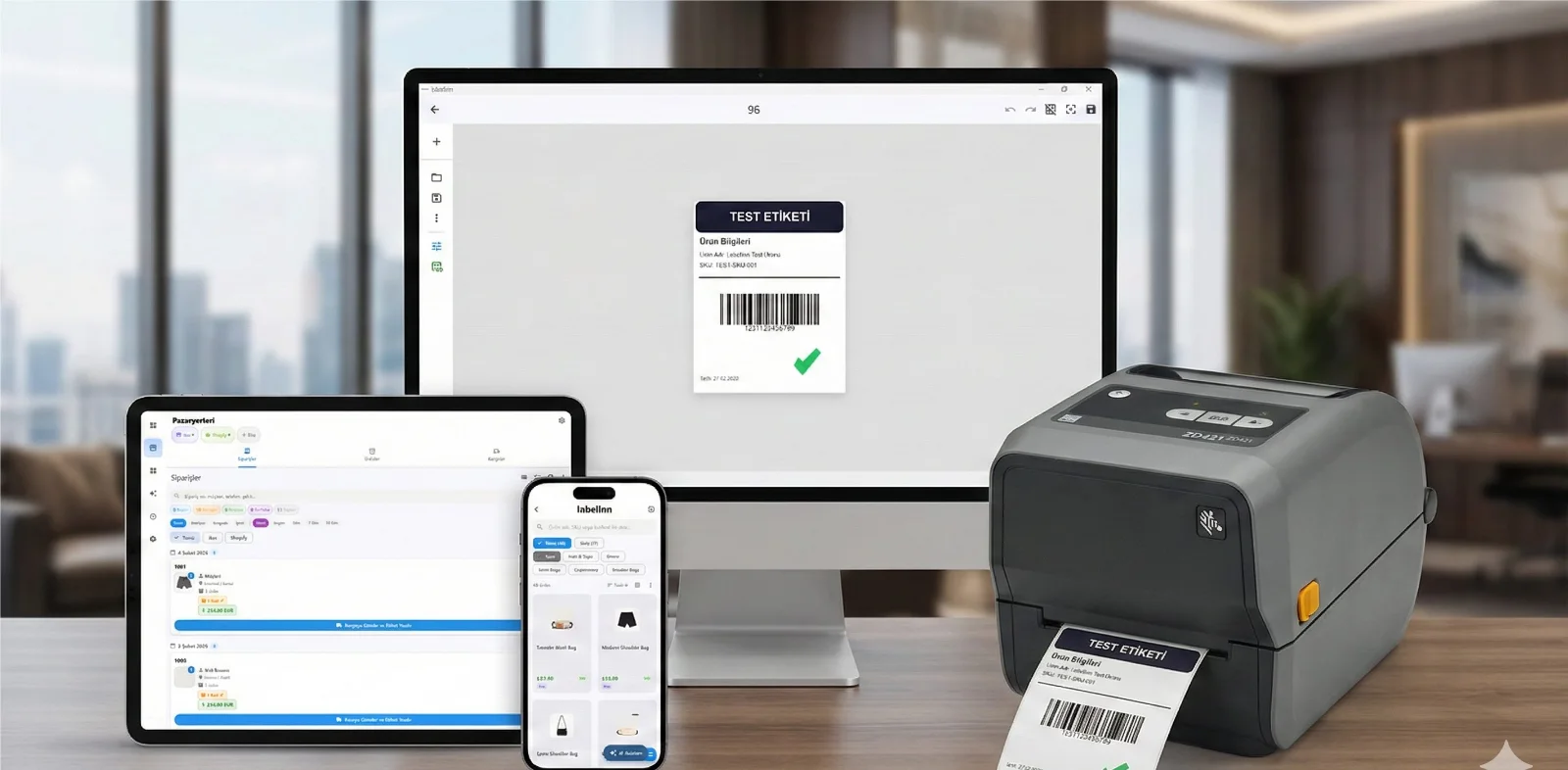
LabelInn rasterizes every design on the LabelInn edge desktop app and spools it to the physical printer. That means a LabelInn device has to be online for a queued job to actually print — or for a render preview to come back. Make submits the job to the LabelInn API; the edge app does the physical work. Keep at least one device running where your printers live and the flow completes end to end. Supported hardware spans 50+ thermal models — Zebra, TSC, Brother, Honeywell, Epson ColorWorks, and more.
02
Connecting LabelInn in Make.com
The LabelInn app for Make is available now, in early access. You add a LabelInn module to a scenario and create a connection. Two options:
- OAuth — sign in with your real LabelInn email and password. LabelInn mints a scoped key for the connection; you never paste a raw secret into Make.
- API key — paste a
sk_live_(orsk_test_) key directly if you prefer to manage keys yourself. Keys are SHA-256 hashed and scoped on our side.
Good news on access: the LabelInn API — and therefore this integration — is open from the Free tier up. You do not need an upper plan to start automating. Daily print quotas scale with your plan (Free 25/day, Starter 250/day, Pro 2,000/day, Enterprise 50,000/day), so the integration grows with you instead of gating you at the door.
03
Dynamic Dropdowns: No JSON, Ever
The part that makes the Make app pleasant to use is its RPC-driven dynamic dropdowns. When you drop a LabelInn module into a scenario, it calls back to LabelInn to populate fields from your actual account:
- Printer — a dropdown of your real printers, so you map by name, not by guessing an ID.
- Design — a dropdown of your saved designs.
- The design's variables — once you pick a design, every fillable field on that label appears automatically as its own input. A label bound to
order_id,customer_name, andtracking_urlshows three labelled fields you map Make data into. No rawdataobject to construct by hand.
Need to restyle on the fly? Open Make's native "Show advanced settings" and you'll find per-element style overrides tucked underneath — font, size, color, bold — grouped per element and pre-filled with each element's current value. Change only what you need; leave the rest as designed. This maps straight onto the LabelInn Designs API, where GET /v1/designs/:id/variables?advanced=1 returns the same field specs and current per-element values the dropdowns are built from.
04
The Modules You Get (~22)
The Make app exposes about 22 modules. The ones you'll reach for most:
Printing
- Print From Template — pick a design, fill its variables (the auto-generated fields), set copies and a target printer. The workhorse.
- Print ZPL — send raw ZPL to a printer for advanced/legacy templates.
- Print Image — print a hosted PNG/PDF by URL.
Authoring designs
- Create Design — build a fully populated label in one module using an inline Elements array: text, barcode, and image elements with position, size, font, color, and bold. Bind an element to a variable to make it fillable later.
- Add Element to Design — append a single element to an existing design.
Previews & jobs
- Render Preview (start) + Get Render Result — a two-step pair: kick off a render, then fetch the resulting PNG URL. (Because rendering runs on the edge device, the result comes back once the device produces it — hence the start/poll split.)
- Job modules — get a job, cancel a job, reprint a job.
- List / find Designs and Printers — for lookups inside a flow.
Platform
- Rules, Sites, and Webhooks modules for managing the broader LabelInn account from a scenario.
05
Instant-Trigger Webhooks for Branching Scenarios
Printing is only half the story; reacting to print outcomes is the other half. The Make app provides instant-trigger webhooks so a scenario fires the moment something happens, instead of polling on a schedule:
- Job Created — a job entered the queue.
- Job Completed — the edge device finished printing.
- Job Failed — the print didn't succeed (offline printer, media out, render error).
- Supply Low — a printer is running low on media/ribbon (where supported).
- Printer Status changed — a printer came online or went offline.
These are the hooks that let you build resilient automations: alert a Slack channel on Job Failed, open a replenishment task on Supply Low, or update an order's status on Job Completed. Branch on them with a Router and your label flow becomes self-monitoring.
06
Worked Scenario: Order Row → Print → Alert on Failure
Here's a concrete print-labels-from-Make.com scenario a fulfillment team can build in an afternoon.
The happy path
- Trigger: Airtable — Watch Records (or a custom Webhook) fires when a new "Ready to Ship" row appears.
- Router: branch by destination — e.g. domestic vs. international labels use different designs.
- LabelInn — Print From Template: on each branch, pick the matching design. Its variables appear as fields; map the Airtable columns into
order_id,customer_name,address, andtracking_url. Setcopiesand the destination printer from the dropdown.
What the Print From Template module sends under the hood maps cleanly onto the canonical LabelInn print endpoint:
POST https://www.labelinn.com/v1/print/jobs
Authorization: Bearer sk_live_xxx
X-Idempotency-Key: airtable-rec_8H2kP9-v1
Content-Type: application/json

{
  "payload_type": "template",
  "design_id": "dsn_shipping_pro",
  "printer_id": "prn_warehouse_a",
  "copies": 1,
  "data": {
    "order_id": "45123",
    "customer_name": "Maria Gomez",
    "address": "221B Baker Street, London",
    "tracking_url": "https://track.example.com/45123"
  }
}
Note the X-Idempotency-Key header. The Make app sets an idempotency key on every print action, so if a scenario retries (Make loves retries), re-using that key within 24 hours returns the original job instead of printing the label twice. That single detail prevents the classic automation footgun: duplicate prints on flaky runs.
The failure branch
In a separate scenario, add the LabelInn Job Failed instant webhook as the trigger. When a print fails — printer offline, media out, render error — the webhook fires immediately with the job details. Wire a Router, then:
- Slack — Create a Message: post to
#fulfillment-alertswith the order ID, the failure reason, and the printer name. - Optionally, LabelInn — Reprint Job after a delay, or open a task in your ops tool.
Because the trigger is instant, the team hears about a stuck label in seconds — not when a customer asks where their package is.
Every print — whether it came from Make, Zapier, the API, or MCP — auto-writes a hash-chained audit log and a finalized print history entry. So even your no-code scenarios leave a tamper-evident trail you can hand to an auditor.
07
Authoring a Label From Scratch in a Scenario
You don't have to design in the web canvas first. The Create Design module takes an inline Elements array, so a scenario can stand up a brand-new template — say, a fresh SKU label keyed off a new product row — and immediately print it. Here's the shape the module assembles for the Designs API:
POST https://www.labelinn.com/v1/designs
Authorization: Bearer sk_live_xxx
Content-Type: application/json

{
  "name": "SKU Label — {{product_sku}}",
  "width_mm": 100,
  "height_mm": 50,
  "elements": [
    {
      "type": "text",
      "x": 8, "y": 6, "font_size": 22, "bold": true,
      "variable": "product_name"
    },
    {
      "type": "barcode",
      "x": 8, "y": 28, "symbology": "code128",
      "variable": "product_sku"
    }
  ]
}
The response returns a design_id you can feed straight into Print From Template on the next module. Bound elements (those with a variable) become the mappable fields you saw in the dropdowns; unbound ones stay static. Add more with the Add Element to Design module if you build the label up over several steps.
08
Make vs. Zapier vs. API vs. MCP
Make's strength is the visual, branching scenario — Routers, filters, iterators, and aggregators make it the right home for multi-step label logic. If you prefer Zapier's linear Zaps, LabelInn is there too — see Print Labels from Zapier. If you want full programmatic control, the LabelInn API exposes the same POST /v1/print/jobs endpoint these apps call. And for natural-language, AI-agent-driven printing, the MCP server lets Claude, Cursor, or any Model Context Protocol client print directly. For a head-to-head, read Zapier vs Make vs API vs MCP — which to choose.
09
Honest Status
Two things to keep straight, in plain terms:
- The Make app is in early access. It works today, but it is not a finished, broadly-listed app yet. Sign up to get started and tell us what's missing — that feedback shapes the order modules and triggers ship next.
- API access is open from Free up. You can build and test a real scenario on a Free plan; you only move up a tier when your daily print volume calls for it.
Everything described here — modules, dropdowns, per-element overrides, idempotency, webhooks — reflects the current early-access build. We'll keep this post in step as the app matures.
KEEP GOING
Related Articles
NEXT STEP / LABELINN
Build Your Print Scenario
Drop a LabelInn module into any Make.com scenario, connect with OAuth, and print a real thermal label at the end of your flow. Free 14-day trial — no credit card. · ~22 modules + instant webhooks · Dynamic design & variable dropdowns · Idempotent prints, API open from Free