JUNE 6, 2026 / AUTOMATION
Print Labels from Zapier Connect 8,000+ Apps to Your Label Printer
Print labels from Zapier with LabelInn: pick a design, map order data into per-variable fields (no JSON), and print from Shopify, Sheets and 8,000+ apps.
POST https://www.labelinn.com/v1/print/jobs
Authorization: Bearer sk_live_...
X-Idempotency-Key: shopify-order-1029847
Content-Type: application/json

{
  "payload_type": "template",
  "design_id": "shipping-pro",
  "printer_id": "warehouse-a-zt411",
  "copies": 1,
  "data": {
    "order_id": "1029847",
    "customer_name": "Dana Whitfield",
    "address": "184 Harbor St, Portland, OR 97204",
    "tracking_url": "https://track.example.com/1Z999AA10123456784"
  }
}
THE PROBLEM
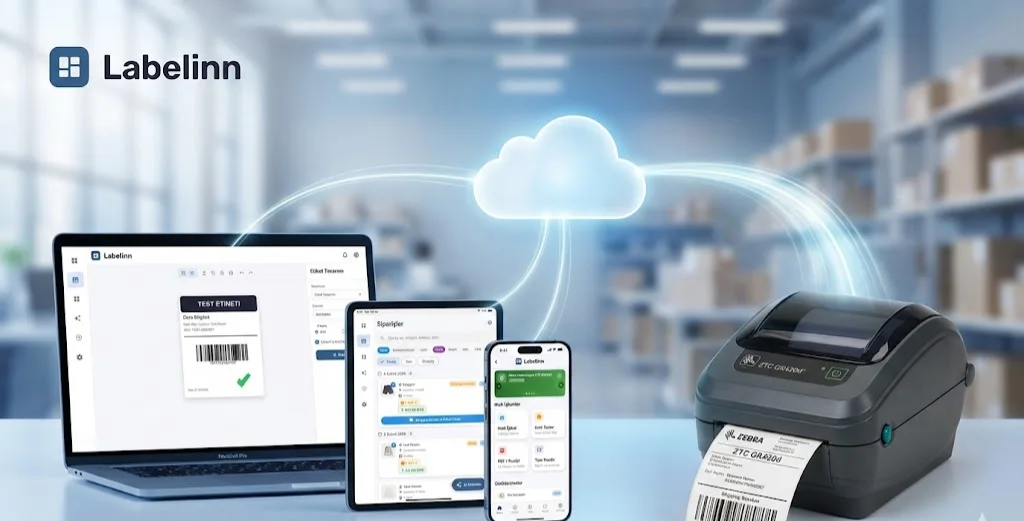
Your orders already live in software. A Shopify sale, a new row in Google Sheets, an Airtable record, a form submission, a webhook from your WMS — the data is right there. So why is someone still hand-typing a SKU into a label editor, hitting print, and praying the LOT number didn't get fat-fingered? You can now print labels from Zapier and skip that step entirely: the moment an order lands, the right thermal label spools to the right printer, with the right data, automatically.
LabelInn now connects to Zapier. That means any of the thousands of apps in the Zapier ecosystem — Zapier itself advertises 8,000+ connectable apps — can trigger a real thermal-label print on your real hardware, with no code and no JSON. This post walks through what the integration does, how it works in four steps, the full list of actions and triggers, and a complete worked example you can copy.
01
The Problem: Your Data Is Automated, Your Printing Isn't
Most label workflows have one painfully manual link in an otherwise automated chain. The order is created automatically. The inventory updates automatically. The customer gets a confirmation email automatically. And then a human opens a separate app, finds the right template, retypes the order number and address, picks a printer, and clicks print. Multiply that by a few hundred orders a day and you have a full-time copy-paste job — and a steady stream of mislabeled boxes.
The fix is to treat printing as just another step in your automation. That's exactly what the LabelInn Zapier integration does: it turns "print this label" into a Zap action that fires off your existing triggers.
02
What the LabelInn Zapier Integration Does
LabelInn is a cloud + edge thermal-label platform. You design labels once in LabelInn, and a small LabelInn desktop app on a machine near your printer does the actual rasterizing and spooling. Zapier sits in front of that: it sends print jobs to LabelInn's API based on triggers from your other apps, and it can listen for LabelInn events to close the loop.
The headline feature is the field mapping. When you pick one of your designs inside a Zap, its variables appear as individual, mappable fields — one box per fillable element. No JSON blob, no escaping quotes, no guessing key names. If your shipping label has order_id, customer_name, address, and tracking_url, you'll see four labeled fields, and you drag your Shopify (or Sheets, or Airtable) data straight into them.
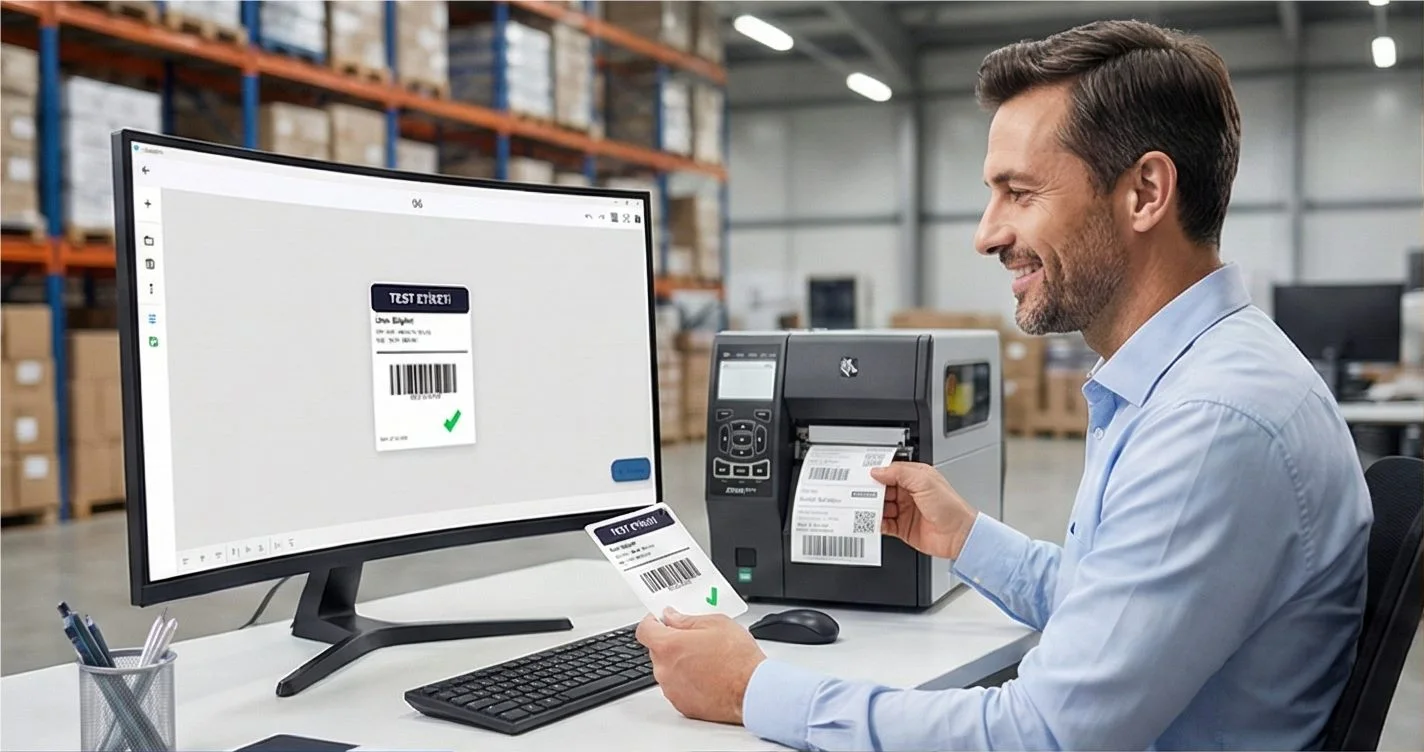
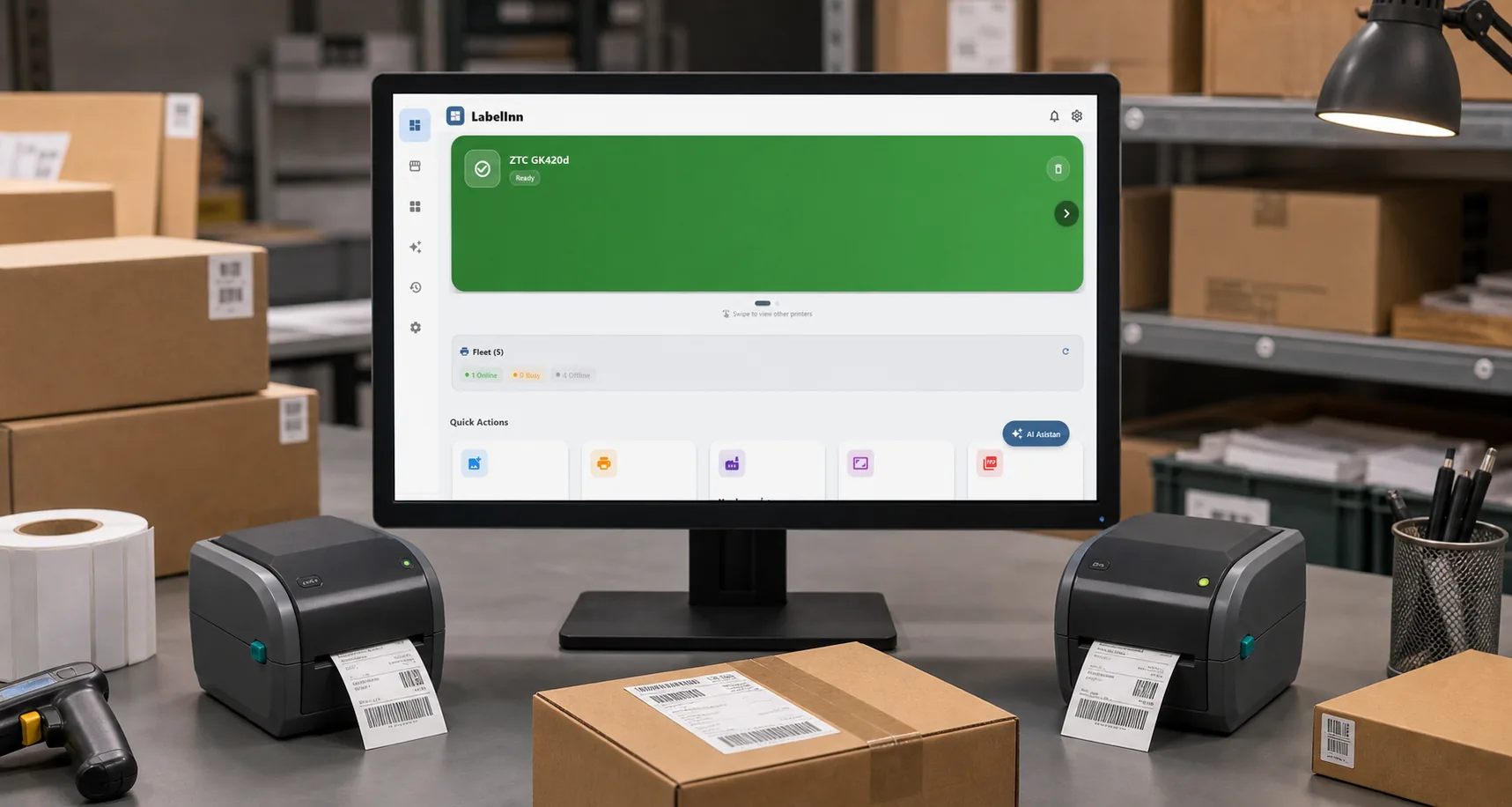
Printer and design pickers are dropdowns that show live status, so you can tell at a glance whether the warehouse printer is online before you build the rest of the Zap. And every print action carries idempotency, so a Zapier retry won't double-print the same box.
03
How to Print Labels from Zapier in 4 Steps
Step 1 — Connect via OAuth Sign-In
Add the LabelInn action to a Zap and connect your account. The integration uses OAuth (with PKCE): you sign in with your real LabelInn email and password, approve the scopes, and Zapier receives a scoped key automatically. There's no copying API keys into text boxes, and nothing to rotate by hand later.
Step 2 — Pick a Design; Variables Become Fields
Choose the Print From Template action and select one of your saved designs from the dropdown. LabelInn reads that design's variables and renders them as separate input fields right there in the Zap editor. A 4-element shipping label gives you 4 fields. A GHS chemical label gives you its hazard fields. Static elements stay static; only the bound, fillable variables show up to be mapped.
Step 3 — Map Your Trigger Data
Drag the values from your trigger step into those fields. Shopify's Order Number goes into order_id, the shipping name goes into customer_name, and so on. Set Copies (1–1000) and, optionally, choose the printer — or leave it on the design's default.
Step 4 — Print
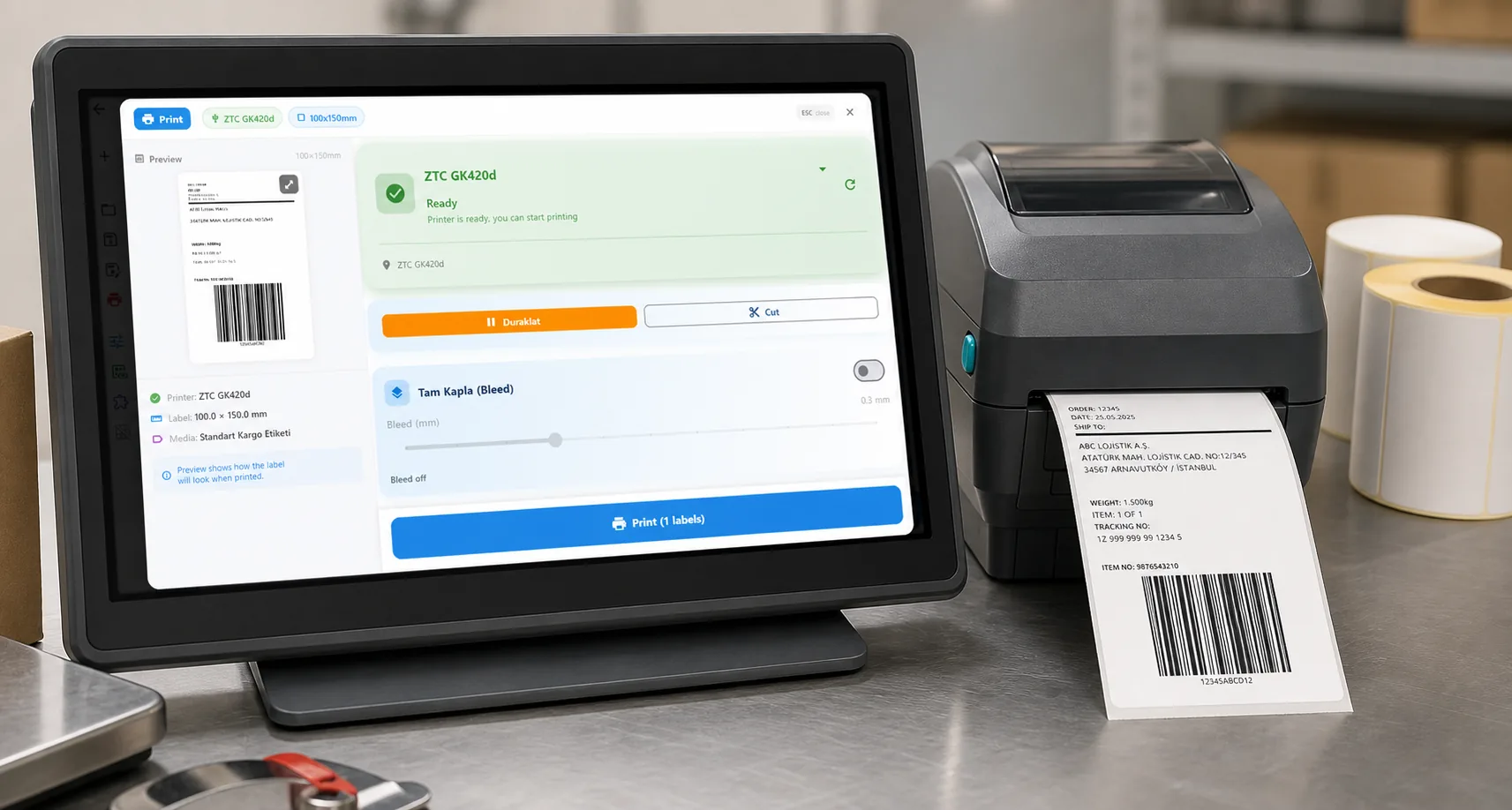
Turn the Zap on. From now on, every matching trigger queues a print job. A LabelInn edge device must be online near that printer to actually print the job (or to render a preview) — that's the device doing the rasterizing and spooling. If the device is online, the label comes out within seconds of the trigger.
The killer detail: flip on the "Customize element styling" toggle and each element's font, size, color, and bold settings appear as fields too — grouped per element and pre-filled with the design's current values. Want red text for rush orders? Map a condition into the color field. The design stays your source of truth; you override only what you need, per Zap.
04
Every Action You Can Run
The LabelInn Zapier app ships with a deep action set, not just a single "print" button:
- Print From Template — the workhorse; pick a design, map its variables, set copies, print.
- Print ZPL — send raw ZPL straight to a printer (the escape hatch for advanced users with hand-tuned formats).
- Print Image — print a hosted PNG or PDF by URL.
- Batch Print — send an array of data objects in one job for high-volume runs.
- Create Design Template — build a brand-new design inline using an Elements line-item list (text, barcode, image — each with position, size, font, color, bold). No JSON authoring required.
- Add Element to Design — append one element to an existing design.
- Render Preview — queues a render, polls for completion, and returns a viewable PNG URL so you can attach a proof to a Slack message or email before anything ships.
- Reprint Job / Cancel Job — manage the job lifecycle from a Zap.
- Create Rule, Create Site, Create Webhook — provision platform objects programmatically.
Need to look things up mid-Zap? The searches — Find Design, Find Printer, Get Job Status, Get Printer Status, Get Usage, Find Rule, and Find Site — let you branch on live data (for example: only print if the printer is online, otherwise post a Slack alert).
05
Triggers: Closing the Loop
Printing is only half the story. The LabelInn Zapier app also fires triggers (instant where possible) so the rest of your stack knows what happened:
- Job Created, Job Completed, Job Failed — drive confirmations, retries, or escalations.
- Printer Offline — ping the warehouse lead in Slack the instant a printer drops, before a backlog builds.
- Supply Low — auto-create a reorder task in Asana or an Airtable row when ribbon or stock runs low.
- Design Updated / Design Deleted — keep downstream systems in sync with template changes.
A common pattern: trigger on Job Failed, post the job ID and printer name to a Slack channel, and let an operator reprint with one click. No more discovering at 5pm that the label printer jammed at 11am.
06
A Complete Worked Example: Shopify → Printed Shipping Label
Here's the canonical Zap, end to end. The goal: when a Shopify order is paid, print a shipping label on the warehouse printer, exactly once per order.
- Trigger: Shopify — New Paid Order.
- Action: LabelInn — Print From Template.
- Design:
shipping-pro(selected from the dropdown). - Printer:
Warehouse-A — Zebra ZT411(dropdown shows it as Online). - Idempotency Key: the Shopify Order ID, so a Zapier retry never prints the box twice.
Once you map the fields and turn it on, every paid order produces a label. Under the hood, Zapier is sending a request equivalent to this against the LabelInn API gateway (https://www.labelinn.com/v1) — you never write it by hand, but it's useful to see what the mapping actually produces:
POST https://www.labelinn.com/v1/print/jobs
Authorization: Bearer sk_live_...
X-Idempotency-Key: shopify-order-1029847
Content-Type: application/json

{
  "payload_type": "template",
  "design_id": "shipping-pro",
  "printer_id": "warehouse-a-zt411",
  "copies": 1,
  "data": {
    "order_id": "1029847",
    "customer_name": "Dana Whitfield",
    "address": "184 Harbor St, Portland, OR 97204",
    "tracking_url": "https://track.example.com/1Z999AA10123456784"
  }
}
Because the X-Idempotency-Key reuses the Shopify order ID, re-sending the same key within 24 hours returns the original job instead of printing again — so a flaky network or a Zapier auto-retry can't ship two labels for one order. And every print, whether it came from Zapier, Make, the API directly, or an AI agent over MCP, auto-writes a hash-chained audit log plus a finalized print-history entry. You always have a tamper-evident record of what printed, when, and on which device.
For a batch run — say, printing a sheet of labels from a multi-row Google Sheets update — use the Batch Print action, which accepts an array of data objects in a single job rather than one Zap run per label.
07
Beyond Shopify: A Few More Patterns
- Google Sheets → Batch Print: a fulfillment partner drops rows in a shared sheet; new rows trigger a batch of pick labels.
- Airtable → Render Preview → Slack: a product manager marks a record "ready"; Zapier renders a PNG proof and posts it for sign-off before printing.
- Webhooks by Zapier → Print ZPL: a legacy WMS posts a ZPL string; Zapier forwards it straight to the printer.
- Typeform → Create Design Template: an intake form spins up a new event-badge design with inline elements, then prints it.
08
An Honest Note on Availability and Cost
Two things worth being straight about:
- Early access. The LabelInn Zapier app is live right now in early access (private / invite). It is not yet listed in the public Zapier App Directory, so you won't find it by searching the marketplace — you request access and we send you the connection. The CTA below gets you in.
- You don't need a big plan. API and automation access is open from the Free tier up. The Free tier includes 25 prints per day, which is enough to build and test a real Zap end to end. Higher tiers raise the daily quota — Starter is 250/day, Pro is 2,000/day, Enterprise is 50,000/day — but you are not gated out of automation just because you're on Free.
The only hard requirement on the hardware side: a LabelInn edge device must be online near the target printer for a queued job to actually print or for a preview to render. LabelInn supports 50+ thermal models from Zebra, TSC, Brother, Honeywell, Epson ColorWorks, and more.
09
Zapier, Make, API, or MCP?
Zapier is the right starting point if your team already lives in Zapier and you want the gentlest no-code on-ramp. If you prefer a visual scenario builder with multi-step branching, the same capabilities are available through our Make.com integration. If you're a developer who wants deterministic control over tens of thousands of jobs a day, go straight to the LabelInn print API. And if you want to drive printing in plain English from Claude or Cursor, see printing labels via MCP. Not sure? Our Zapier vs Make vs API vs MCP comparison lays out the trade-offs.
10
Get Started
If your orders already flow through Zapier, adding the printer to that flow is a 10-minute job: connect with OAuth, pick a design, map the fields, turn it on. The manual copy-paste step disappears, and your labels become as automated as everything else in your stack.
KEEP GOING
Related Articles
NEXT STEP / LABELINN
Automate Your Label Printing
Trigger a real thermal-label print the moment an order lands in Shopify, Sheets, Airtable, or any Zapier-connected app — with idempotency on every print so you never double-ship. Free 14-day trial — no credit card. · Connect 8,000+ Zapier apps · Variables become mappable fields — no JSON · Works from the Free tier (25 prints/day)