Register the printer on the computer it is connected to. USB, network or Bluetooth. That computer runs LabelInn and listens for jobs.
TEAMS / PERMISSIONS / PRINT HISTORY
Share One Label Printer With the Whole Team, Without a Print Server
Let everyone on your team print to the same Zebra, TSC or Toshiba label printer from their own computer or browser. Control who can print, keep a print history, no print server.
FREE PLAN · NO CREDIT CARD · WINDOWS / MAC / LINUX / WEB
THE PROBLEM
Most offices and warehouses have one good label printer and several people who need it. It is plugged into one PC by USB, so the usual options are: walk to that PC, set up Windows printer sharing and fight the driver on every client, or buy a second printer. None of them tells you who printed what.
With LabelInn the printer stays where it is. The computer it is attached to registers it, and everyone on your LabelInn team can send labels to it by name from their own device.
👥 One printer, the whole team, no driver on every PC. Register it once, print to it from anywhere. Start free →
01 / PRINTER SHARING
How sharing works
Invite your team. Teammates join your company account in LabelInn.
They print to it by name. From the desktop or web app, a teammate picks "Pack Bench 1" and the job is queued for that printer.
The host computer connects out to LabelInn, so there is no port forwarding, no static IP and no shared folder to configure. If the host is asleep or offline, jobs wait in the queue and print in order when it comes back. The same mechanism works between buildings and cities; see remote thermal printing.
02 / PERMISSIONS
Control who can print
- Per printer. Leave a printer open to every member, or restrict it to named people. Owners and admins always keep access.
- Per person. Permissions are set separately for printing, creating, editing and deleting templates, managing workflows and managing users. A packing station account can print without being able to change the designs.
03 / TEAMS
Know who printed what
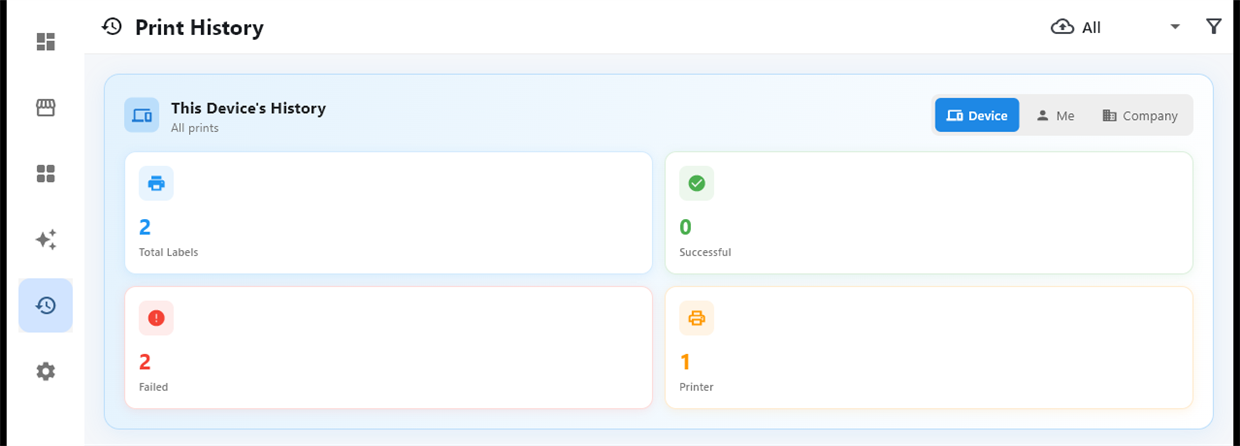
Every job is recorded: the design, the printer, who sent it and when, and whether it succeeded. Reprinting a label that came out damaged is a click from the history, not a hunt for the original data. For regulated work, the Enterprise plan adds a tamper-evident, hash-chained audit log; see label compliance.
04 / PRINT HISTORY
Before you start
- Keep LabelInn running on the host computer. Jobs sent while it is off wait in the queue and print when it is back.
- Seats depend on your plan. How many people can join your company account is set by the plan; see pricing.
QUESTIONS / FAQ
Frequently asked questions
How do I share a USB label printer with other computers?
Install LabelInn on the computer the printer is plugged into and register the printer. Teammates in the same LabelInn company account can then print to it by name from their own computer or browser, without installing a driver.
Do I need a print server or Windows printer sharing?
No. The computer attached to the printer connects out to LabelInn and picks up jobs from a queue, so there is no print server, shared folder, port forwarding or per-client driver.
Can I stop some people from using a printer?
Yes. A printer can be restricted to named users. Owners and admins always have access, and printing itself is a separate per-user permission.
Can I see who printed a label?
Yes. Every job is recorded in the print history with the design, printer, sender, time and result, and can be reprinted from there.
KEEP GOING
Related
NEXT STEP / LABELINN
Share the printer you already have
Register the printer once and let the whole team use it. · Print by name from any device · Per-printer and per-user permissions · Full print history with reprint