FREE PLAN AVAILABLE / 14-DAY PRO TRIAL
Zebra Label Printer Software for Mac
ZebraDesigner has no macOS version. LabelInn is a native Mac app that sends ZPL straight to your Zebra over USB, network or Bluetooth.
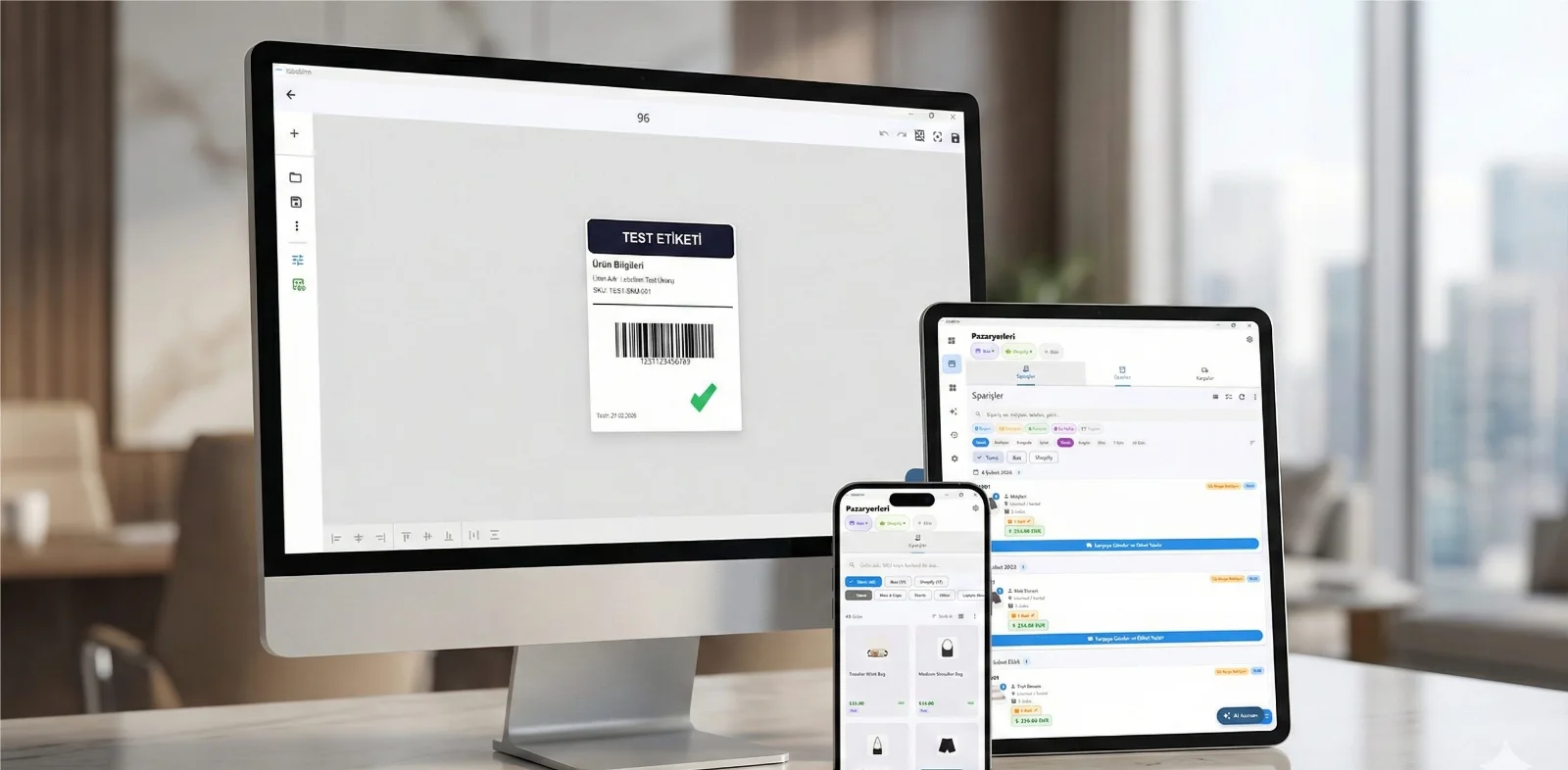
Video / 1:11
Watch: Print labels on a Zebra printer
1:11 walkthrough in the real app. Step-by-step page →
HOW IT WORKS
Three screens from data to printed label.
No copy-paste, no hunting for templates. The same flow repeats for every record.
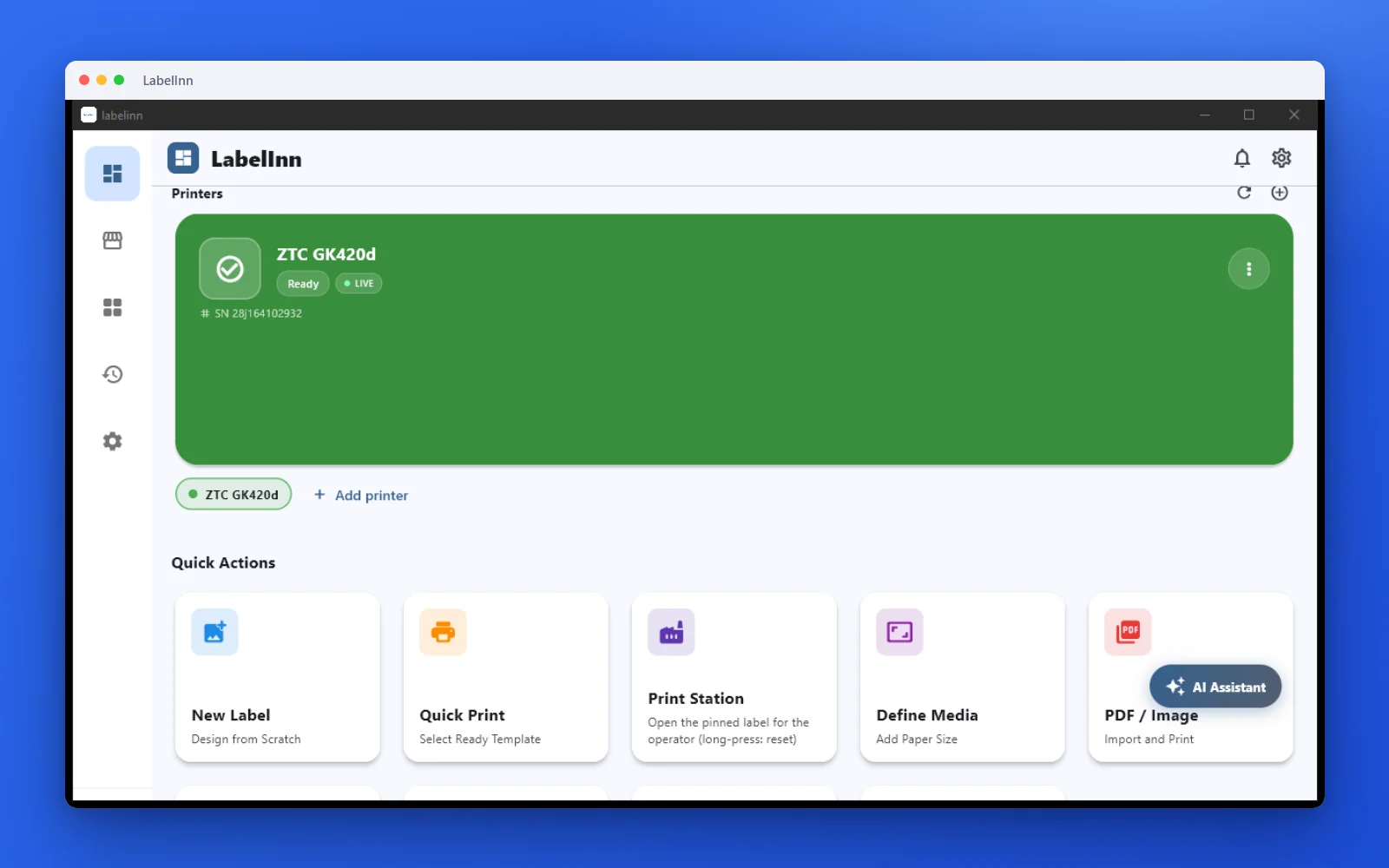
Printer status, quick actions and recent work in one place.
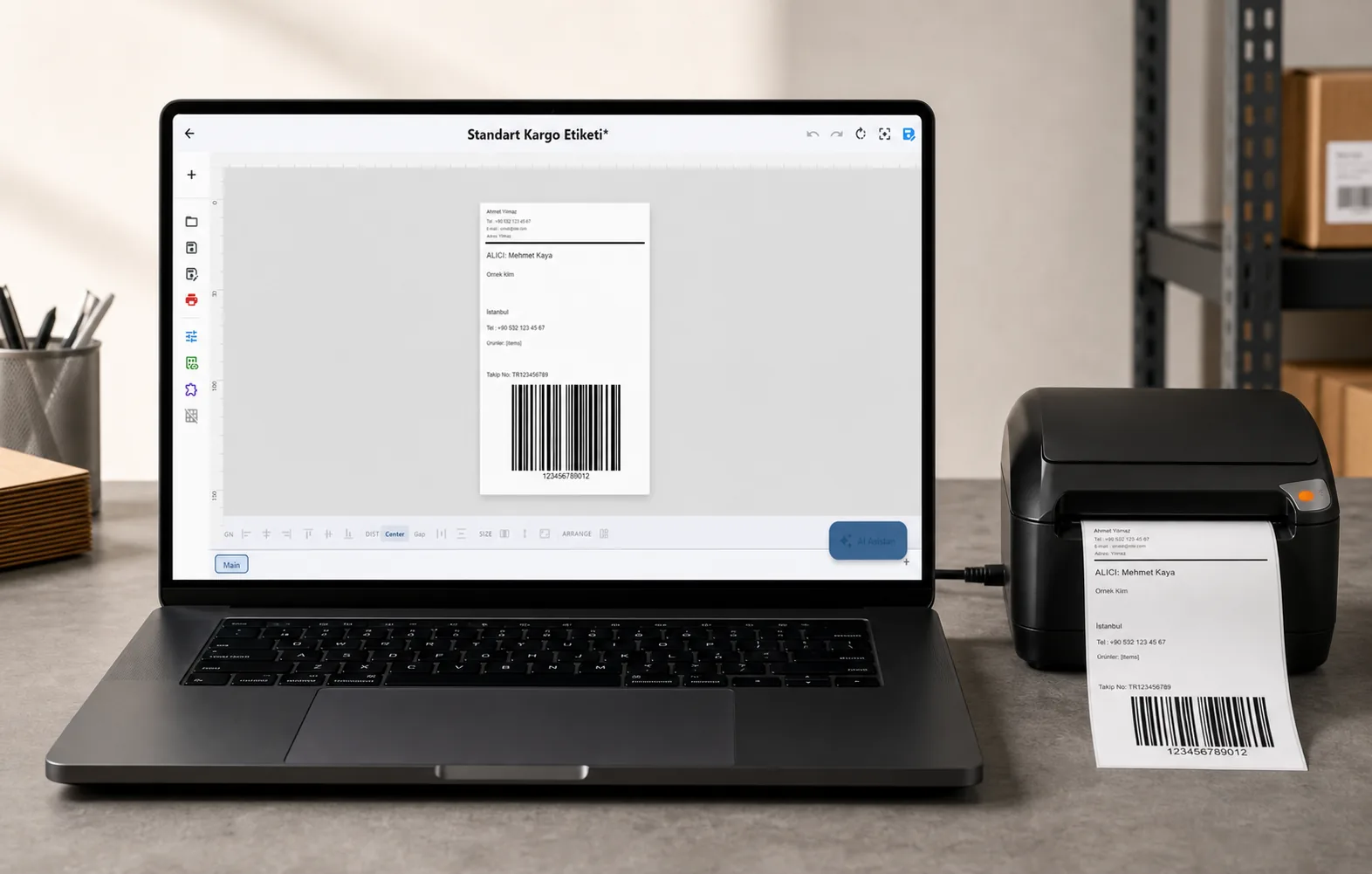
Text, barcodes, QR and images placed on the real media size.
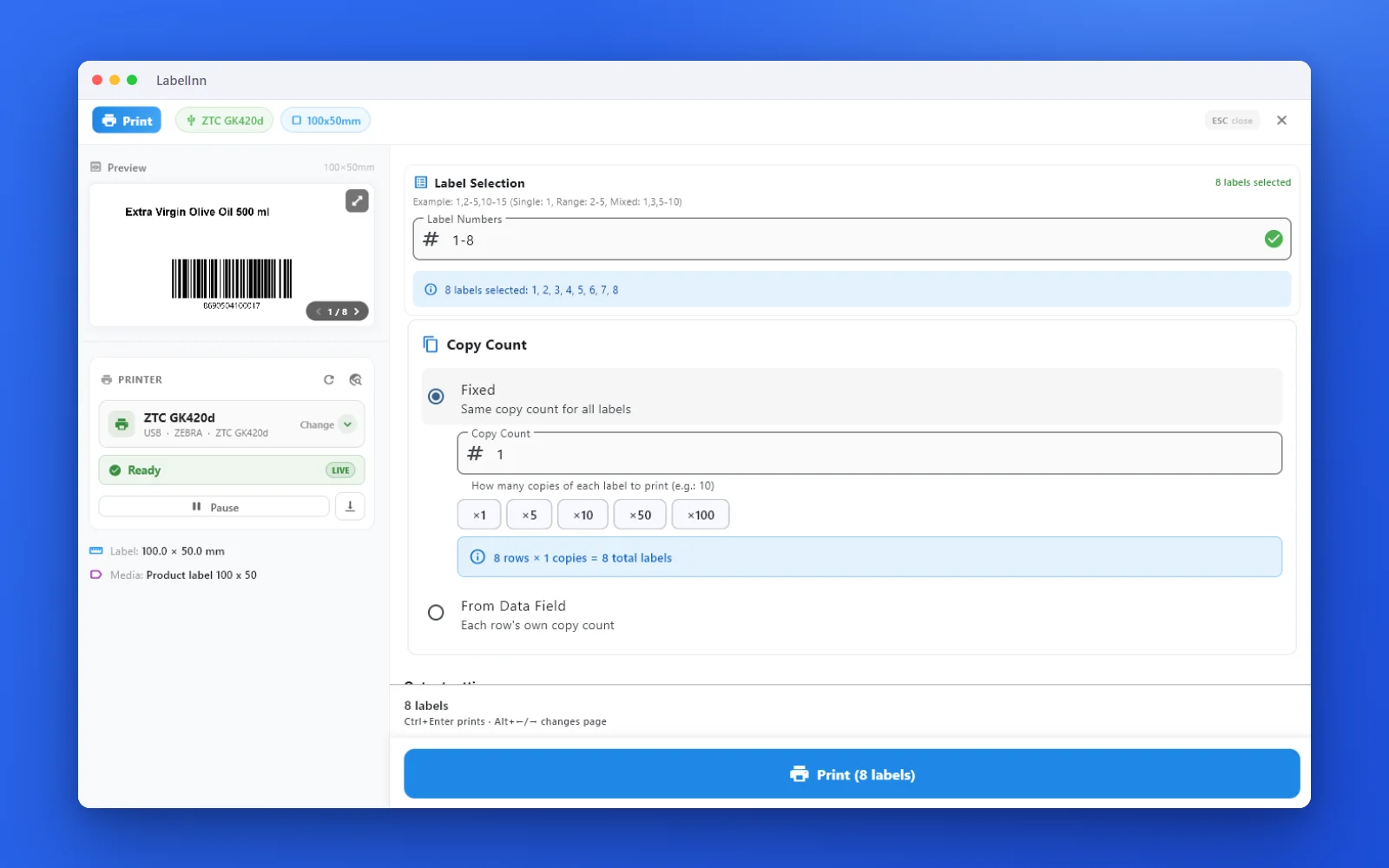
See the label, the printer state and the copy count before it prints.
01
Why this is hard on a Mac
Search for ZebraDesigner for Mac and you land on the same answer every time: it does not exist. Zebra ships ZebraDesigner for Windows, and the Mac driver situation is no better — the officially supported path assumes a Windows host.
So Mac owners end up in CUPS, hunting for a generic driver, printing labels that come out blank, half-scaled or one per roll. The printer is fine. The gap is that nothing on macOS is speaking the printer's language.
02
What LabelInn does instead
Zebra printers speak ZPL (Zebra Programming Language). LabelInn generates ZPL on your Mac and sends it straight to the printer over USB, network (TCP 9100) or Bluetooth. There is no driver in the middle to misconfigure, because the app is the driver.
That is also why label size, darkness and speed behave predictably: those are ZPL commands the app controls directly, not print-dialog settings being translated by a generic CUPS driver.
Calibration and media, without the guesswork
Most "Zebra won't print correctly on Mac" problems are really media detection: the printer does not know where one label ends and the next begins. LabelInn lets you set the label size and gap explicitly and send a calibration command to the printer, so a roll of 100 × 150 mm shipping labels and a roll of 40 × 30 mm product labels each behave the way you expect.
If your Zebra is skipping labels or feeding a blank one between prints, that is the same underlying issue — and it is fixable from the app rather than from a driver dialog.
03
Supported Zebra models
Any Zebra printer that accepts ZPL should work. Commonly used models include:
- Zebra ZD220
- Zebra ZD230
- Zebra ZD421
- Zebra ZD621
- Zebra GK420d
- Zebra GX430t
- Zebra ZT230
- Zebra ZT411
This list is not exhaustive and model names belong to their manufacturer. LabelInn is not affiliated with Zebra. If your model speaks ZPL, try it on the free plan before committing.
04
How to get printing
- Download LabelInn for macOS and open it.
- Add the printer over USB, network (TCP 9100) or Bluetooth. No driver install.
- Set the label size and media type to match your roll, then calibrate.
- Design the label — or bind a spreadsheet column and print one label per row.
05
Frequently asked
Is there a ZebraDesigner for Mac?
No. ZebraDesigner is a Windows application and Zebra does not publish a macOS version. LabelInn is a native macOS alternative that designs labels and sends ZPL directly to Zebra printers, so no Windows environment is needed.
Do I need a Zebra driver on macOS?
No. LabelInn talks to the printer in ZPL over USB, network (TCP 9100) or Bluetooth. There is no vendor driver to install and no CUPS queue to configure.
Which Zebra models work?
Zebra desktop and industrial printers that accept ZPL, including the ZD220, ZD230, ZD421, ZD621, GK420d, GX430t, ZT230 and ZT411. If the printer accepts ZPL, LabelInn can drive it.
Can I print from Excel or a database?
Yes. Bind a spreadsheet column or a read-only SQL query to a text or barcode element and print one label per row, on the Mac.
Try it with your own Zebra The free plan is enough to add the printer, calibrate it and print a real label. If it does not drive your model, you have lost ten minutes rather than a licence fee. Download for Mac →
ANY PRINTER
Design it, bind your data, print on the printer you already own.
Zebra, TSC, Toshiba, Epson and more — over USB, network or Bluetooth, with no driver to install.
PRICING
Start free. Pay when it earns its keep.
NEXT STEP / LABELINN
Print your first label today