WORKFLOWS / AUTOMATION
Turn a spreadsheet into printed labels with a workflow
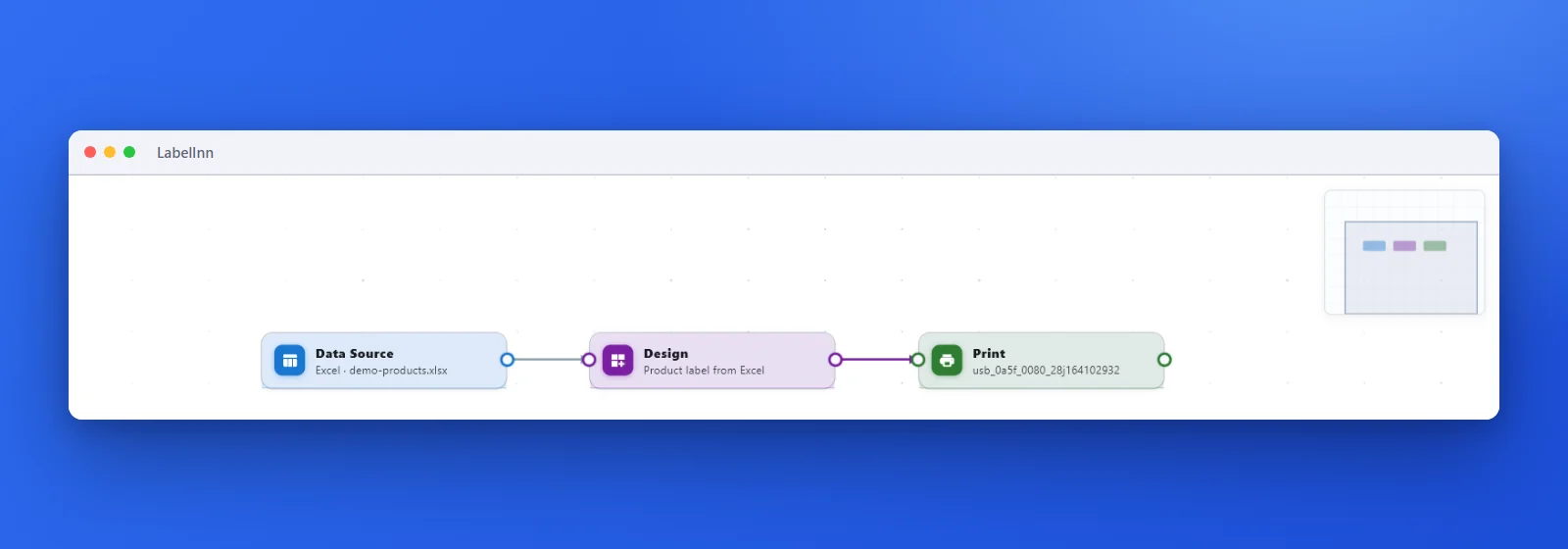
A workflow is three boxes joined by lines: where the data comes from, which label it fills, and which printer prints it. This is every step of building one.
THE PROBLEM
Every print run starts with someone opening a file
When the same job repeats every day, the person is the slowest part of it. A workflow moves the steps into a diagram you can read, change and run again.
THE FIX
Build it step by step
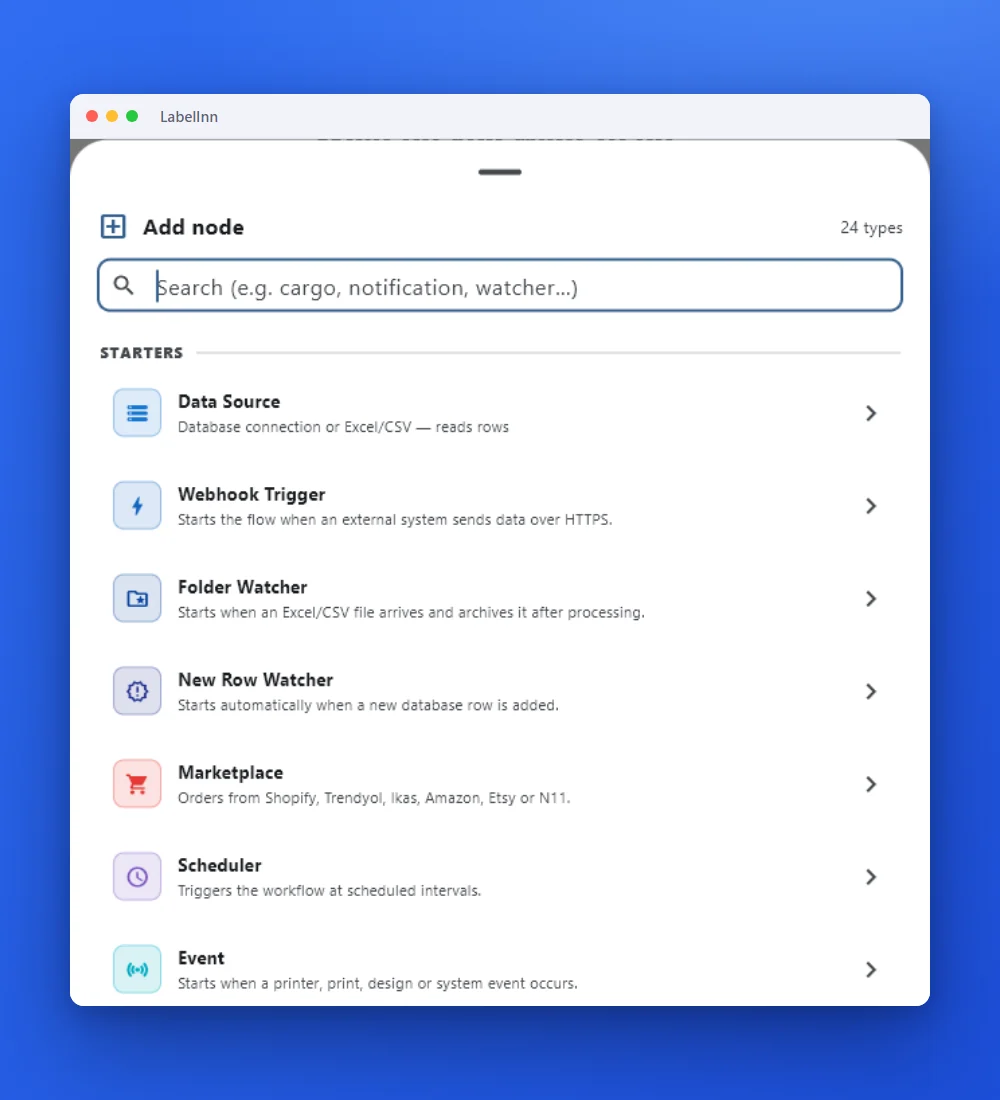
- Add the first node Press Add node. The catalogue lists the node types, with the ones that start a flow first: Data Source, Webhook Trigger, Folder Watcher, New Row Watcher, Scheduler, Event.
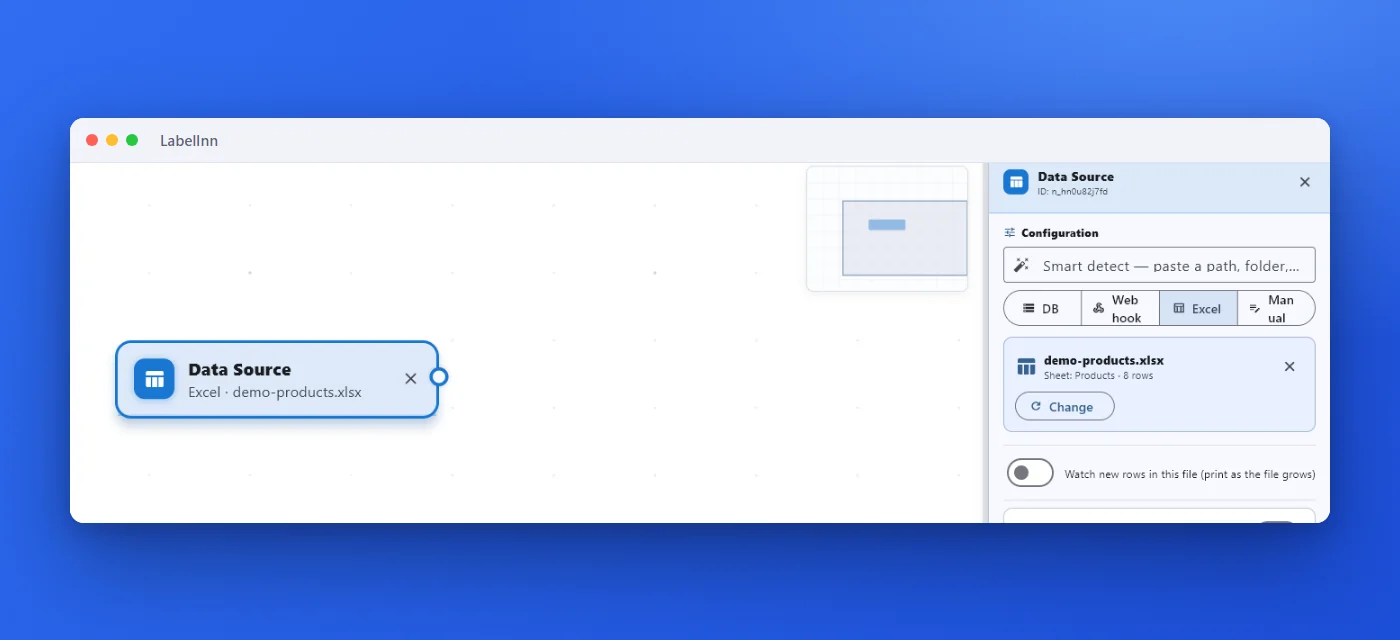
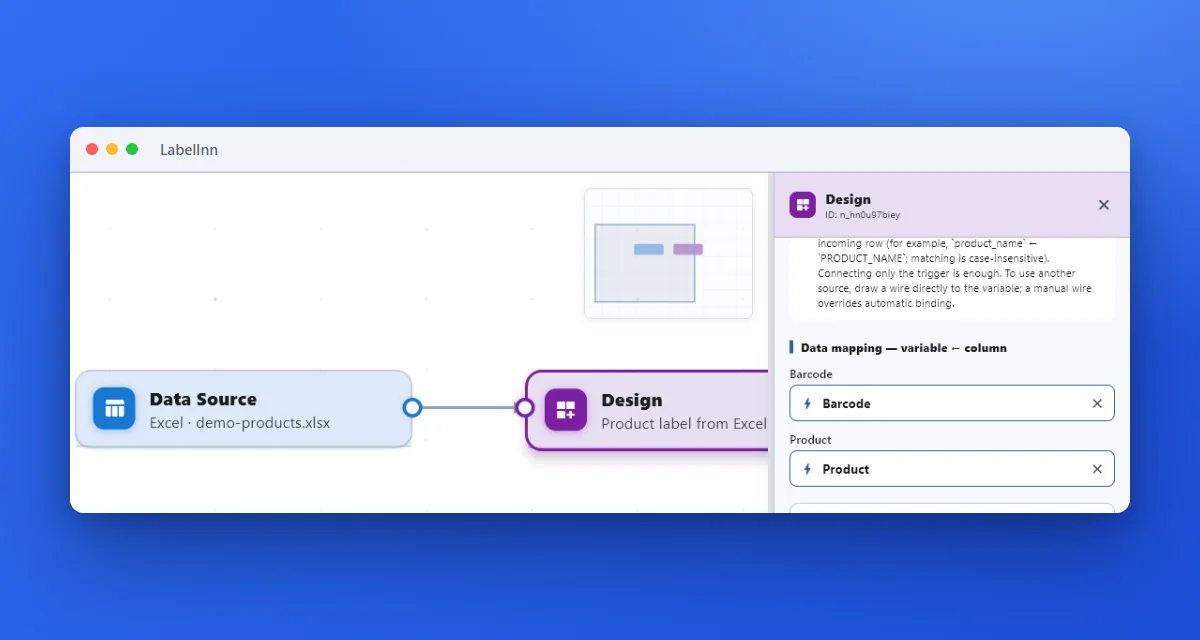
- Point the Data Source at your sheet Choose Excel and select the file. The node shows the file name, the sheet and how many rows it found. DB, Webhook and Manual are the other sources.
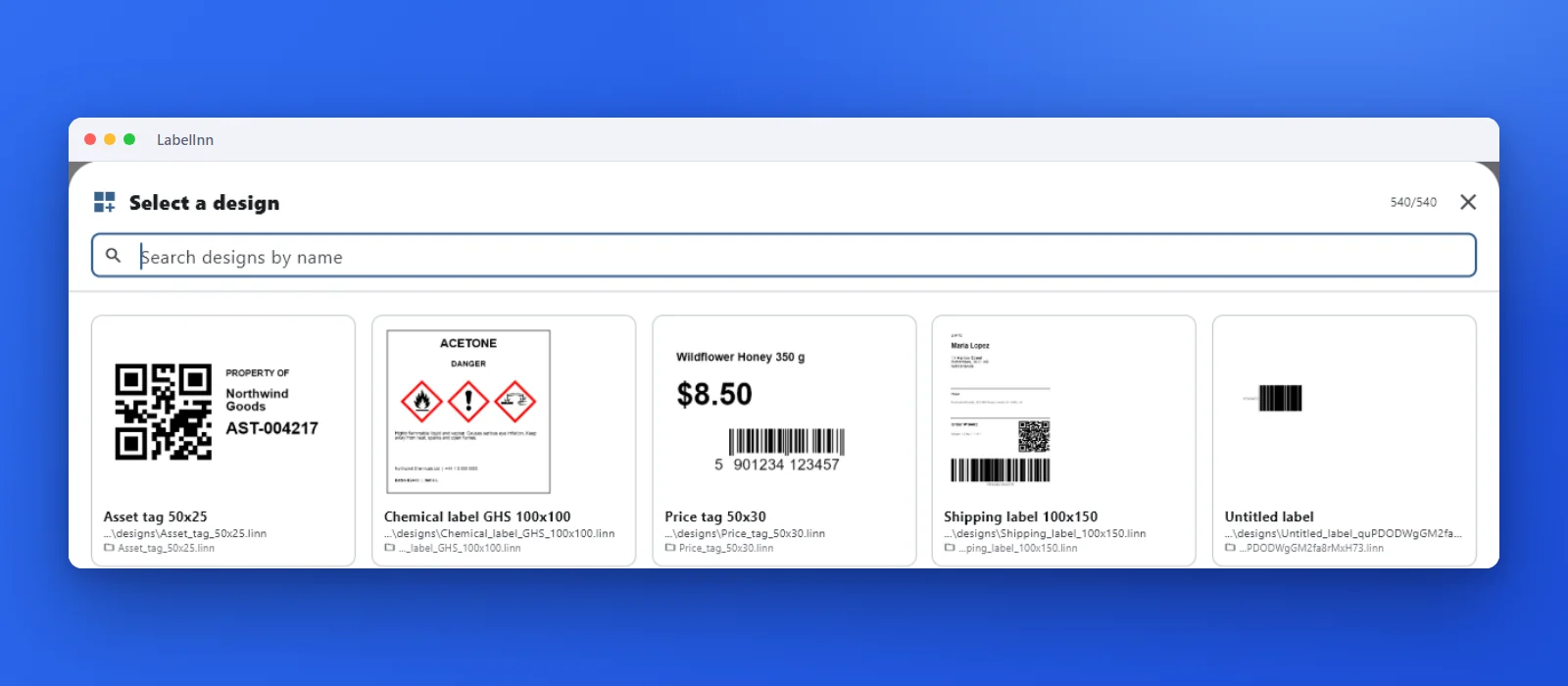
- Choose the label design Add a Design node and pick the label from your library. A live preview shows what you chose.
- Draw a line from the data to the design Connect the Data Source to the Design. Every design variable is filled automatically from the column with the same name, so Barcode takes the Barcode column and Product takes the Product column.
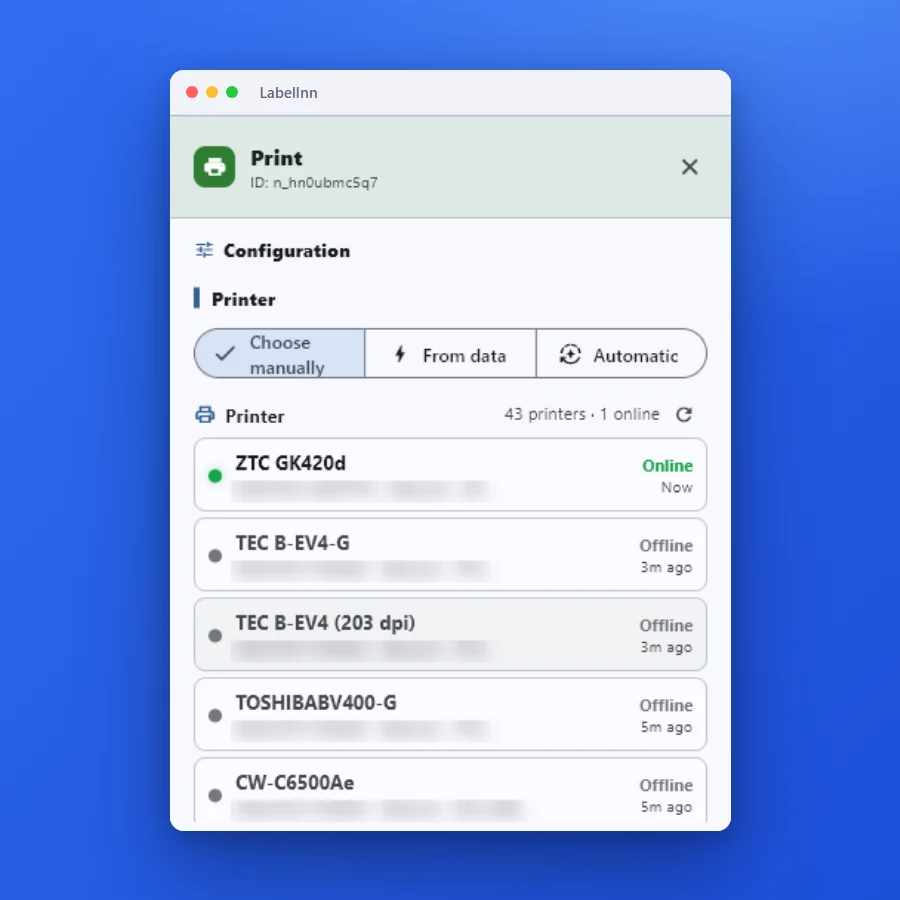
- Add a Print node and choose the printer Pick the printer manually, take it from the data, or let LabelInn choose automatically. The list shows which printers are online.
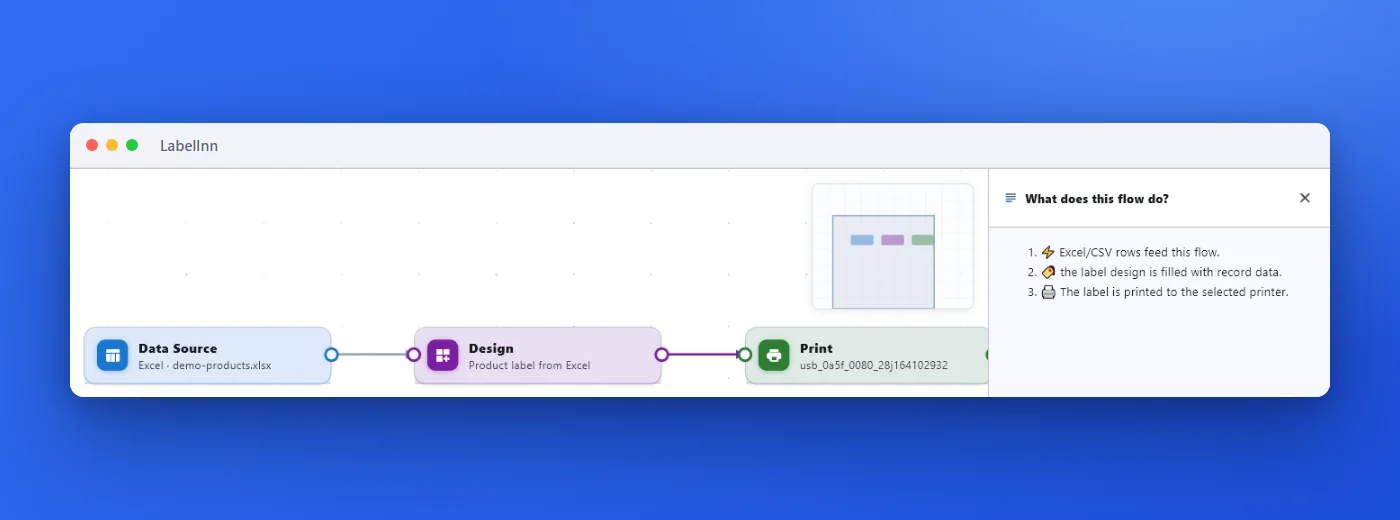
- Read the summary before you run it The Summary button describes the flow in plain sentences: rows feed the flow, the design is filled with the data, the label is printed to the selected printer.
START IT YOUR WAY
Ways to start a workflow
| Starter | What it does |
|---|---|
| Data Source | Database connection or Excel/CSV: reads rows |
| Webhook Trigger | Starts the flow when an external system sends data over HTTPS |
| Folder Watcher | Starts when an Excel/CSV file arrives and archives it after processing |
| New Row Watcher | Starts automatically when a new database row is added |
| Scheduler | Triggers the workflow at scheduled intervals |
| Event | Starts when a printer, print, design or system event occurs |
| Print Dialog | The screen where an operator enters data and starts printing |
BETWEEN DATA AND LABEL
Add logic when the data needs it
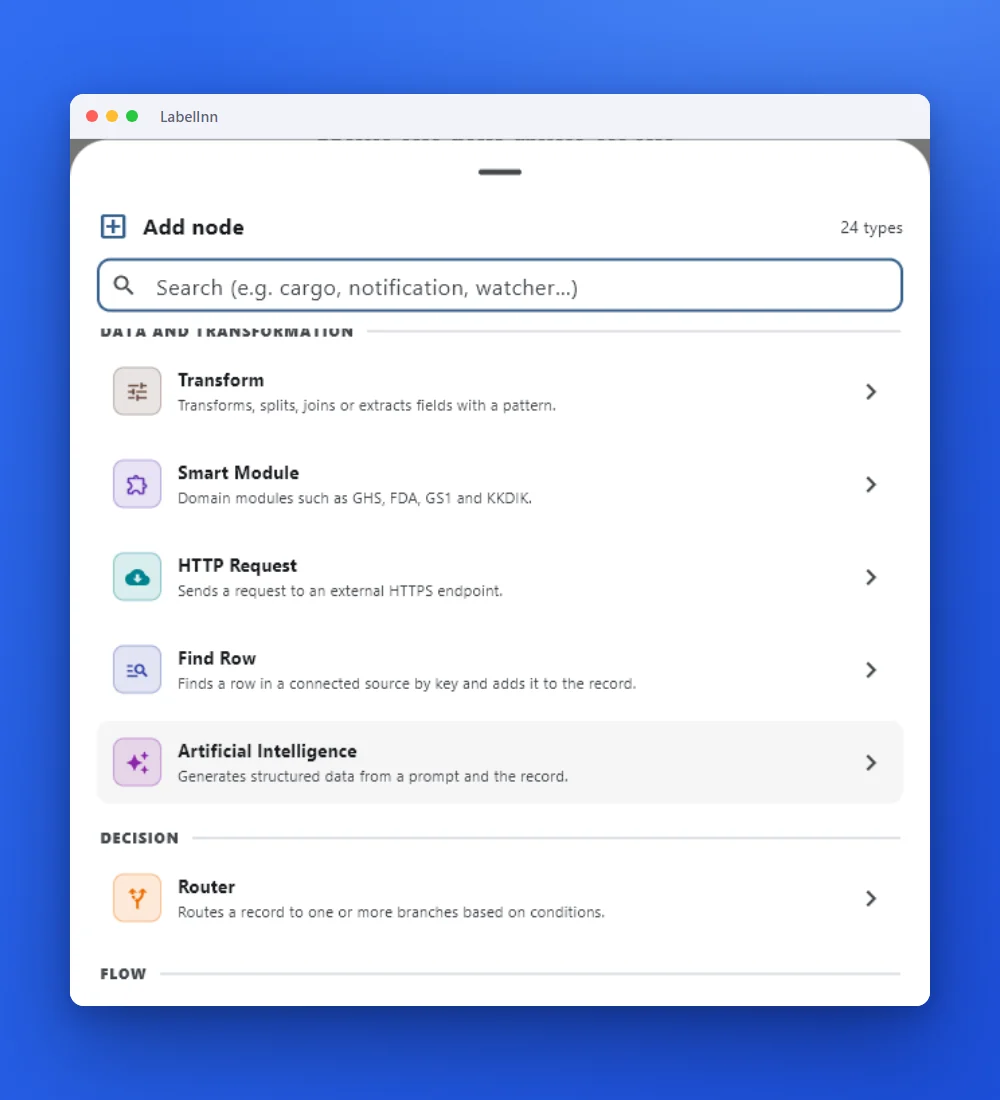
Between the data and the design the catalogue has Transform, Smart Module (domain modules such as GHS, FDA, GS1), HTTP Request, Find Row, Artificial Intelligence and Router. Each is one more box on the same diagram.
FAQ
Frequently asked questions
Do I have to write code?
No. A workflow is built from boxes and lines in the editor. The JSON view is there if you want to see or edit it directly.
How does a column find its label field?
By name. Every design variable is filled from the column with the same name in the incoming row, and the match ignores upper and lower case. You can also pick a column by hand in the data mapping list.
Can it run without anyone clicking?
Yes. Start it from a Webhook Trigger, a Folder Watcher, a New Row Watcher or a Scheduler instead of a person.
Can I test it first?
The editor checks the flow as you build (the green tick and an Issues counter), the Summary describes it in plain language, and Run starts it.
KEEP GOING
Related pages
NEXT STEP / LABELINN
Build your first label workflow
Download LabelInn, add a data source and let the spreadsheet print itself. · 14-day Pro trial on signup · No credit card required · Windows, macOS, Android, Web