TROUBLESHOOTING / PRINTERS
Label printer not found? Five checks, in order
Work down this list. Each check is one screen of the app, and most printers are back after the second or third.
THE SYMPTOM
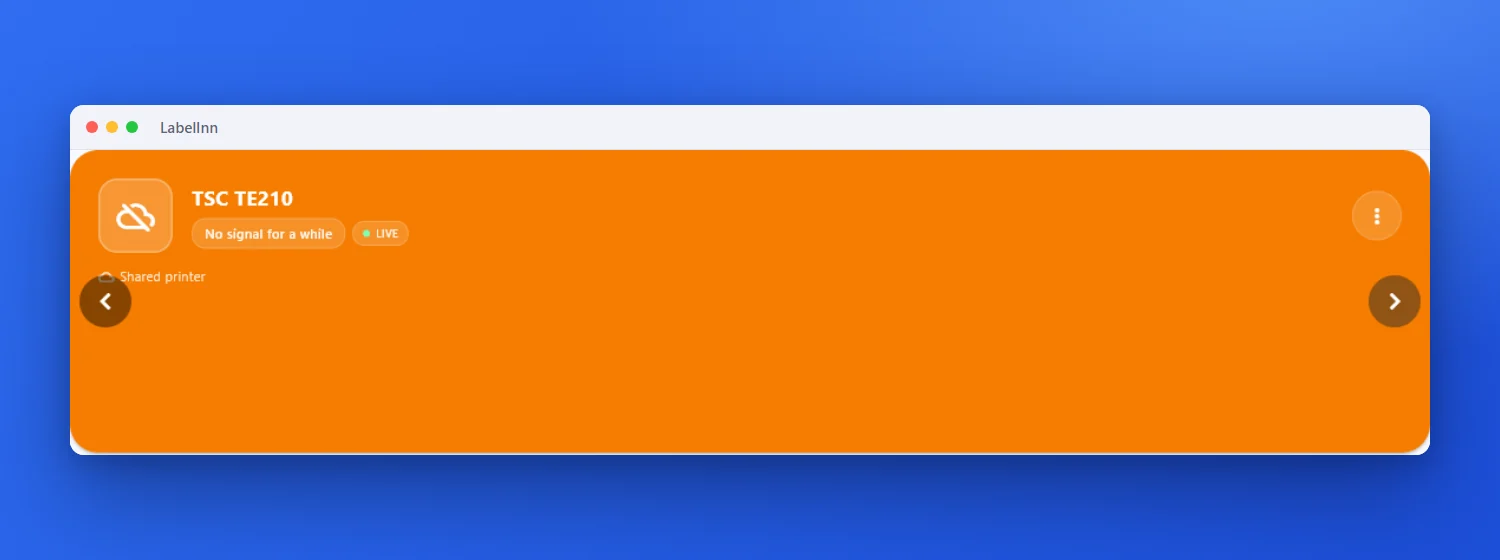
The printer card is orange, or the printer is not in the list at all
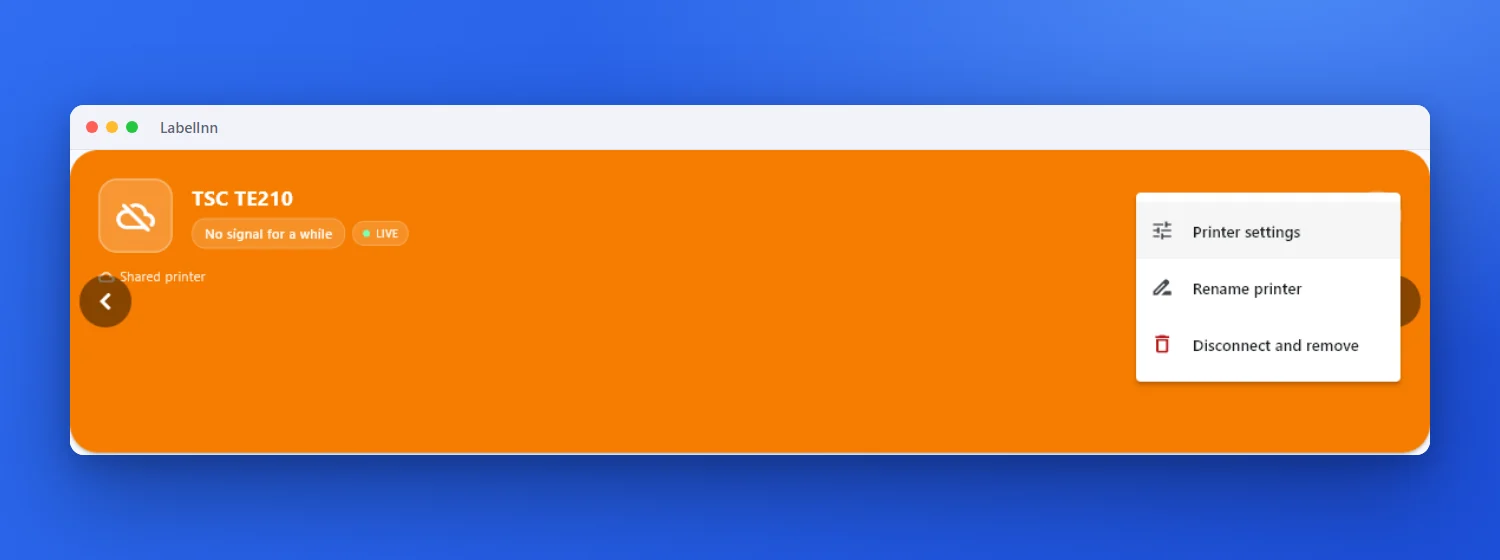
A card that says “No signal for a while” means LabelInn has not heard from that printer recently. The printer may be off, unplugged, on another network or asleep. These checks tell you which.
THE FIX
The five checks
- Read the status card Green and Ready means LabelInn can talk to the printer. Orange with “No signal for a while” means it cannot right now. Start with power and the cable or network.
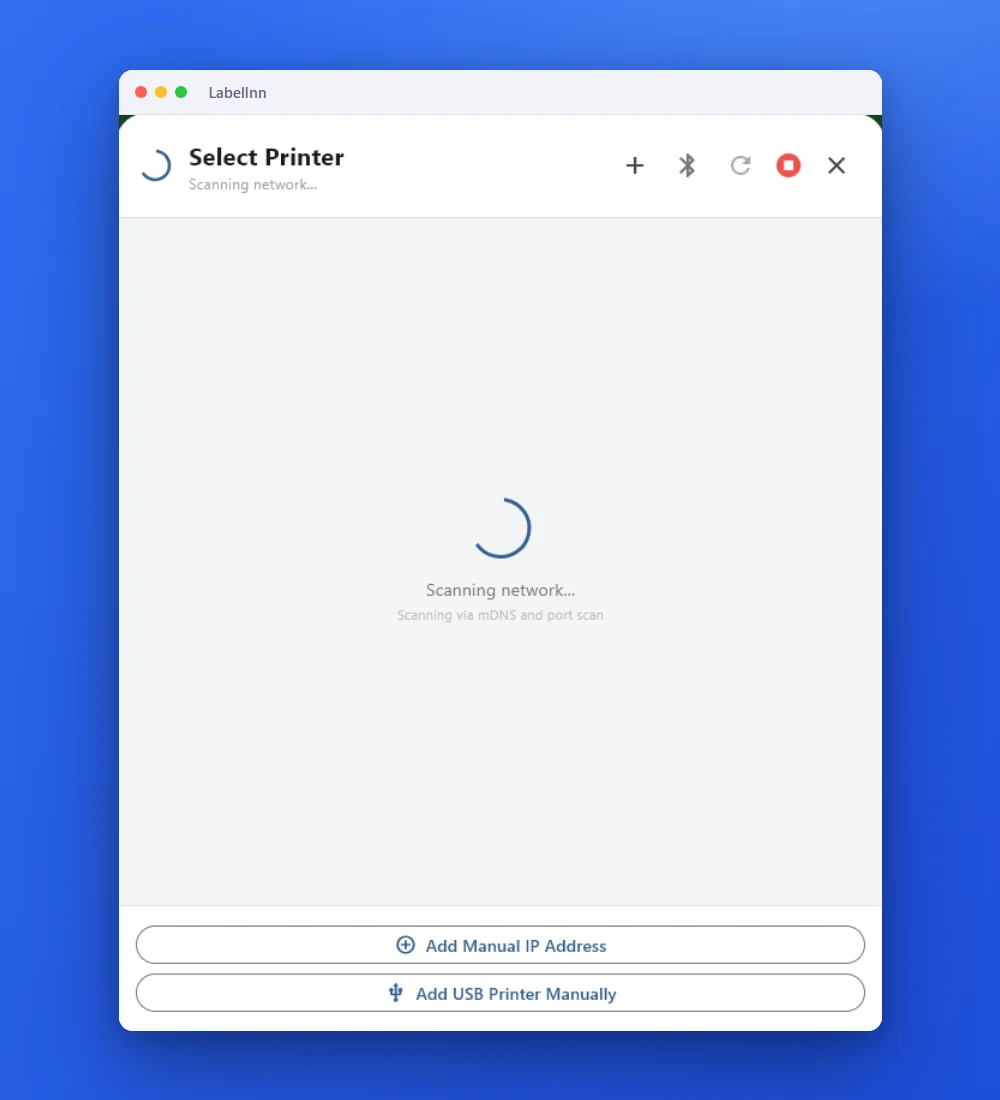
- Rescan Press + next to Printers. The scan looks on the network and for USB printers, and can take a few seconds. Wait for “Searching for more printers” to finish before you decide it is not there.
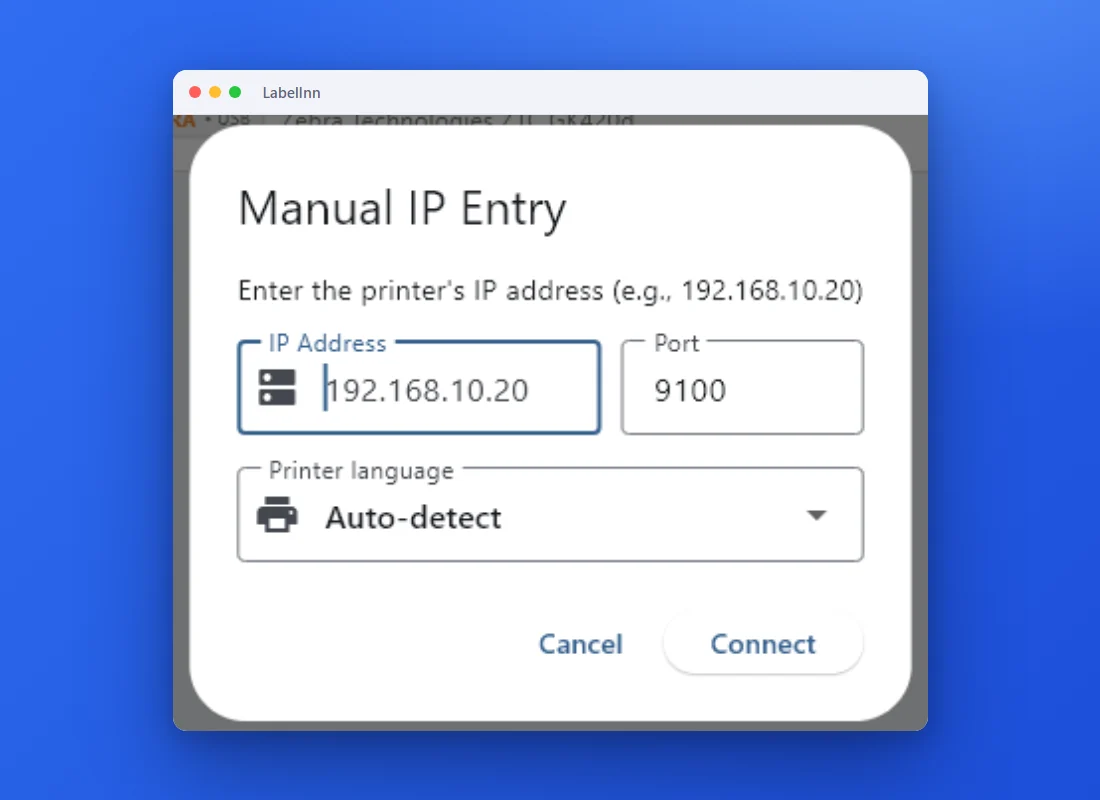
- Add it by IP address If a network printer is not listed, add it manually: its IP address, port 9100 and the language (Auto-detect is fine). Most label printers can print a configuration label that shows their IP address; check your printer’s manual.
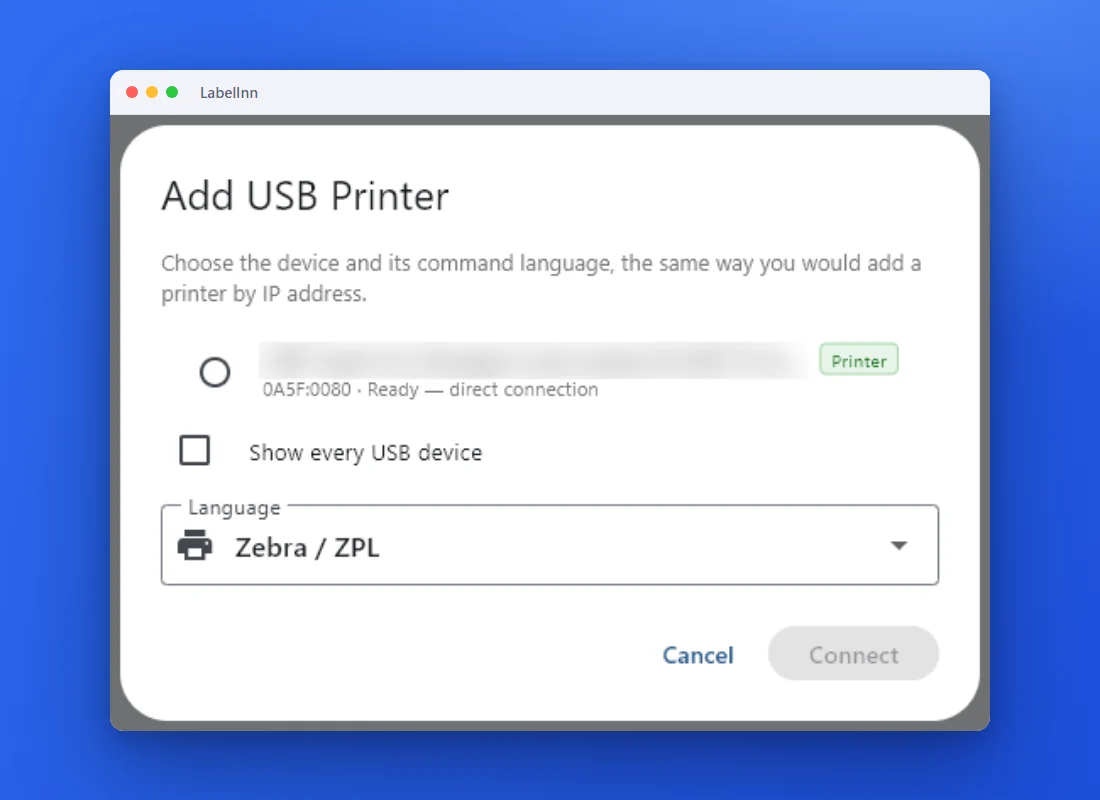
- Add it as a USB printer For a USB printer that was not recognised, choose Add USB Printer Manually. Tick “Show every USB device” if it is not in the first list, and pick the command language.
- Open the printer settings and test From the card’s ⋮ menu choose Printer settings. Feed paper, Calibrate, Test print and Soft reset are on the first screen.
AFTER IT IS BACK
Make sure the printer is set up for your labels
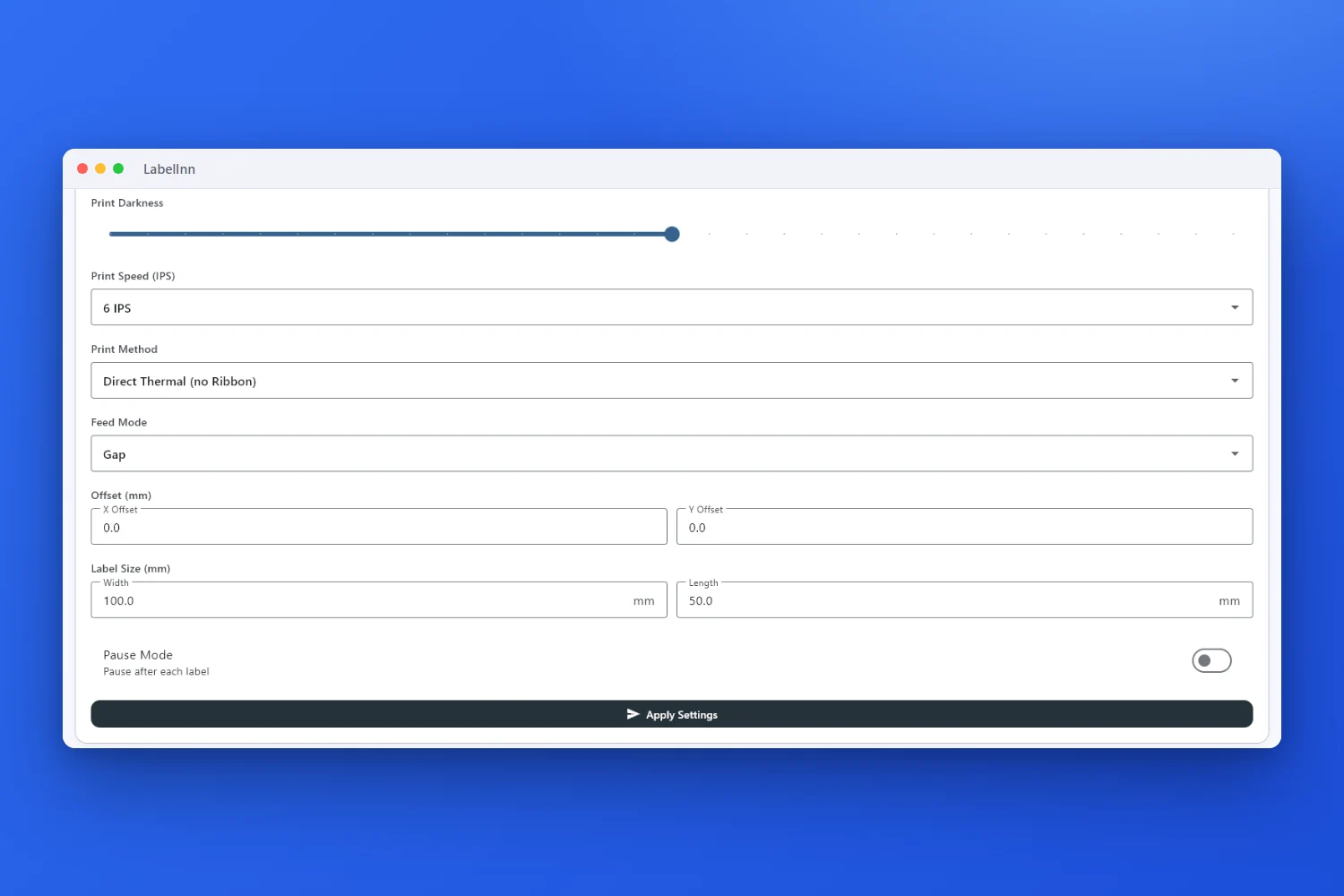
A reconnected printer still needs the right label size and feed mode. The same settings page has the label width and length, the feed mode (Gap, for die-cut labels), print darkness and speed.
FAQ
Frequently asked questions
What does “No signal for a while” mean?
LabelInn has not received a status update from that printer for a while, so it is shown as needing attention. Check power and the cable or network, then rescan.
Should I use “Disconnect and remove”?
Only if you want a clean start. It removes the printer from LabelInn; you can add it again with the scan, an IP address or as a USB printer.
The printer is Ready but nothing prints. What next?
Open its settings and press Test print. If the test prints, check the label size and the media in the print window. If it does not, press Calibrate, then try again.
Do I need to restart anything?
Rescanning does not need a restart. If you changed the USB cable or the printer’s network address, add the printer again so LabelInn has the new details.
KEEP GOING
Related pages
NEXT STEP / LABELINN
Get the printer back and print a test label
Open LabelInn, rescan, and use the printer settings page to send a test print. · 14-day Pro trial on signup · No credit card required · Windows, macOS, Android, Web