SETUP / PRINTERS
Connect a label printer to LabelInn
Plug it in, press one button, pick the printer. If the scan misses it, add it by IP address or as a USB printer. This is every screen you will see.
THE PROBLEM
The printer is plugged in, but the software cannot see it
Connecting a label printer usually means an installer, a driver and a settings page you only use once. In LabelInn it is one window that looks for the printer and, if it cannot find it, lets you describe it yourself.
THE FIX
Step by step
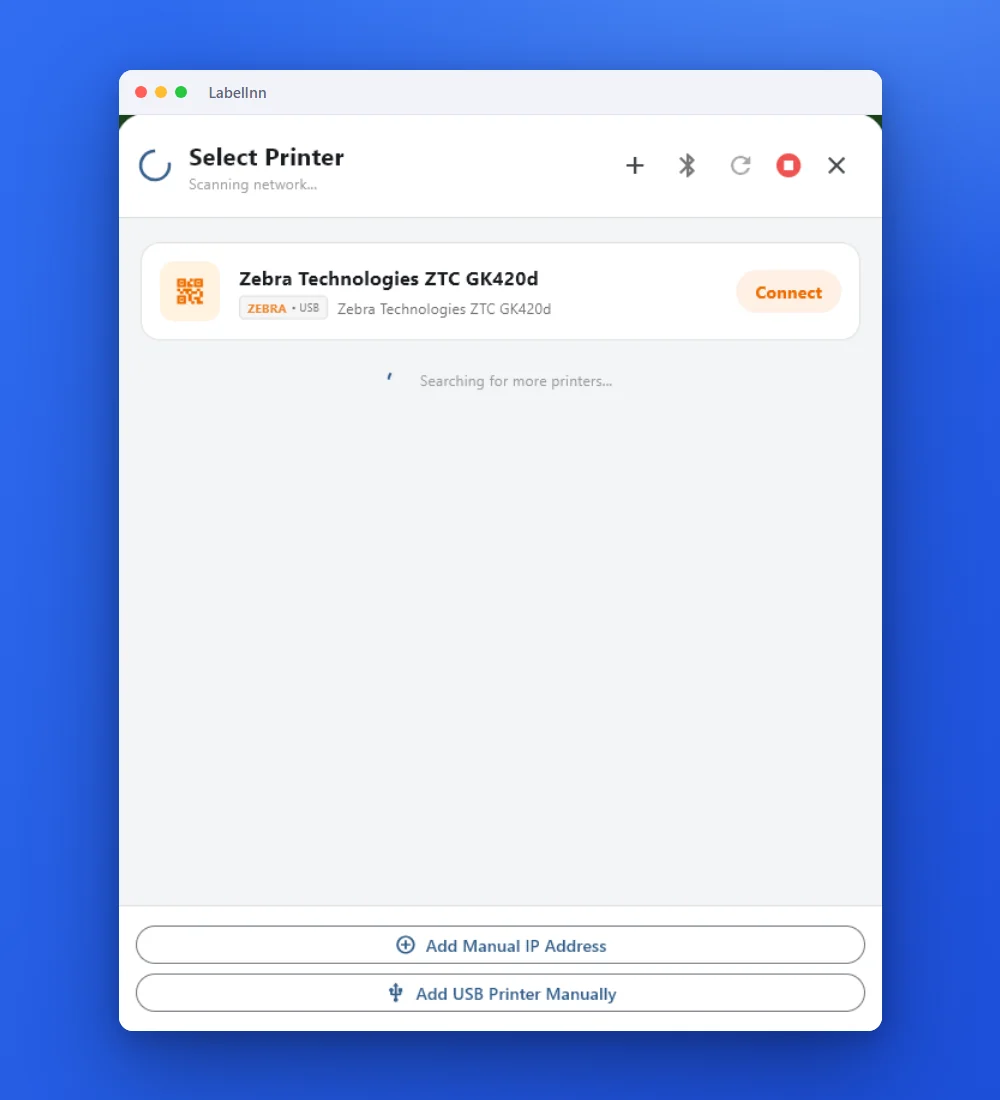
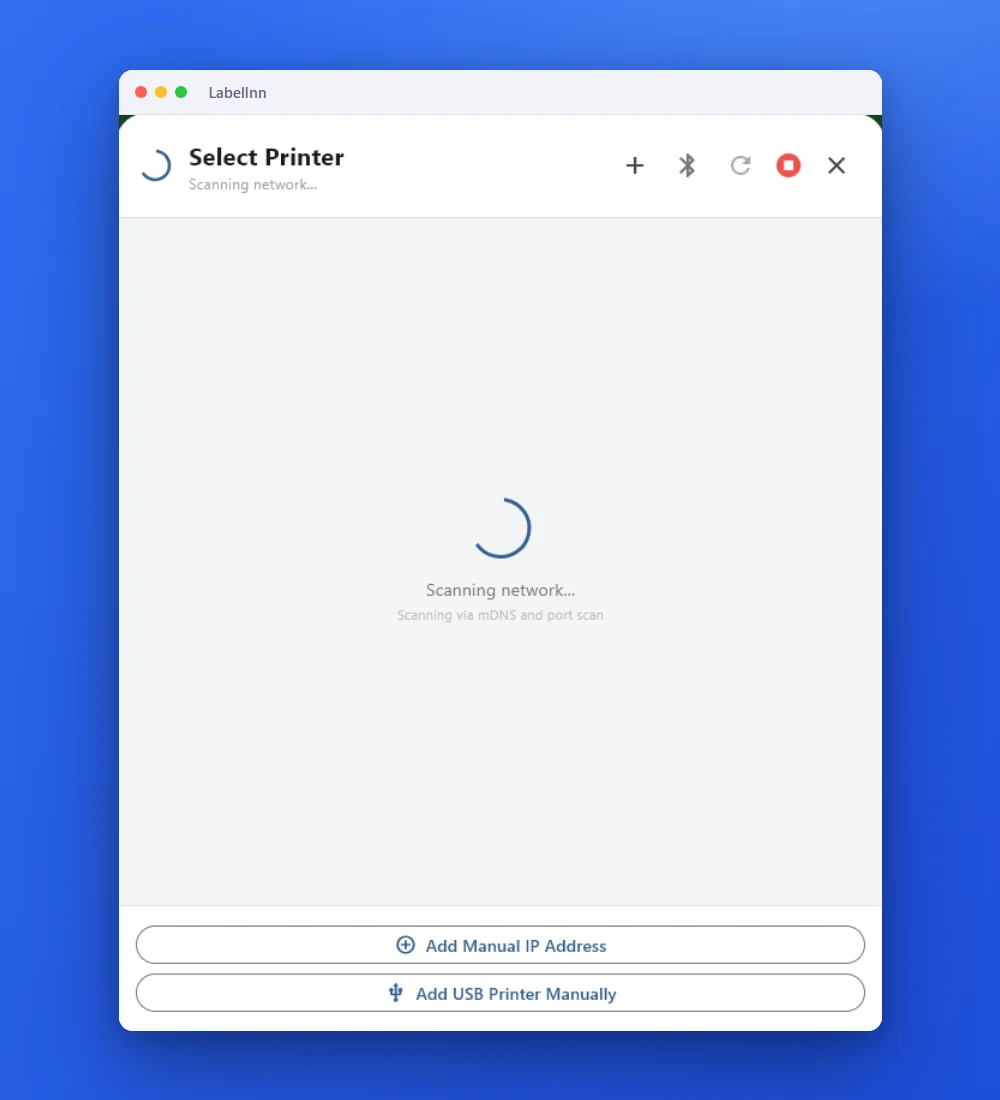
- Open the printer window and let it scan On the dashboard press the + button next to Printers. The Select Printer window scans the network (it says “Scanning via mDNS and port scan”) and lists the USB printers it finds.
- Pick your printer and press Connect A USB printer shows up with its maker and the word USB. Press Connect and it becomes a card on your dashboard.
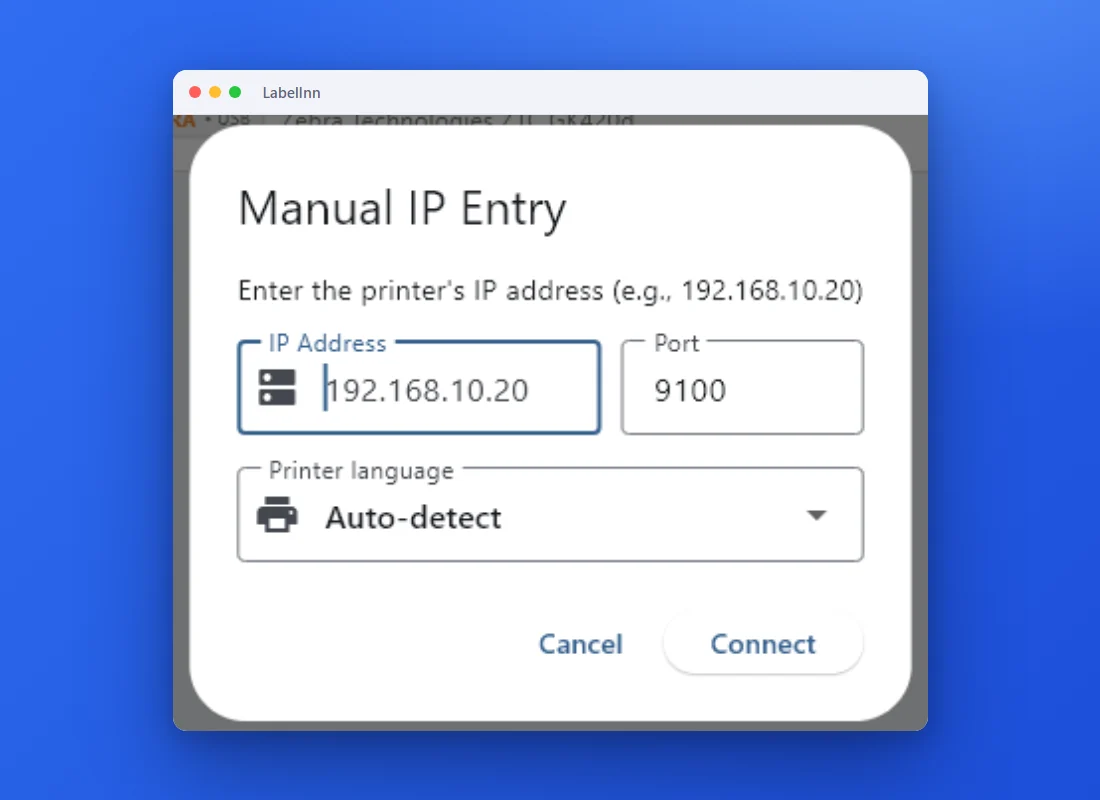
- Not listed? Add it by IP address Press Add Manual IP Address, type the printer’s address and port (9100 is filled in) and leave the language on Auto-detect unless you know it.
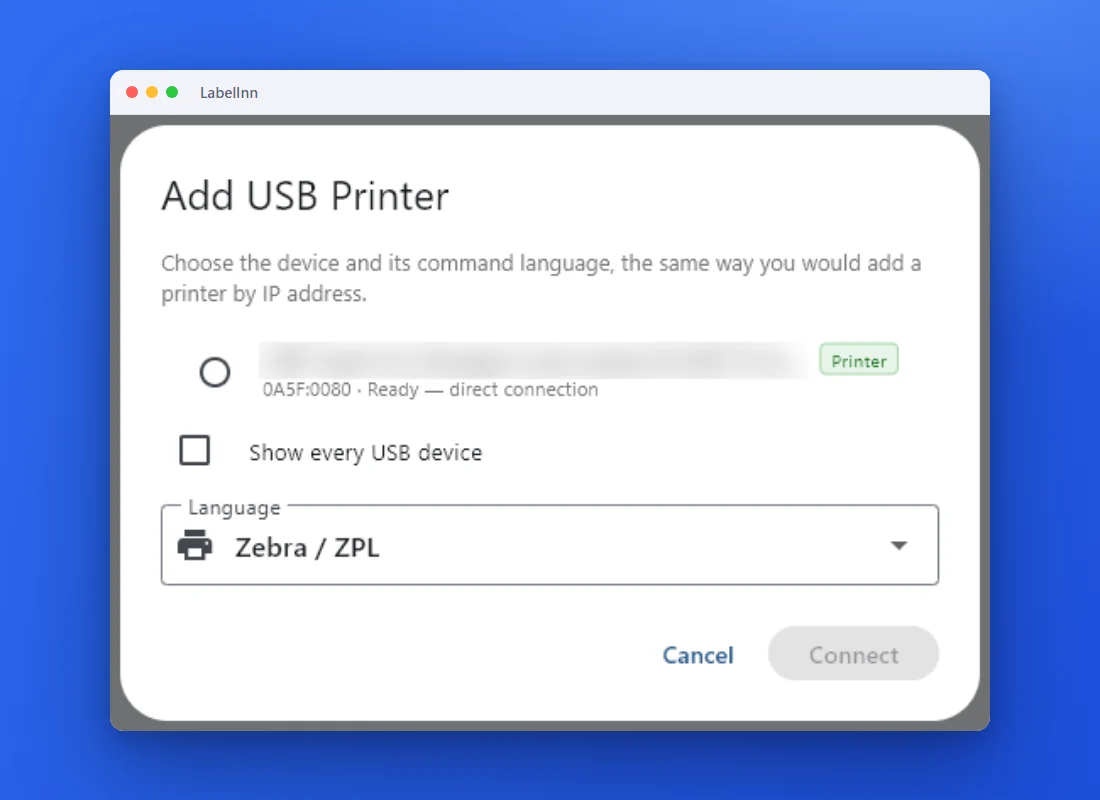
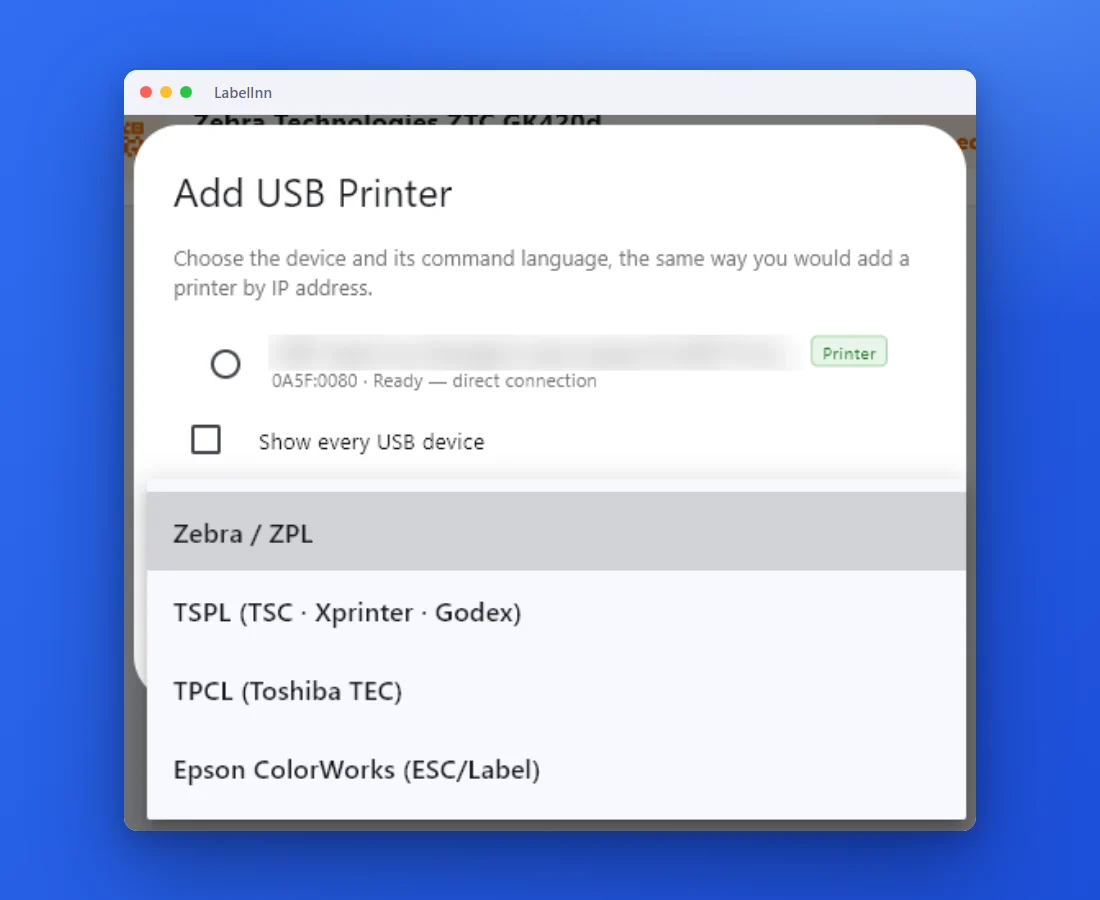
- USB printer missing? Add it as a USB printer Press Add USB Printer Manually, choose the device and its command language. “Show every USB device” lists devices that were not recognised as printers.
- Choose the right printer language ZPL for Zebra, TSPL for TSC, Xprinter and Godex, TPCL for Toshiba TEC, ESC/Label for Epson ColorWorks.
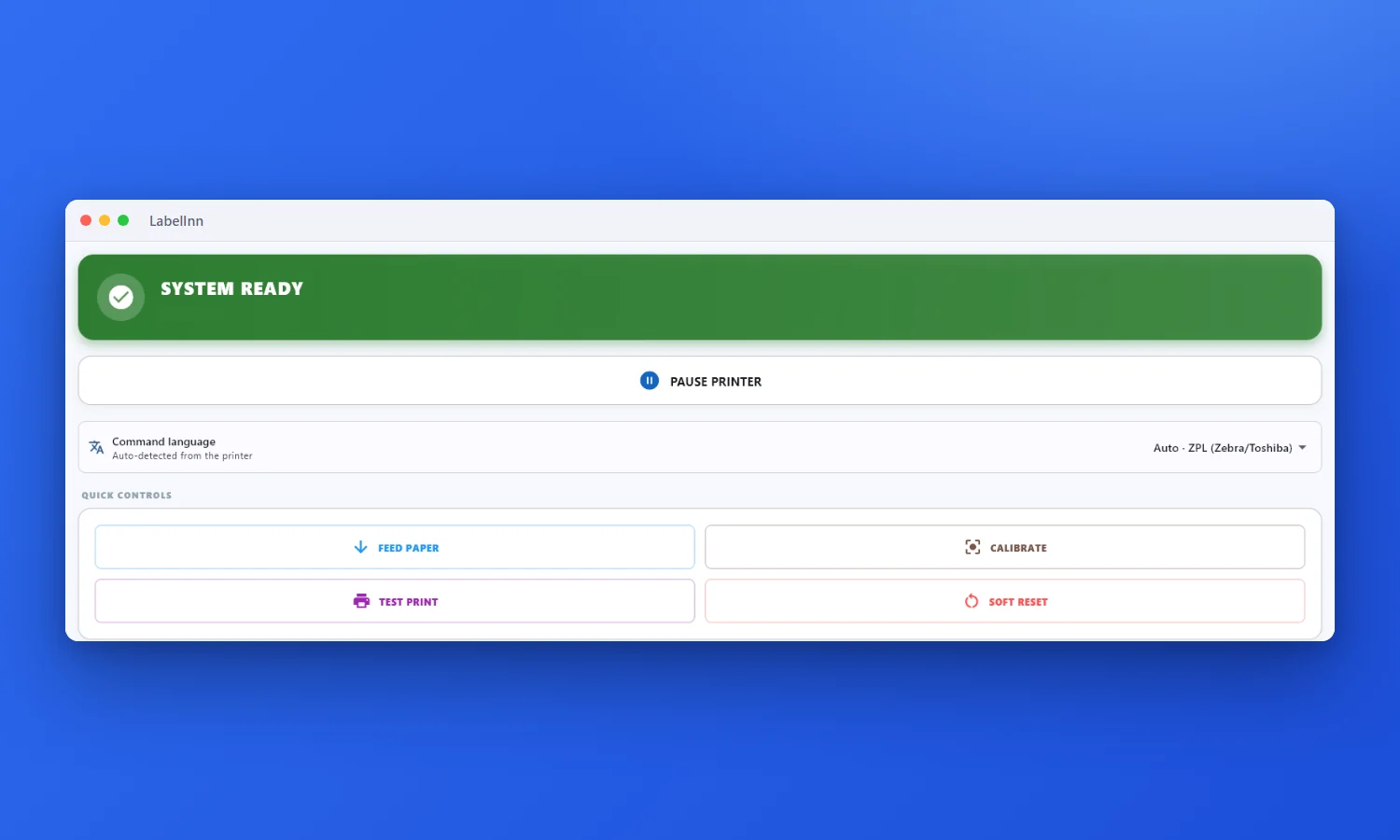
- Check it says Ready, then send a test print Open the printer’s settings: a green System Ready banner, plus Feed paper, Calibrate and Test print buttons.
WHICH LANGUAGE
Which command language does my printer use?
| Printer family | Pick this in LabelInn |
|---|---|
| Zebra | Zebra / ZPL |
| TSC, Xprinter, Godex | TSPL (TSC · Xprinter · Godex) |
| Toshiba TEC | TPCL (Toshiba TEC) |
| Epson ColorWorks | Epson ColorWorks (ESC/Label) |
Not sure? On a network printer leave the language on Auto-detect and LabelInn reads it from the printer.
FAQ
Frequently asked questions
Do I need to install the manufacturer’s driver first?
No. LabelInn talks to the printer in its own language, so you do not install a separate driver to print from the app. If you also want to print from Word or Chrome, the LabelInn printer queue handles that.
Can I connect more than one printer?
Yes. Every connected printer gets its own card and chip on the dashboard, and you choose which one to use in the print window.
Does it work with Bluetooth printers?
The Select Printer window has a Bluetooth button next to the + and the rescan button, for Bluetooth printers.
What if the scan finds nothing?
Add the printer by IP address or as a USB printer. Both take under a minute and both are shown above. If it still does not appear, see the checklist for a printer that is not found.
KEEP GOING
Related pages
NEXT STEP / LABELINN
Connect your printer and print a test label
Download LabelInn, press +, and see whether it finds your printer on the first try. · 14-day Pro trial on signup · No credit card required · Windows, macOS, Android, Web