Connect your Google account. You sign in with Google in your browser. Your Google password never reaches LabelInn.
GOOGLE SHEETS / VARIABLE DATA / THERMAL PRINTERS
Print Labels From Google Sheets, With the Sheet Kept Live
Connect a Google Sheet to LabelInn and print one label per row on Zebra, TSC, Toshiba or Epson printers. Starter plan. No CSV export: the sheet stays live.
STARTER PLAN · 14-DAY TRIAL · WINDOWS / MAC APP AND WEB DESIGNER
IN SHORT
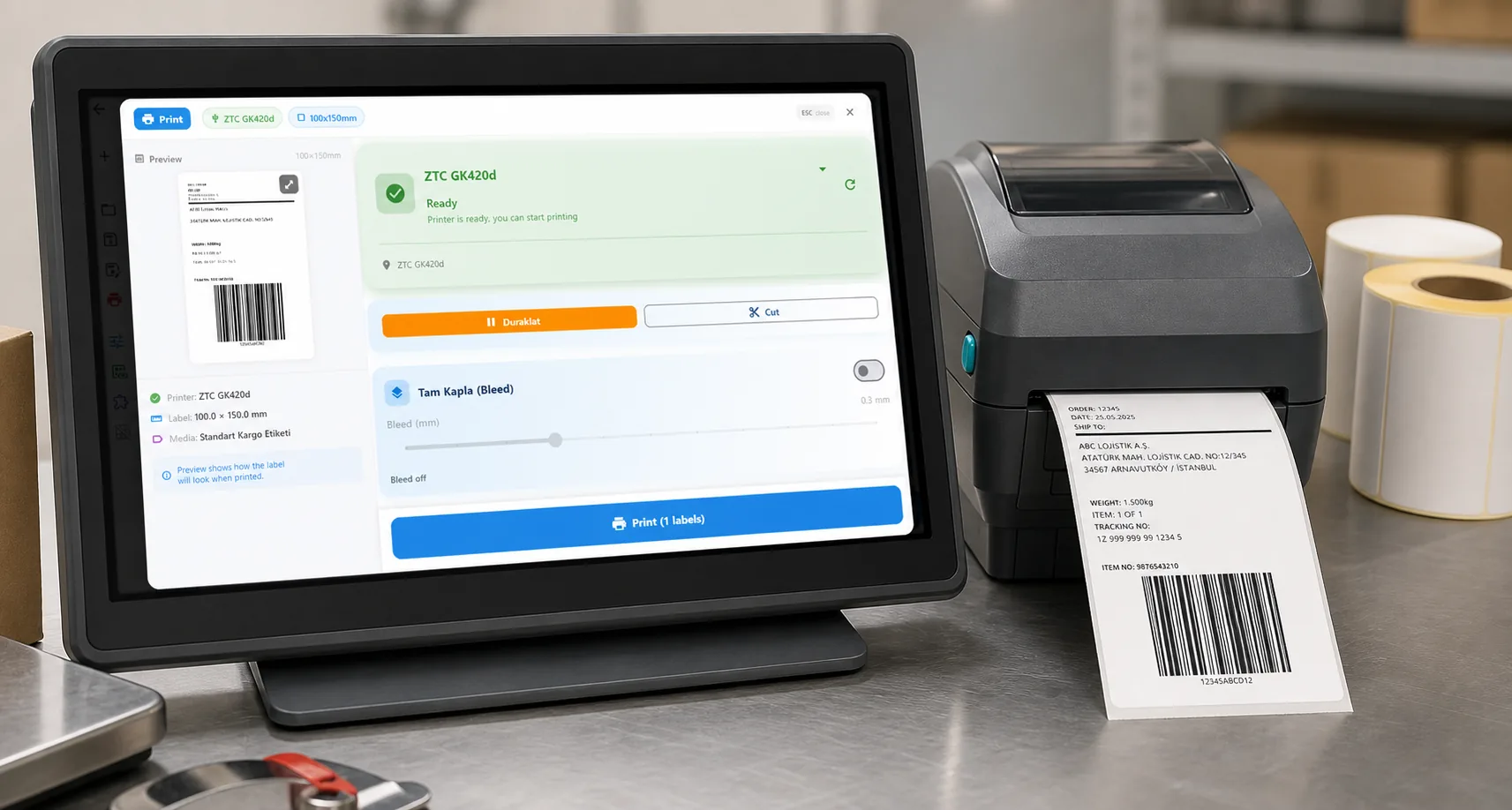
LabelInn connects to a Google Sheet and prints one label per row, with any column bound to text, a barcode or a QR code. It is part of the Starter plan and the 14-day trial, works in the Windows and Mac desktop app and in the web designer, and reads the sheet itself, so there is no CSV export to keep up to date. With a workflow, new rows can print on their own and LabelInn can write "printed" back into the row.
Lots of teams run their product list, price list or shipping list in a Google Sheet because everyone can edit it at once. The trouble starts when that list has to become labels: export to CSV, open it in label software, print, and repeat the whole thing every time someone fixes a typo. Labels end up printed from yesterday's export. If you want the step-by-step on preparing the columns, barcodes and mail merge, read the guide to printing labels from Google Sheets.
01 / GOOGLE SHEETS
How it works
Pick the spreadsheet. Choose it with Google's Drive picker, paste its link, or open a recent one. Then choose the tab, say whether the first row holds column names, and check the preview.
Bind columns to the label. Drop a column onto a text field, a barcode (Code 128, EAN, GS1-128 and others), a QR code or a Data Matrix.
Print. One label per row, straight to the thermal printer in its own language (ZPL, TSPL, TPCL or ESC/Label).
02 / LIVE DATA
How the data stays current
The design remembers which spreadsheet and tab it came from and reads them again from Google. Rows are never frozen into the design file.
| When | What LabelInn does |
|---|---|
| The design opens | Reads the sheet again (desktop app and web designer) |
| While the design is open | Checks the sheet 15 seconds after a change, slowing to once a minute while nothing changes (desktop app) |
| Sheet picked from Google Drive | Google also tells LabelInn when the file changes, so edits arrive within seconds |
| You press Refresh | Reads it on the spot |
03 / AUTOMATION
Print new rows automatically
In a workflow, a Google Sheets source can watch the sheet and print each new row as it is added.
- Watch new rows. The sheet is checked every 30 seconds by default (15 seconds at the fastest), and sooner when Google reports a change. LabelInn's server decides which rows are new and hands each one to a single PC, so a row prints once even when several PCs run the workflow.
- Mark rows as printed. After printing, LabelInn can write a value such as "printed" or the time into a column of that row, or append a line to another tab as a print log.
- Watch for new tabs. A workflow can also fire when a new tab appears in the spreadsheet.
- No-code alternative. A Google Sheets trigger in Zapier or Make with the LabelInn print action works too (see printing from Zapier).
Other ways to start the same workflow: a hot folder for files your systems export, or a database table such as Oracle or SQL Server.
04 / LIMITS
Limits and requirements
- Plan. Starter and above, and the 14-day trial. The Free plan does not include data sources. Starter runs up to two workflows; Pro has no limit. See pricing.
- Where it runs. Binding and printing from a sheet works in the desktop app (Windows and Mac) and in the web designer. Watching a sheet for new rows needs the desktop app open and signed in on at least one PC.
- Size. Up to 20,000 rows are read from a tab.
- Google access. Google asks you to allow access to your Google Sheets (so LabelInn can read cells and, if you set it up, write them) and to the files you open with LabelInn. It never asks for your whole Drive, and LabelInn only opens the spreadsheets you pick or link.
- Accounts and sharing. You can connect more than one Google account and share a connection with colleagues, with or without write access. Disconnecting an account stops the designs that use it from refreshing until it is connected again.
- Folders. LabelInn cannot watch a Google Drive folder for new files. For files, use a hot folder on a PC.
05 / FIT
Good fits
- Product and shelf labels from a shared catalogue sheet, with prices that change.
- Inventory and asset tags with a barcode or QR per row.
- Event, sample or batch labels where several people add rows during the day.
- Small e-commerce and logistics teams who keep orders or SKUs in a sheet before they have an ERP.
QUESTIONS / FAQ
Frequently asked questions
Can I print labels directly from Google Sheets?
Yes. Connect your Google account in LabelInn, choose the spreadsheet and tab, bind columns to text, barcode or QR fields, and print one label per row to a thermal printer such as a Zebra, TSC, Toshiba or Epson. It is included in the Starter plan.
Do I need to export the sheet to CSV first?
No. LabelInn reads the sheet from Google every time the design opens, and while the design is open in the desktop app it checks for changes from every 15 seconds to once a minute. A sheet picked from Google Drive also gets change notices from Google, so edits arrive within seconds.
Can a new row in Google Sheets print a label automatically?
Yes. Build a workflow with a Google Sheets source and switch on watching new rows. Each new row prints once, and LabelInn can write "printed" back into the row. The desktop app has to be open and signed in on one PC. Starter runs up to two workflows, Pro any number.
Does LabelInn get access to my whole Google Drive?
No. Google asks for access to your Google Sheets and to the files you open with LabelInn, never your whole Drive. LabelInn only opens the spreadsheets you pick or link, and your Google password never reaches LabelInn.
How many rows can I print from one sheet?
Up to 20,000 rows per tab.
KEEP GOING
Related
NEXT STEP / LABELINN
Print from the sheet your team already uses
Connect the sheet once and stop printing from yesterday's export. · Live data from Google Sheets · Barcodes, QR and Data Matrix per row · Zebra, TSC, Toshiba, Epson