Connect the data. Add a Data Source node: an Excel or CSV file, or a database table.
WORKFLOW / OPERATORS / BARCODE SCANNERS
Scan a Barcode, Get the Right Label
Scan a lot number, SKU or GTIN and print the matching label: LabelInn finds the row in your Excel file or database, fills the design and prints. Works with any USB barcode scanner.
FREE PLAN · NO CREDIT CARD · WINDOWS / MAC / LINUX / WEB
THE PROBLEM
The operator is holding a box with a barcode on it. The label it needs is somewhere in a spreadsheet or the ERP: product name, batch, expiry, net weight. Typing all of that by hand is slow and is exactly where wrong labels come from. What they want is simple: scan, check, print.
In LabelInn the scanned value is a lookup key. It is matched against a column in your data, the matching row fills the label, and the operator presses print. Nothing is retyped.
🔎 Scan the code, print the label. The data comes from your file or database, not from someone's keyboard. Start free →
01 / SCAN TO PRINT
How it works
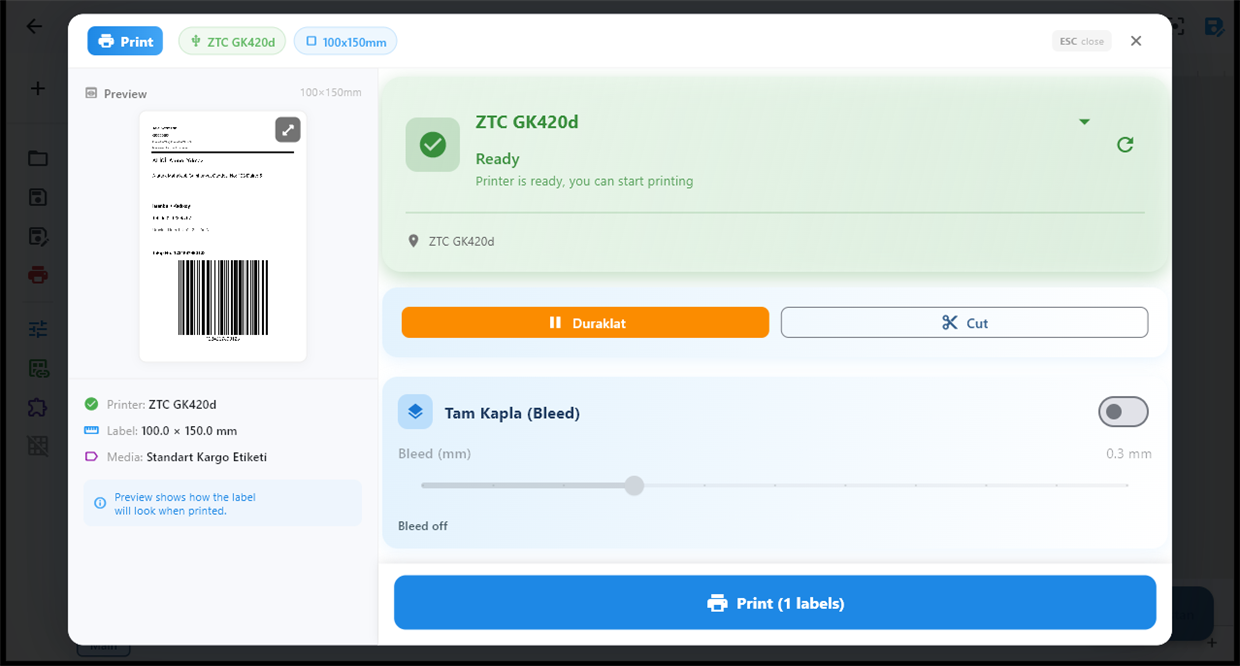
Add a Print Dialog and switch on lookup. Choose the column the scan is matched against, for example LOT_NUMBER or GTIN.
Wire the Print Dialog to a Design and a Print node. Column names fill the label's fields by name.
Scan. A USB barcode scanner types into the lookup field like a keyboard. The matching row appears, the operator checks it and prints.
02 / LOOKUP
Options operators actually need
- Several matches. If one key matches more than one row, the operator can pick several and each prints as its own label.
- Extra fields. Add fields the operator fills at print time, such as quantity or a packer's initials. Each becomes a value the label can use.
- Copies per row. Set a default number of copies for each matched row.
- Minimum key length. The lookup waits until enough characters are typed, so partial scans do not match the wrong row.
- Who may use it. Limit the dialog to named operators.
03 / PRINT DIALOG
Scanned codes that carry several values
GS1 barcodes often pack GTIN, batch and expiry into one string. A Transform node can split that string or pull parts out with a regular expression before the lookup, so a single scan fills several fields.
04 / OPERATORS
No operator? Use the Lookup node
The same matching works without a person. When a system sends only a code (for example a webhook with a GTIN), a Lookup node finds the row in your Excel catalogue or database and merges it into the record before the label prints. If nothing matches, the workflow can take a different branch, or stop with a clear error instead of printing an empty label.
05 / SCAN TO PRINT
Every scan-and-print is recorded
Each submit from the Print Dialog writes a record: who printed, which workflow, the values typed, the rows selected, copies, the device and the result. These records are append-only. See label compliance for the audit side.
06 / LOOKUP
Good to know
- Database lookups run next to the database. When the source is a database, the lookup is done by the LabelInn device on your network that can reach it.
- Want to check the printed label afterwards? See verify labels by scanning.
QUESTIONS / FAQ
Frequently asked questions
Can I scan a barcode and print the matching label?
Yes. A Print Dialog with lookup matches the scanned value against a column in your Excel file or database, fills the label from the matching row and prints it.
Do I need a special barcode scanner?
No. A standard USB barcode scanner that types like a keyboard works, because the scan goes into the lookup field.
What if the scanned code matches several rows?
The operator can select several matches, and each prints as its own label.
Can this work without an operator?
Yes. The Lookup node does the same matching inside an automated workflow, for example when a webhook delivers only a GTIN.
KEEP GOING
Related
NEXT STEP / LABELINN
Stop retyping label data
Connect your data, add a Print Dialog, and let the scanner do the typing. · Scan to look up the row · Operator fields and copies · Every print recorded