Connect your UPS Kargo account. In the Shopify panel, Shipping > Add a carrier (or on the desktop, Settings > Cargo companies). Choose the test server or your live account. "Check" tests the connection.
CARRIER INTEGRATION / BETA / SHOPIFY AND DESKTOP
UPS Türkiye Integration: Domestic Shipments With UPS Kargo
UPS Türkiye (UPS Kargo) integration (beta): domestic shipments are created with your own UPS account and the UPS tracking number prints as a barcode.
FREE PLAN · NO CREDIT CARD · WINDOWS / MAC / LINUX / WEB
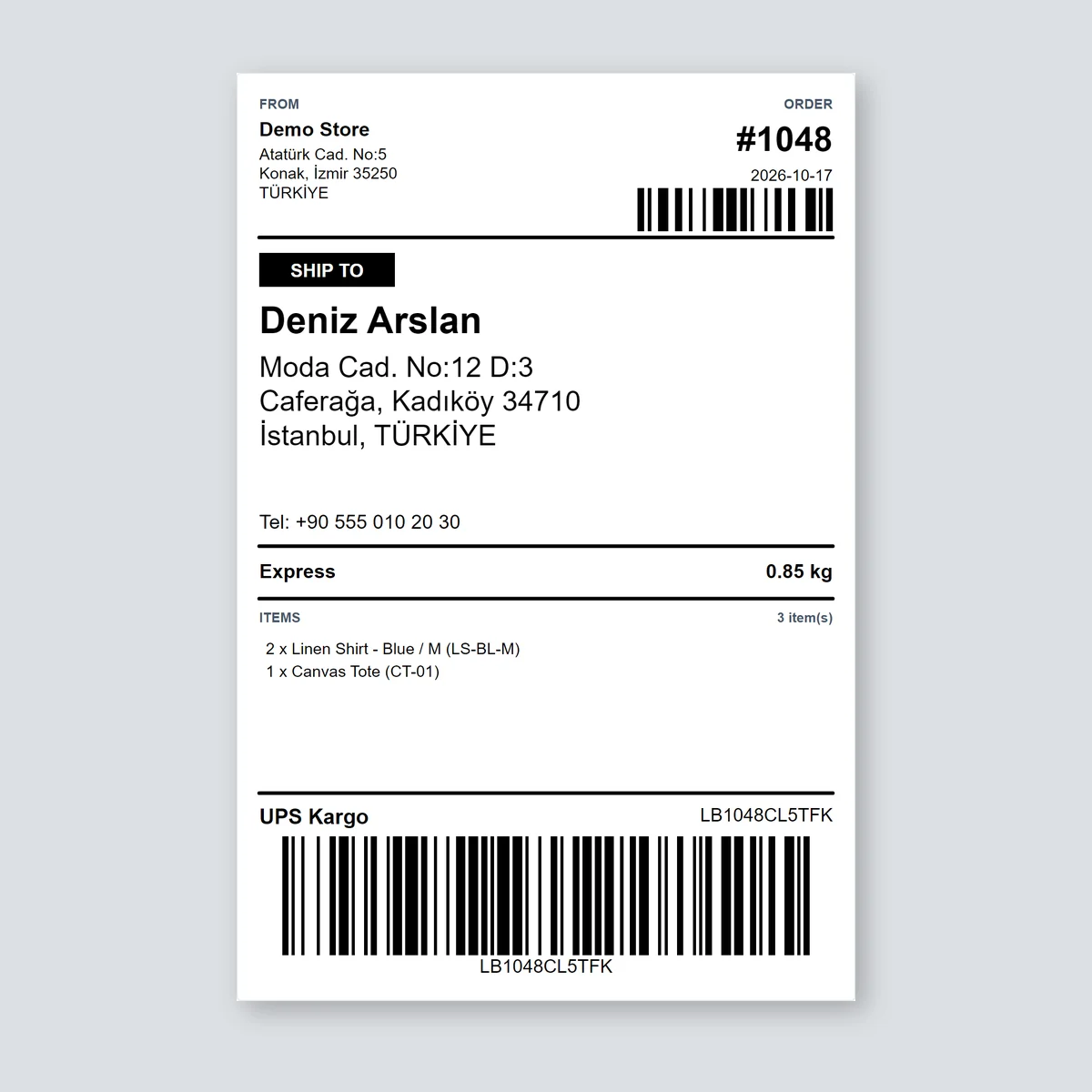
The UPS Kargo (UPS Türkiye) integration connects your own agreement with UPS Kargo to LabelInn. For every paid Shopify order the shipment is created at UPS Kargo automatically, the tracking number and the UPS Kargo barcode print on your shipping label, and the tracking number is written back to the order. You pay UPS Kargo for postage under your agreement, not LabelInn.
Beta. Checked against UPS Türkiye's test server (a wrong login is refused correctly). Create, track and cancel are not yet proven with a real UPS Türkiye account. We are proving it with the first stores that connect; if something fails, the order waits unshipped and the reason shows in the panel.
01 / ACCOUNT
What you need from UPS Kargo
A UPS Türkiye customer number with web service user name and password (from UPS Türkiye). Shipments are created under your own agreement and prices.
The connect form asks for:
- UPS customer (account) number
- Web service user name
- Web service password
- Sender name or company
- Sender address
- Sender district
- Sender province
- Sender phone (optional)
02 / STEPS
What LabelInn does, step by step
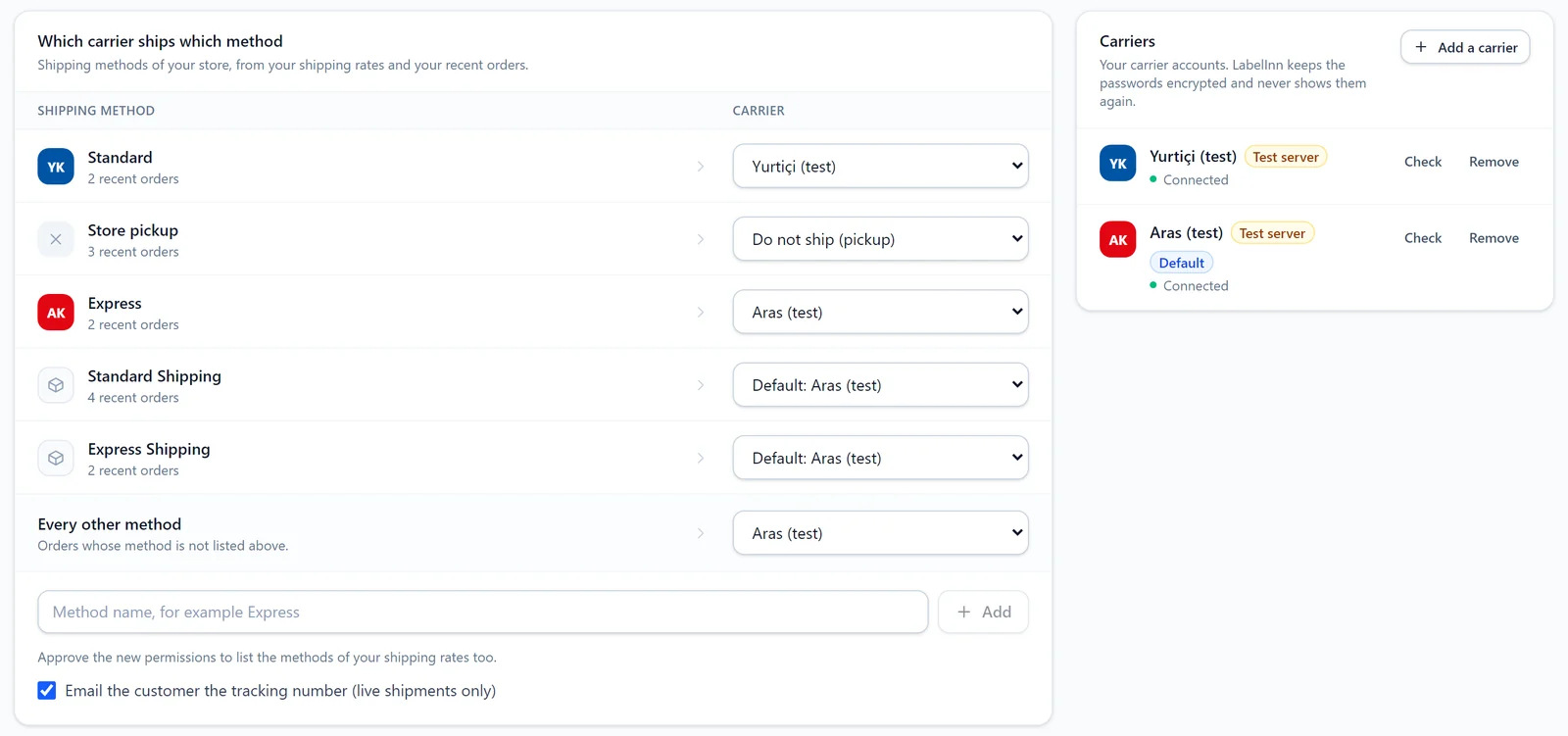
Map your shipping methods. "Standard: UPS", "Express: another carrier", "Store pickup: do not ship". Pick a default carrier for every other method.
The order is paid, the shipment is created. LabelInn sends the order's address, phone and parcel details to UPS Kargo; the shipment is created in your own account.
The label prints with the barcode. The tracking number, the UPS Kargo barcode and the carrier name fill in on your shipping label, which prints on the thermal printer you choose or on an A4 sheet.
Tracking goes back to Shopify. Once you approve the new permission, the order is marked fulfilled with the tracking number; until then the number goes into the order note.
03 / DETAILS
Details of the UPS Kargo connection
Carrier servers refuse orders over small rules. These are the ones LabelInn already handles for UPS Kargo:
- Domestic UPS. This is UPS Türkiye's domestic service (UPS Kargo), not the global UPS API. Global UPS is listed as coming.
- UPS gives the tracking number. LabelInn prints the number UPS returns as the barcode.
- An unanswered request is not resent. Because UPS picks the number, a request that got no answer is never sent again automatically; it is shown to you to check, instead of risking a second shipment.
- Address codes are built in. UPS wants the province as its plate number and the district as its own area code; LabelInn uses UPS's district list. Phones are sent as digits only.
- Sender details live in the connection: name or company, address, district, province and phone.
- Cash on delivery is not offered through this connection. Cancel and multi-piece shipments are supported.
| Feature | UPS Kargo |
|---|---|
| Cash on delivery | no |
| Cancel | yes |
| Tracking | yes |
| Multi-piece | yes |
| Barcode | UPS returns the tracking number to print as the barcode. |
| Status | Beta |
04 / LABEL
What is on the label
The label at the top of this page is drawn by the LabelInn Shopify app's 100 × 150 mm shipping template with a sample order: sender, recipient and address, shipping method, items, carrier name, tracking number and the Code 128 barcode the carrier scans. The number in the barcode is a sample; the real one is created once your UPS Kargo account is connected. The customer details are sample data.
You can change the template in the LabelInn designer, add your logo, and print on 4 × 6 in, A6 or an A4 sheet. Tracking number, cargo barcode and carrier are ready-made fields you can bind into your own design.
05 / CHANNELS
Where the UPS Kargo integration works
You set up the UPS Kargo connection once; whichever way an order comes in, it goes to the same account.
- Shopify: in the Shipping tab of the LabelInn Shopify app you map your shipping methods to carriers. Every paid order is shipped automatically and the tracking number goes back to Shopify. Shopify carrier integration →
- Desktop app: in the new version of LabelInn, Settings > Cargo companies connects, tests and sets the default for the same carrier accounts.
- Automations (coming): the same shipment step for every row from Excel, Google Sheets, a database or an API. In the automation editor the "Create a cargo shipment" step is still marked "coming soon".
06 / SECURITY
Your password and your IP address
- Passwords are stored encrypted and never shown again. Not in the panel, not in the app; to change one you enter a new one.
- Requests can leave from your own PC. If UPS Kargo whitelists an IP address for integrations, the carrier requests can be sent by your own computer with LabelInn open (new desktop version, Settings > Cargo). The carrier sees your own IP; no server IP to register.
- One order never ships twice. The key sent to the carrier is fixed per order; if a request is cut off, LabelInn first asks whether the shipment was created.
QUESTIONS / FAQ
Frequently asked questions
What do I need for the UPS Kargo integration?
An integration agreement with UPS Kargo and: UPS customer (account) number, Web service user name, Web service password, Sender name or company, Sender address, Sender district, Sender province. A UPS Türkiye customer number with web service user name and password (from UPS Türkiye).
Does the UPS Kargo barcode label print automatically?
Yes. Once the shipment exists, the tracking number, the UPS Kargo barcode and the carrier name fill in on the label and it prints on the printer you choose. UPS returns the tracking number to print as the barcode.
How do I set up a Shopify UPS Kargo integration?
Install LabelInn from the Shopify App Store, add your UPS Kargo account in the Shipping tab, map your shipping methods and turn on "Create the shipment automatically for every paid order".
Is the UPS Kargo integration ready?
It is in beta. Checked against UPS Türkiye's test server (a wrong login is refused correctly). Create, track and cancel are not yet proven with a real UPS Türkiye account. You can connect it; if something fails, the order waits unshipped and the reason shows in the panel.
Who pays for postage?
You do, under your own UPS Kargo agreement. LabelInn creates the shipment in your account; it does not resell postage.
Can an order be shipped twice by mistake?
No. The key sent to the carrier is fixed per order. If a request is cut off, LabelInn first asks whether the shipment was created, and "Try again" reuses the same key.
Can I cancel a shipment?
Yes, you can cancel the shipment from LabelInn before UPS Kargo picks the parcel up.
KEEP GOING
Related
NEXT STEP / LABELINN
Create UPS Kargo shipments from your orders
Connect your own UPS Kargo agreement; paid orders are shipped and the label prints with the barcode. · Your own carrier agreement · Barcode on the label · Tracking back to Shopify