DESIGN / SYMBOLS
Add GHS hazard symbols to a label
The pictograms are one element on the label, picked from a catalogue. Here is the whole path from the add menu to a finished hazard label.
THE PROBLEM
Hazard pictograms pasted in as pictures drift out of line
Pasted images get resized by eye and swapped by hand. A symbol element keeps the pictograms together and lets you change them from a list.
THE FIX
Step by step
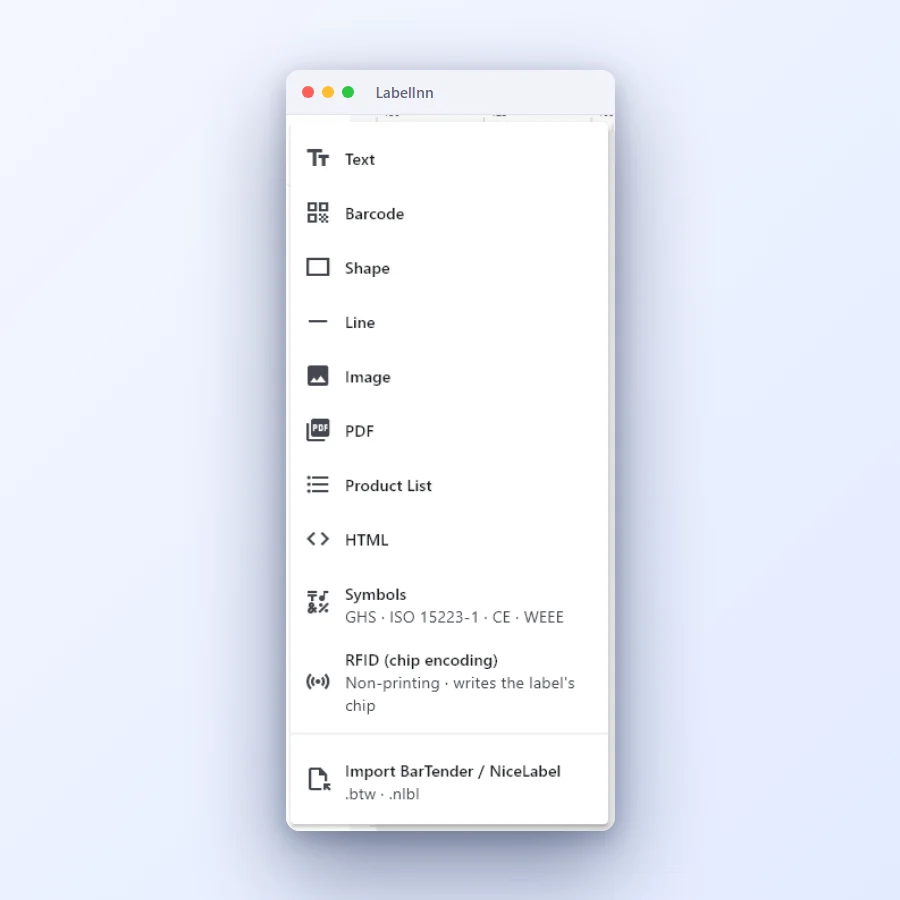
- Choose Symbols in the add menu The + menu lists Symbols with the line “GHS · ISO 15223-1 · CE · WEEE” underneath.
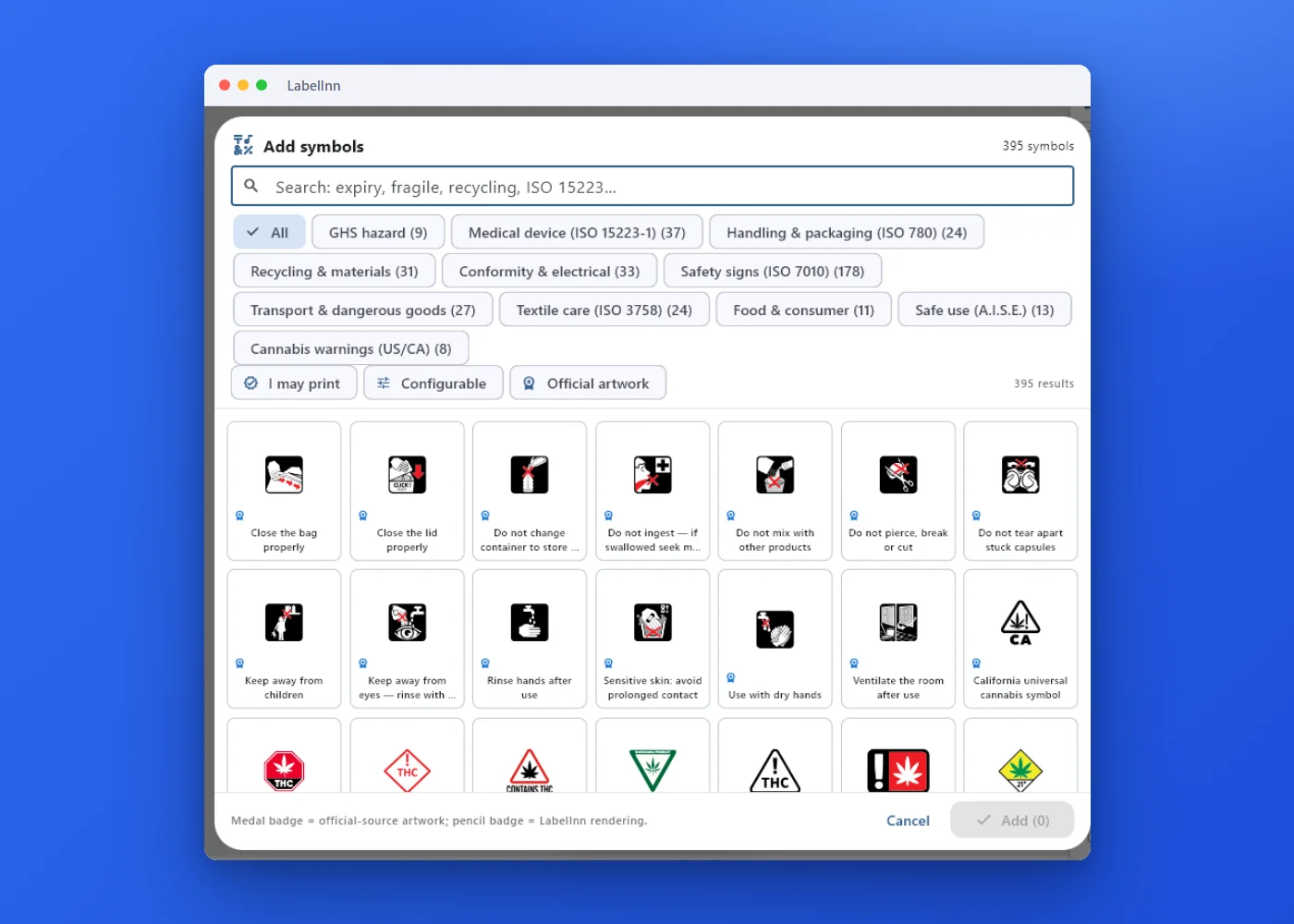
- Browse the catalogue Add symbols shows 395 symbols, with filters for GHS hazard, Medical device (ISO 15223-1), Handling and packaging (ISO 780), Safety signs (ISO 7010), Textile care and more. A search box finds one by name.
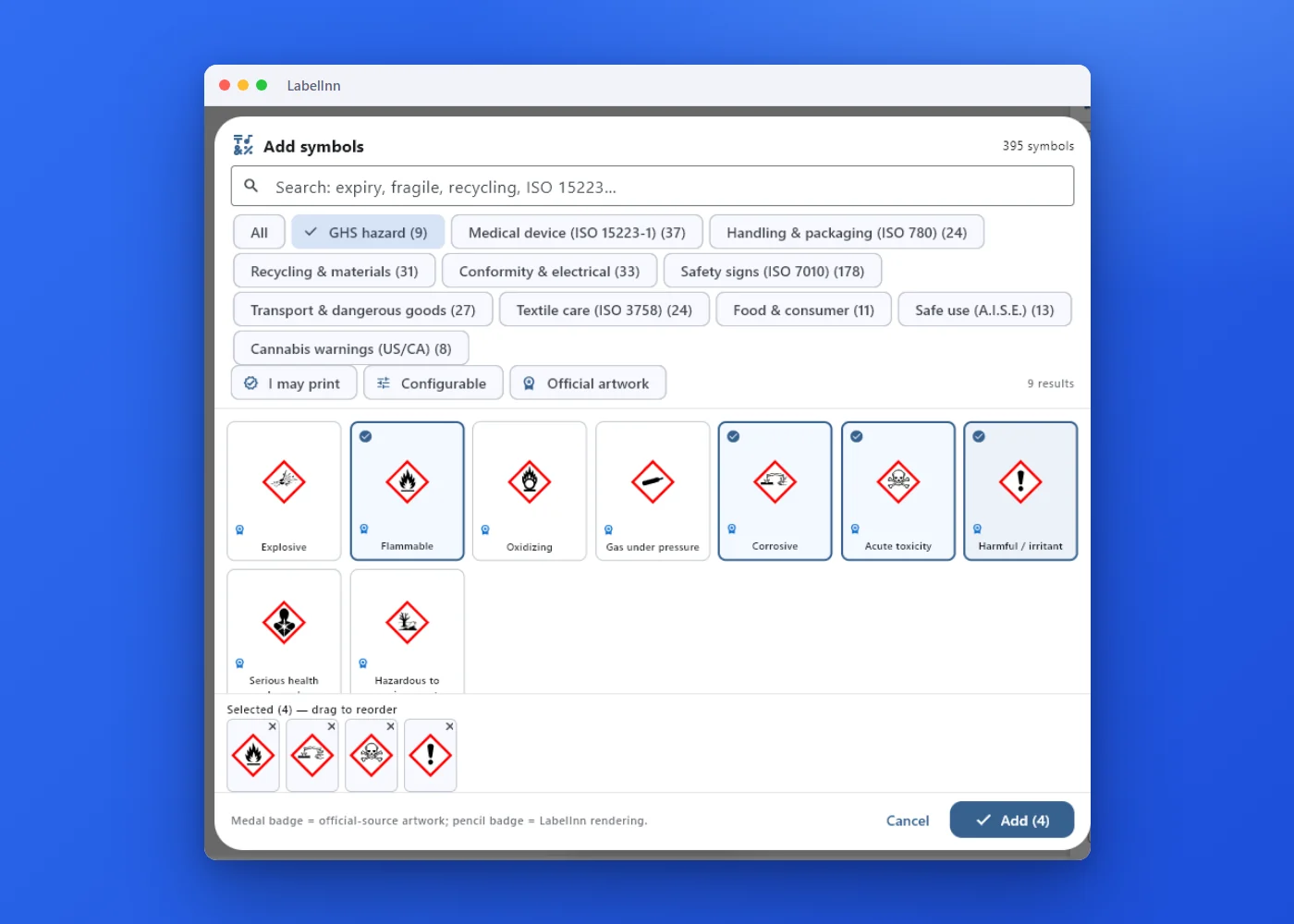
- Filter to GHS hazard and tick the pictograms The nine GHS pictograms are listed with their names. Tick the ones your product needs and press Add.
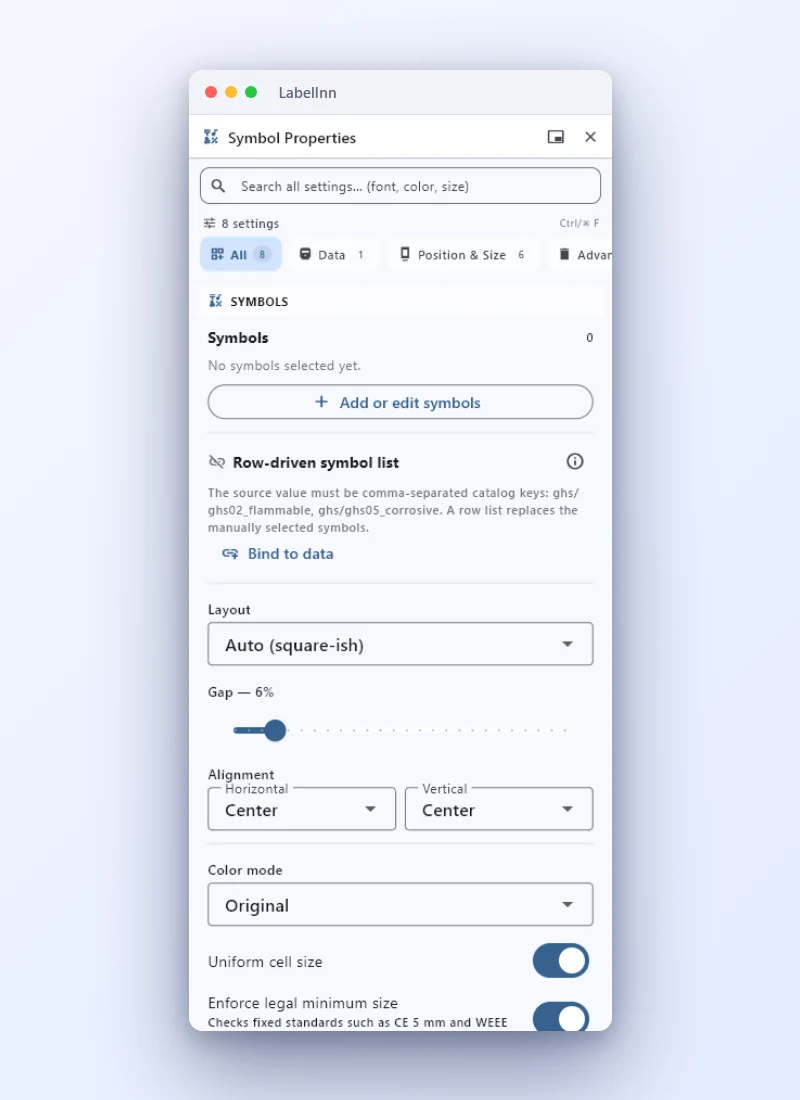
- Set the layout and the size rules In the element’s settings choose row, column or grid, the gap, the alignment and the colour mode, and switch on the legal minimum-size check.
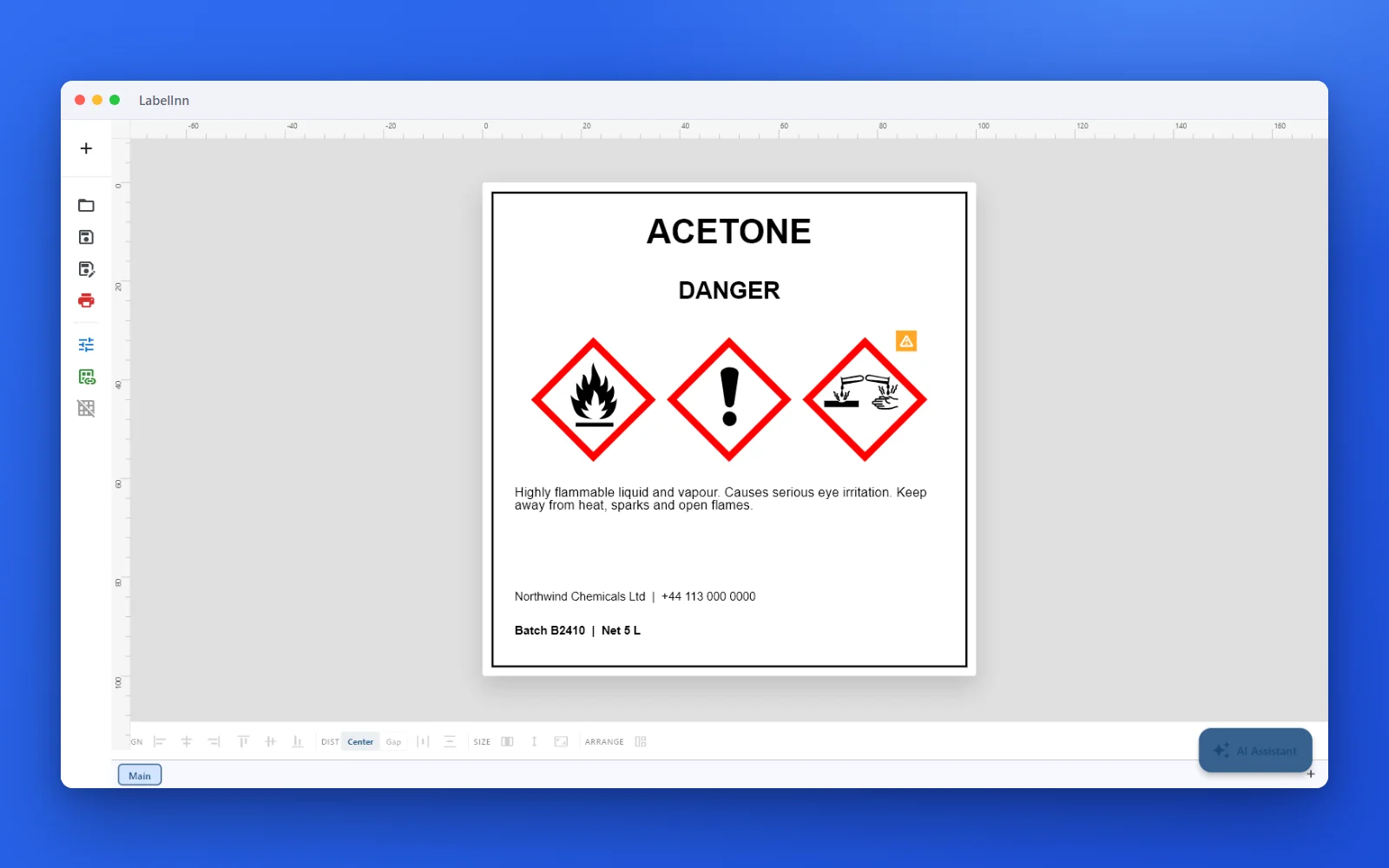
- Finish the label Product name, signal word, the pictograms, statements and supplier details on a 100 × 100 mm label.
FAQ
Frequently asked questions
Which GHS pictograms are in the catalogue?
Explosive, Flammable, Oxidizing, Gas under pressure, Corrosive, Acute toxicity, Harmful / irritant, Serious health hazard and Hazardous to environment.
What do the small badges on a symbol mean?
The catalogue says: medal badge = official-source artwork; pencil badge = LabelInn rendering.
Can I use a symbol that is not GHS?
Yes. The same catalogue has ISO 15223-1 medical symbols, ISO 7010 safety signs, textile care, recycling, food and consumer, transport and others.
Can I change the pictograms later?
Yes. Open the element’s settings and use Add or edit symbols to change the list.
KEEP GOING
Related pages
NEXT STEP / LABELINN
Build a hazard label from the catalogue
Download LabelInn and add the pictograms by ticking them. · 14-day Pro trial on signup · No credit card required · Windows, macOS, Android, Web