PRINT / PDF AND IMAGES
Print a PDF or an image on a label printer
Open the file, check it sits on the right label size, press Print. No label design needed.
THE PROBLEM
The label arrives as a PDF, and your printer has a roll
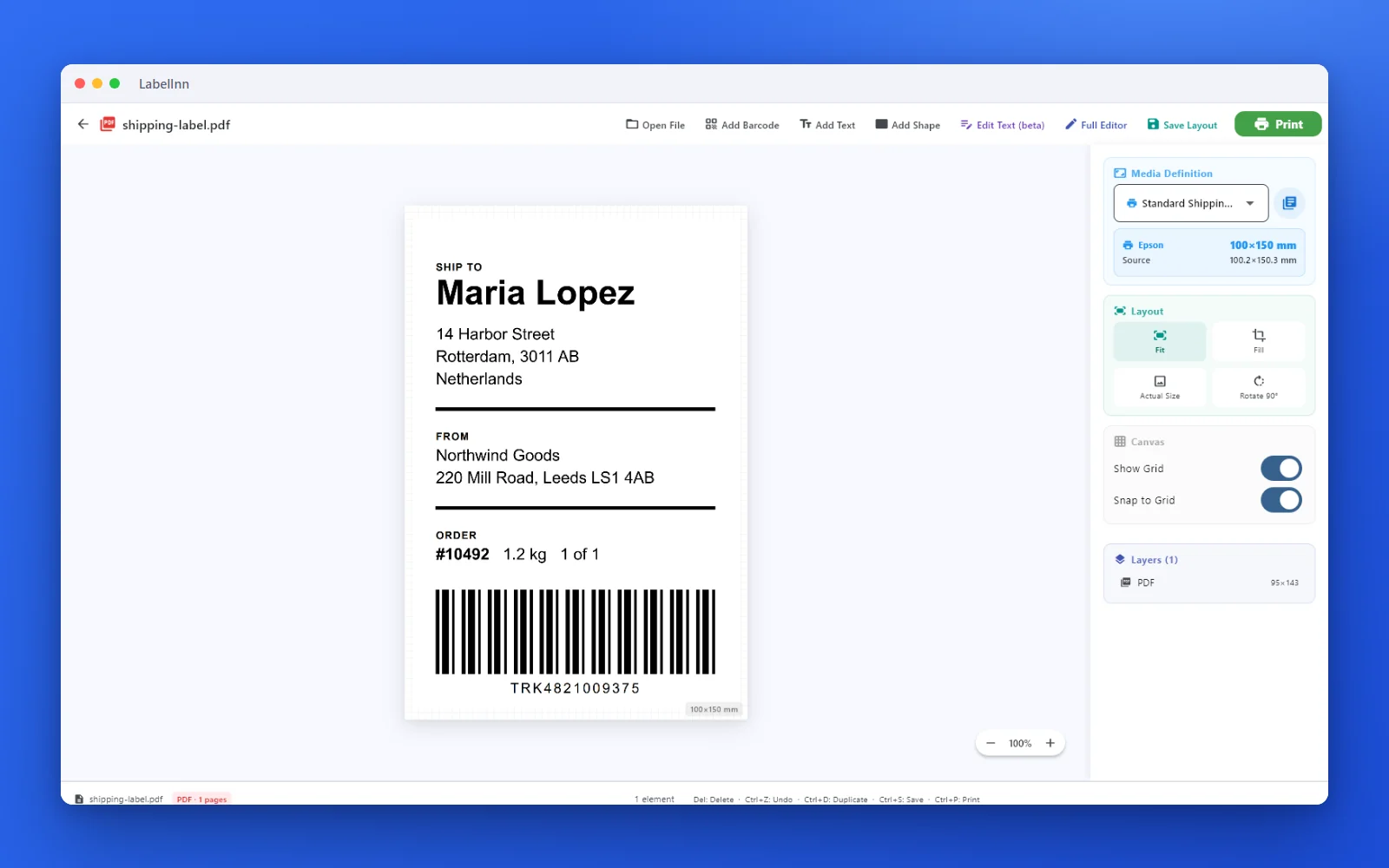
A PDF is made for a page; a label printer prints on a roll of a fixed size. Direct PDF Print puts the file on your label size and shows what will print before it prints.
THE FIX
Step by step
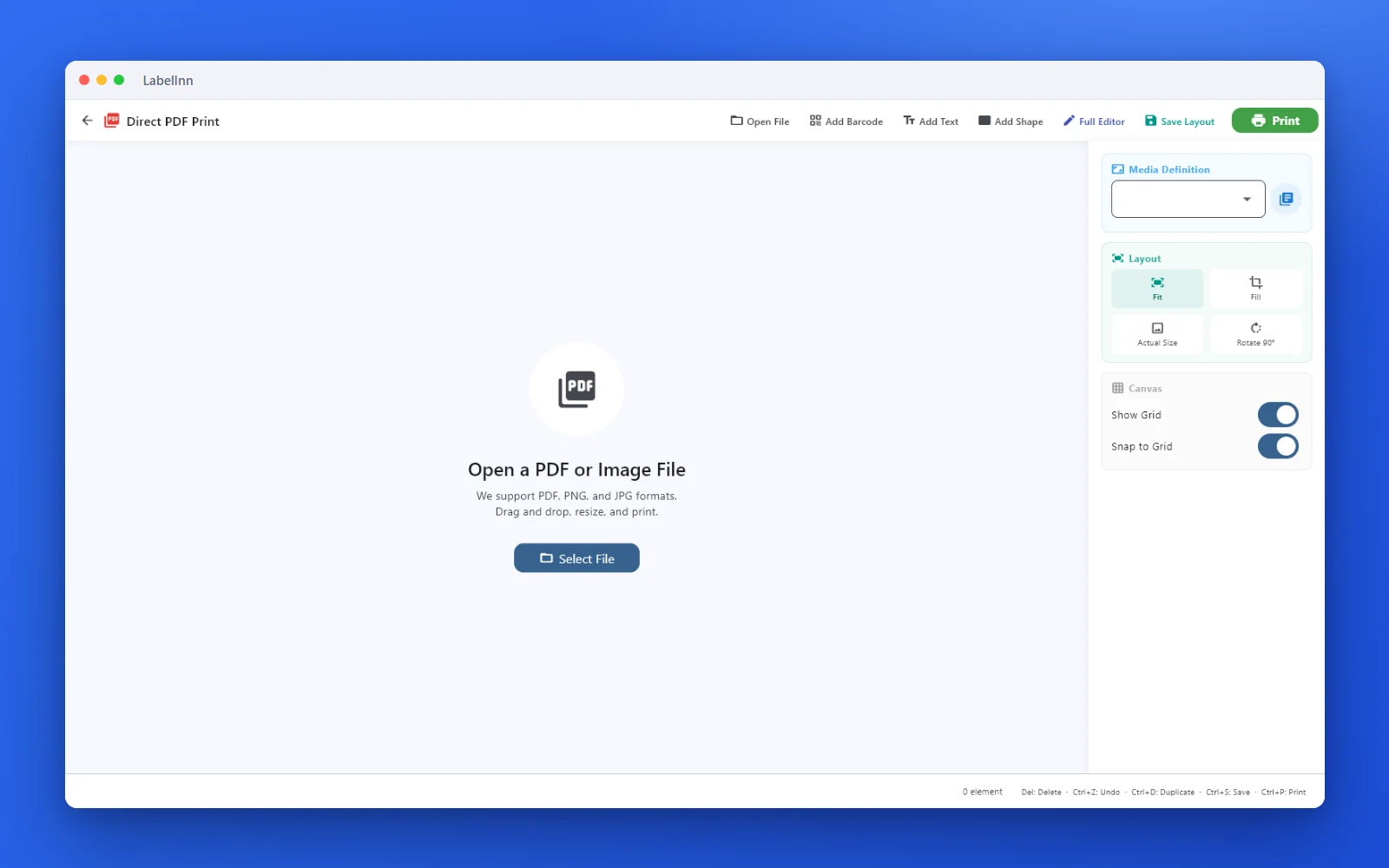
- Open Direct PDF Print On the dashboard choose PDF / Image. The screen says “We support PDF, PNG, and JPG formats” and has one button: Select File.
- Select the file and check the label size The file opens on a page the size of your label. Under Media Definition LabelInn shows the label it matched and the size of the source, here 100×150 mm for a 100.2×150.3 mm PDF. Use the list to pick a different media.
- Choose how it sits on the label The Layout panel has Fit, Fill, Actual Size and Rotate 90°. The toolbar adds a barcode, text or a shape on top of the file.
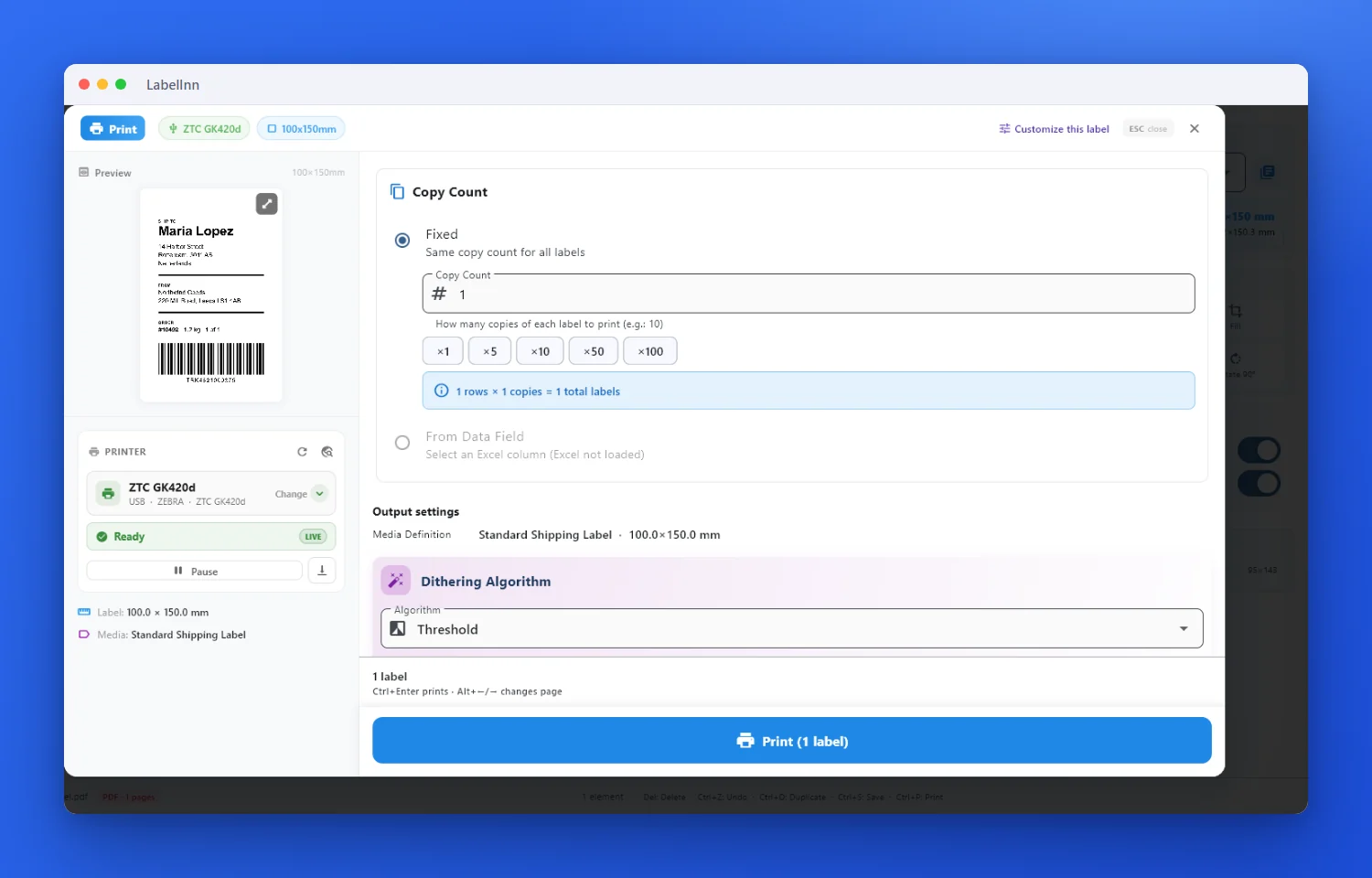
- Set the number of copies and print Print opens a preview with the printer, its status, the copy count (×1, ×5, ×10, ×50, ×100) and the total number of labels. The button at the bottom says how many labels it will print.
FAQ
Frequently asked questions
Which file types can I open?
PDF, PNG and JPG.
Does it pick the label size by itself?
It selects the media that matches the file and shows both sizes side by side. If it picked the wrong one, choose another from the Media Definition list.
Can I add a barcode or a line of text to the PDF?
Yes. Add Barcode, Add Text and Add Shape in the toolbar place them on top of the file before you print.
Can I save the arrangement for next time?
There is a Save Layout button in the toolbar, and a Full Editor button if you want the whole design toolset.
KEEP GOING
Related pages
NEXT STEP / LABELINN
Print the PDF you already have
Download LabelInn, open the file and print it on your label size. · 14-day Pro trial on signup · No credit card required · Windows, macOS, Android, Web